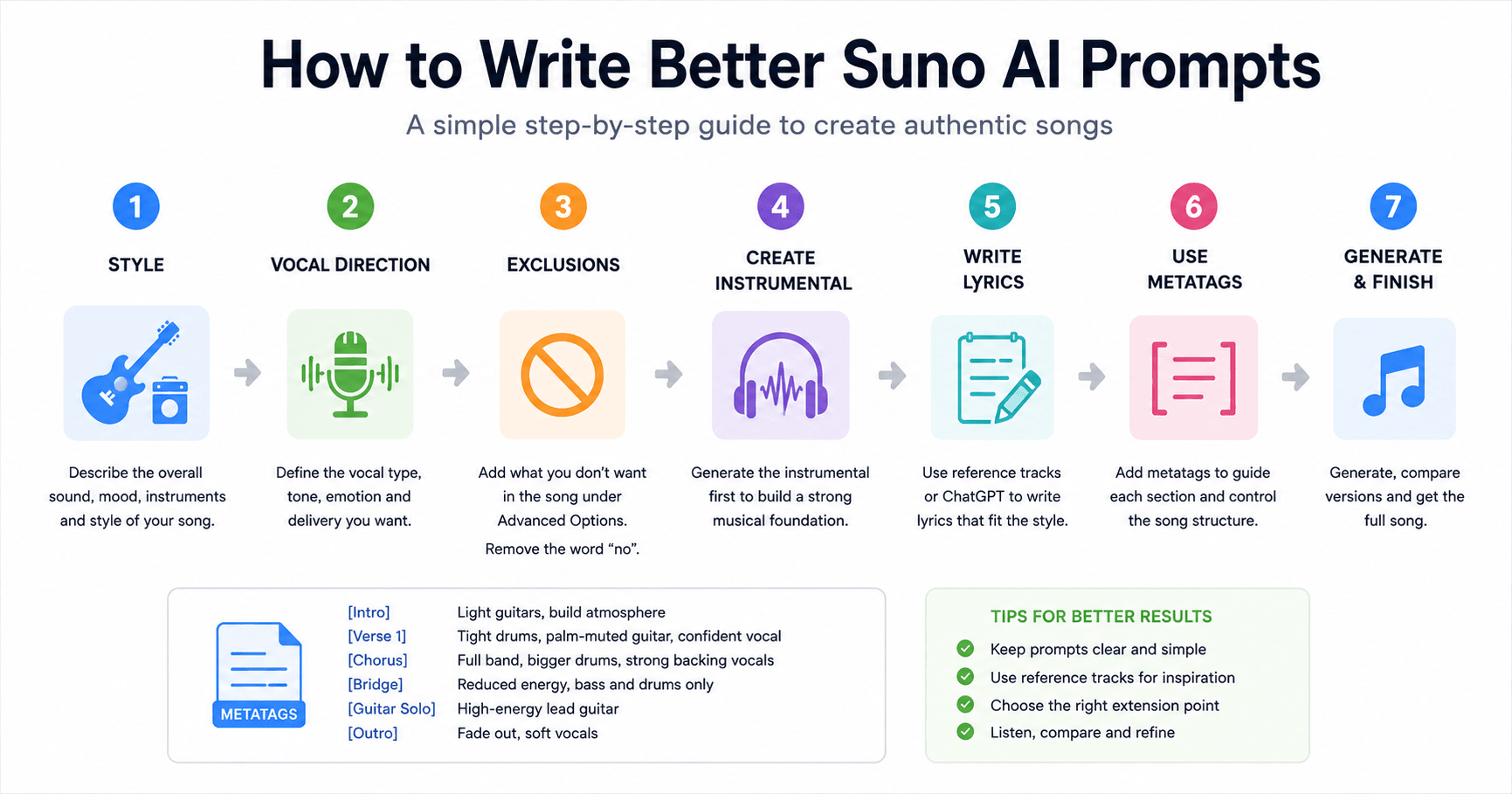

Suno AI can create impressive songs from simple text prompts, but the quality of the final result depends a lot on how you guide the tool. A weak prompt may generate a generic song. A clear prompt, with the right structure, can help Suno create music that sounds more authentic, organized, and close to the style you want.
One useful method is to build your prompt in three parts: style, vocal direction, and exclusions. This gives Suno a stronger foundation before you even add lyrics.
Start With the Style
The first part of a good Suno prompt is the style. This is where you describe the sound of the music.
A simple way to do this is by thinking about a band, artist, or genre that represents the type of song you want to create. Then, instead of copying the artist directly, listen to the music and identify a few common characteristics.
For example, you can pay attention to:
The rhythm of the songs
The energy of the drums
The type of guitars or synths used
The mood of the music
The way the vocals are delivered
The structure of the chorus
The overall production style
The goal is not to tell Suno to copy an artist. The goal is to understand what makes that style recognizable and describe it in your own words.
Simple descriptions usually work better than complicated ones. A prompt like “high-energy classic rock, driving guitars, powerful drums, confident male vocal, anthemic chorus” can be more useful than an overloaded prompt with too many disconnected ideas.
Add Vocal Direction
The second part of the prompt is the vocal description.
This tells Suno how the singer should sound. You can describe the gender, tone, attitude, vocal range, and emotion.
For example:
“Confident male vocal, gritty tone, energetic delivery, strong rock-and-roll attitude.”
This type of instruction helps Suno understand not only the genre, but also the personality of the performance.
A good vocal prompt can make the difference between a flat song and a track that feels more alive.
In Suno, you can also paste the vocal description into the lyrics box using square brackets. This works like an instruction for the performance.
For example:
[Confident male vocal, gritty tone, full of swagger]
This tells Suno how the vocals should feel when the lyrics begin.
Use Exclusions Correctly
The third part is exclusions.
Exclusions tell Suno what you do not want in the song. This is useful when you want to avoid certain sounds, instruments, or styles.
For example, if you want a rock song without electronic elements, you might exclude:
synth-pop
EDM drops
auto-tuned vocals
trap drums
When adding exclusions in Suno’s advanced options, it is important to remove words like “no.” Instead of writing “no EDM,” write only “EDM.” This helps the exclusion work more correctly.
After adding exclusions to the advanced options, remove them from the main style box so the prompt stays clean.
Create the Instrumental First
A strong workflow is to create the instrumental before adding lyrics.
Start by placing your style prompt in the style box. Leave the lyrics box empty so Suno focuses on generating the instrumental. Then click create and listen to the versions it generates.
This gives you a musical foundation before writing the full song. Once you hear the instrumental, you can decide which version has the best energy, rhythm, and mood.
After choosing a track, you can extend it and add small vocal moments, such as a yell, phrase, or intro line.
For example, if you want a confident rock yell, you can add something like:
[High male vocal yell, full of swagger]
OH YEAH!
Using capital letters and punctuation can help emphasize the delivery. You can also choose where the extension should begin so the vocal moment enters at the right time.
After generating the extension, use the “Get Full Song” option to combine the new part with the original instrumental.
Write Lyrics Based on Reference Tracks
Once the instrumental is ready, the next step is writing lyrics that match the style.
A helpful method is to study reference tracks. Listen to songs in the same genre and look for common patterns in the lyrics.
Ask yourself:
Are the lyrics simple or poetic?
Are they emotional, rebellious, romantic, or energetic?
Do the choruses repeat strong phrases?
Are the verses story-based or image-based?
Is the language direct or more abstract?
You can also use ChatGPT to help create a first draft. Give it the style, song title, and emotional direction. Ask it to write lyrics inspired by the structure and energy of the reference tracks, but with an original idea.
The lyrics should not feel like a copy. They should use the same type of energy while creating something new.
After getting the draft, edit it with your own words, feelings, and details. This makes the song more personal and less generic.
Add Lyrics to the Instrumental
After writing the lyrics, go back to Suno and open the instrumental track. Use the extend option and paste the lyrics into the lyrics box.
At this stage, you are combining the instrumental with the full vocal performance.
But before generating the song, it helps to add metatags.
Use Metatags to Control the Song
Metatags are instructions written inside square brackets. They tell Suno what should happen in each section of the song.
For example:
[Verse 1, tight drums, palm-muted guitar, confident vocal]
[Chorus, full band, bigger drums, strong backing vocals]
[Bridge, reduced energy, bass and drums only]
[Guitar solo, high-energy lead guitar]
Metatags help connect the lyrics with the instrumental arrangement. Instead of giving Suno one big block of text, you guide each section of the song.
A good way to create metatags is to describe what the main instruments are doing in each part:
What is the bass doing?
What is the guitar doing?
What are the drums doing?
How should the vocal feel?
Should the energy rise or fall?
This gives Suno more direction and helps the track feel more intentional.
Extend From the Right Moment
When adding lyrics to an instrumental, timing matters.
If you already added an intro yell or musical phrase, choose an extension point after that section. This prevents Suno from rewriting the part you already like.
For example, if the intro vocal happens around the first few seconds and the main song should begin later, you can set the extension point around the moment where the full song should start.
Then remove any old temporary commands that are no longer needed, such as the original yell instruction, before generating the full vocal version.
Generate, Compare, and Finish
Suno usually generates two versions. Listen to both and choose the one that works better.
Pay attention to:
How well the vocals match the instrumental
If the lyrics are clear
If the chorus feels strong
If the energy builds naturally
If the metatags worked correctly
If the song sounds authentic
Once you choose the best version, use the three-dot menu and select “Get Full Song.” This combines the extension with the original instrumental and gives you the complete track.
Final Thoughts
Writing better Suno AI prompts is not about making the longest prompt possible. It is about giving the tool the right information in the right order.
A strong workflow looks like this:
Create a style prompt
Add vocal direction
Use exclusions
Generate the instrumental first
Add small vocal details if needed
Write lyrics based on reference tracks
Use metatags for structure
Extend from the right point
Generate, compare, and finish the full song
This method helps Suno create songs that feel more authentic and complete. Instead of relying only on random generations, you guide the process like a producer.
The more you practice, the better your prompts become. Start simple, listen carefully, adjust your instructions, and build your own prompt system over time.







评论0
请登录后发表评论。