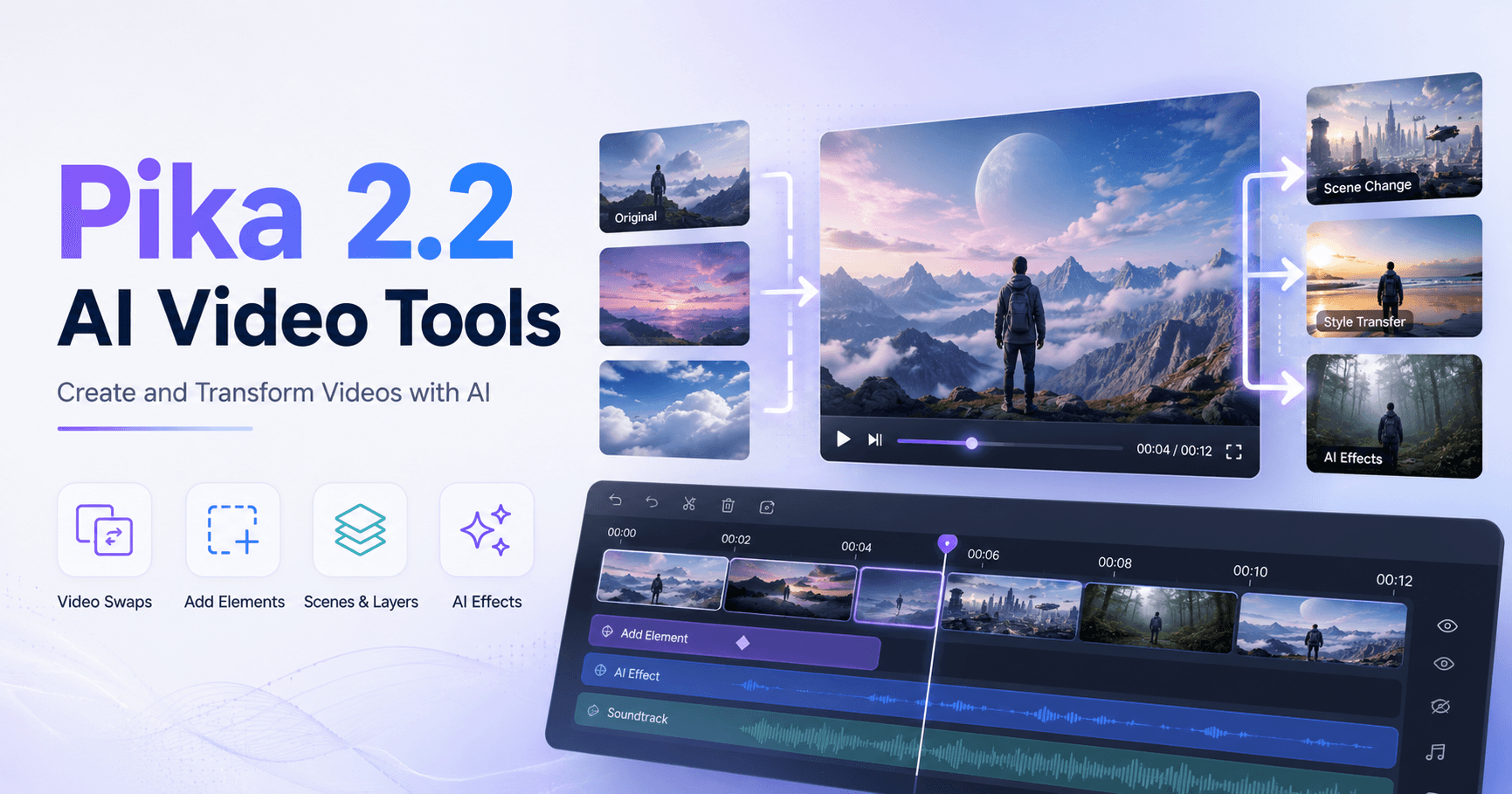

Pika 2.2 is one of the most interesting artificial intelligence tools for anyone who wants to create, edit, and experiment with videos using simple commands. Its purpose is not only to generate videos from scratch, but also to transform existing videos, replace elements, add objects, create scenes with references, and apply ready-made effects.
In practice, it works as a creative tool for quickly testing visual ideas. You can take a simple video, write what you want to change, and let the AI try to adapt the scene. The result will not always be perfect on the first try, but some features show a strong level of control for AI video creation.
PikaTwists: Changing Videos with Prompts
One of Pika’s first tools is PikaTwists. With it, you upload a video and write an instruction describing what you want to transform.
For example, you can ask a car to change colors several times, make a van catch fire, or even add flying whales in the sky while someone is riding a motorcycle.
The interesting part is that Pika tries to keep the original video while modifying the scene based on your prompt. However, the results can vary a lot. In some cases, the change may look artificial, like a poorly applied filter. In others, the AI understands the movement, depth, and lighting much better.
One of the most successful examples was changing the pattern of a dress. The tool managed to follow the camera movement, respect the person’s hand in front of the fabric, and even adapt part of the lighting. This type of result shows where Pika can be very useful: small visual changes that would be difficult and time-consuming to do manually.
PikaSwaps: Replacing Elements in a Video
PikaSwaps is one of the most powerful tools in Pika 2.2. The idea is to replace a specific element in a video with something else.
You can, for example, change someone’s shirt, replace a cigarette with another object, or turn a van into a giant burger.
The main advantage here is control. Instead of changing the entire scene, you can indicate exactly what you want to replace. In some cases, the tool also allows you to use a reference image, which helps the AI better understand the desired object.
Simple results tend to work better when the object is clearly defined. Replacing a van with a burger, for example, can work very well because the main object is large and easy to identify. Changing a shirt, on the other hand, can cause problems if nearby items have similar colors, such as a phone being confused with the clothing.
Even with small mistakes, PikaSwaps stands out because it can preserve the original movement of the scene. This makes it possible to create different versions of the same video by changing characters, clothes, objects, or even the background.
Changing the Background and the Character
Another interesting use of PikaSwaps is changing larger parts of a scene. Instead of replacing only a small object, you can replace the entire background or even the main character.
For example, you could take a video of someone dancing and replace the background with a beach. The AI tries to preserve the person’s movement while recreating the environment around them. In another test, the character was transformed into a futuristic cyberpunk ninja robot.
This type of feature is very useful for videos with fast cuts. You can use the same movement several times and create different versions of the character, such as a robot, a warrior, a monster, or any other visual idea. Then, you only need to edit the cuts together to create a transformation effect.
For content creators, this opens space for more creative short videos, especially for social media, music clips, ads, and experimental content.
PikaAdditions: Adding New Elements
PikaAdditions works differently. Instead of replacing something that already exists, it adds a new element to the video.
You can upload a video and ask the AI to insert whales in the sky, a falcon on someone’s shoulder, or a panda joining a photoshoot.
This feature can be very good when the added element fits well into the scene. In the panda example, the result looked convincing at first glance, as if the animal was really there. However, in other tests, the AI had trouble placing the object correctly, such as the falcon that was supposed to be on the shoulder but ended up landing on the hair.
The lesson here is simple: the clearer the prompt, the better. Instead of saying only “place a falcon on the shoulder,” it may be better to specify “place a small falcon resting on the right shoulder, on top of the blue shirt.” Details help the AI understand the position more accurately.
Selfies: Creating Videos with a Younger Version of Yourself
The Selfies tool is an interesting variation of PikaAdditions. The idea is to add a younger version of a person to the video, as if they were interacting with their past self.
You can use a reference photo and a video to generate a scene where the person appears together with a younger version of themselves.
This feature can be used for emotional videos, creative campaigns, nostalgic content, or personal storytelling. The results may still have small interaction issues, but the idea is very interesting for anyone who wants to create videos with emotional appeal.
PikaScenes: Creating Videos with Image References
PikaScenes allows you to create a video using one or more reference images. You upload the images, describe the scene, and the AI tries to combine everything into a new video.
For example, you can upload an image of a man sitting on a bench and an image of a panda, then ask: “man and panda sitting together on the bench.”
This feature seems to work better when the goal is to combine references into a new scene instead of modifying an existing video. In some cases, PikaScenes delivers more consistent results than PikaAdditions, especially when two or more images need to be part of the same composition.
You can also use multiple references, such as a panda, a dog, and a burger, and ask the AI to create a scene with all of them. Depending on the images, the result may look more realistic or more cartoonish.
PikaFrames: Transitioning Between Two Images
PikaFrames is a transition tool. You send a starting image and an ending image, and Pika tries to create a video that connects the two.
For example, you can start with a cup of coffee and end with a burger, using a transition where the object spins and transforms.
This type of feature already appears in several AI video tools, but Pika can generate relatively smooth transitions. It works best when the two images have similar shapes. When the images are very different, the AI tries to improvise the transition, but the result may look strange.
Even so, it can be useful for short videos, intros, creative posts, and transformation effects.
PikaAffects: Ready-Made Effects for Images
PikaAffects is a simpler and more playful tool. It works with ready-made effects. You upload an image and choose an effect, such as turning something into cake, making an object explode, squashing it, tearing it apart, or applying a specific style.
The advantage is that it is easy to use. The downside is that it does not offer as much control. The effect will be applied in a similar way to any image you upload.
Because of that, PikaAffects is more useful for quick content, memes, fun videos, and visual experiments. For more customized work, tools like PikaSwaps, PikaScenes, and PikaAdditions offer more freedom.
What Does Pika 2.2 Do Best?
The biggest strength of Pika 2.2 is the control it gives over existing videos. Many AI tools can generate beautiful videos, but they do not always allow you to change specific elements with precision.
Pika stands out exactly in this area. It allows you to replace objects, change backgrounds, add elements, and preserve much of the original scene movement. This is very important for anyone who wants to create videos with visual continuity.
There are still errors. Some faces may look strange, objects may disappear, parts of the scene may generate artifacts, and certain prompts may need to be repeated several times until the result looks good.
Even so, the tool shows a lot of potential. With regenerations, clearer prompts, and some editing, it is possible to create very interesting videos.
Conclusion
Pika 2.2 is a powerful tool for anyone who wants to experiment with AI video creation. It is not perfect, but it offers very creative features for transforming videos, replacing elements, adding objects, and creating scenes with references.
For beginners, the best approach is to start with simpler features like PikaAffects and PikaFrames. After that, it is worth testing more advanced tools such as PikaSwaps, PikaAdditions, and PikaScenes.
The secret is to understand that the first generation will not always be the best one. Many times, the result improves a lot when you adjust the prompt, use clearer reference images, and generate again.
For content creators, designers, video editors, and people who work with social media, Pika can be a very useful tool. It helps turn visual ideas into videos quickly, without depending on complex traditional editing processes.







评论0
请登录后发表评论。