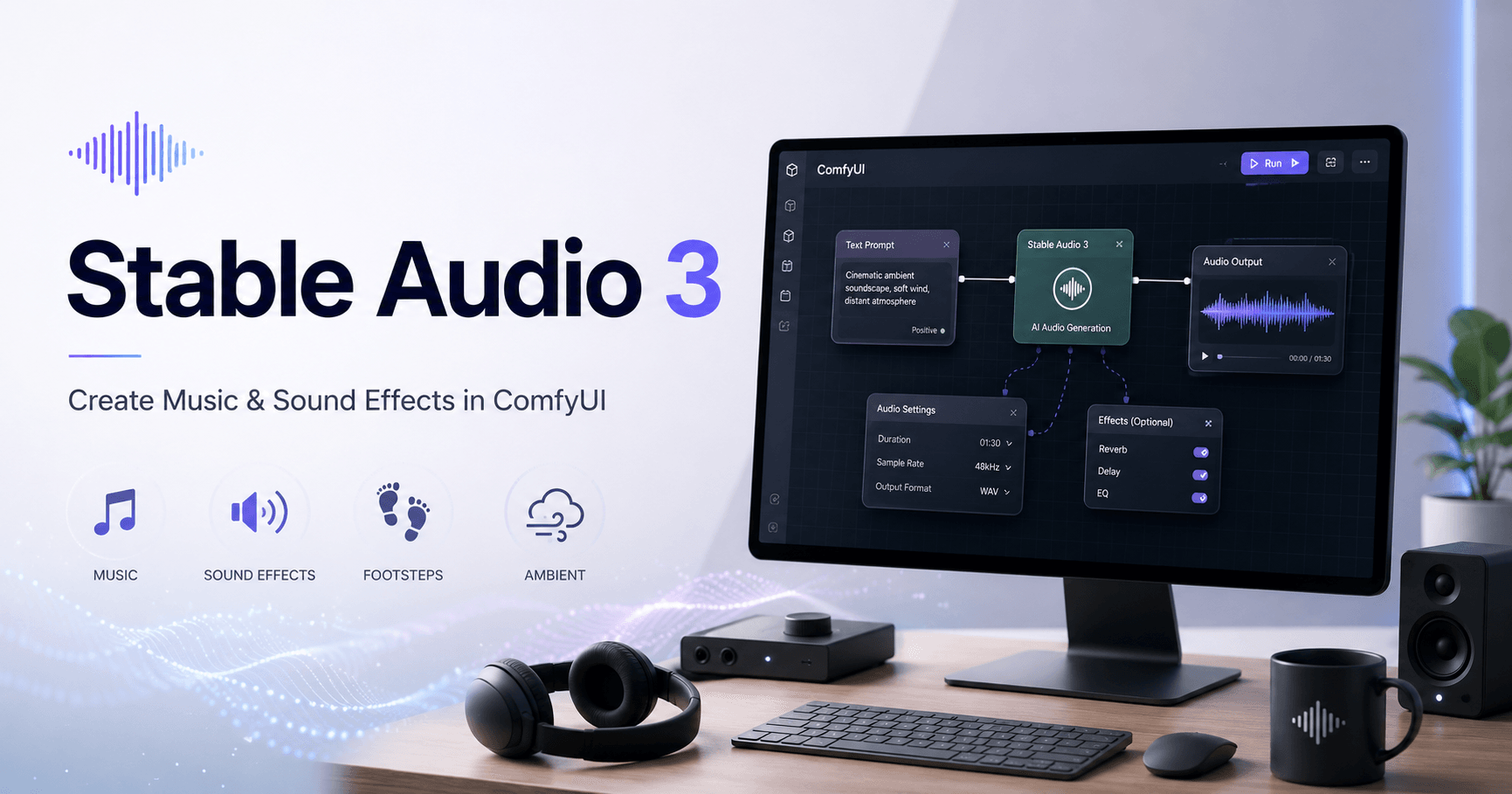

Stable Audio 3 is a new AI audio model that allows you to create instrumental music and sound effects directly from text prompts. It can be useful for video creators, game developers, designers, and anyone who needs quick audio ideas without starting from scratch.
In this tutorial, the workflow is built inside ComfyUI. The main goal is simple: write a prompt, choose the audio duration, run the workflow, and generate a music track or sound effect.
Getting Started
Before using Stable Audio 3, the first thing you need to do is update your tools.
You should update Easy Installer to get the latest installer version and the newest Pixaroma nodes. After that, update ComfyUI as well. This is important because Stable Audio 3 is new, and older ComfyUI nodes may not recognize the model correctly.
If your setup is outdated, you may see errors such as dictionary errors or missing model problems. In most cases, this simply means that ComfyUI or the custom nodes need to be updated.
Once everything is updated, you can download the workflows from Discord or GitHub and place them inside the workflows folder. After that, they should appear in the workflow list inside ComfyUI. If ComfyUI is already open, you can refresh the workflow list.
Required Models
To generate audio with Stable Audio 3, you need two main models.
The first one is the Stable Audio 3 Medium model. This model is around 8 GB and should be placed inside the checkpoints folder. To keep things organized, you can create a folder called Stable Audio 3 and place the model there.
The second model is the T5 Gemma text encoder. This model is smaller and should be placed inside the text encoders folder.
After downloading both models, refresh ComfyUI by pressing the R key. Then, the Stable Audio 3 model should appear in the model list, and the T5 Gemma model should appear in the Load CLIP node.
One important detail is that the Load CLIP node should use Stable Audio from the dropdown menu, not Stable Diffusion.
Creating Audio from Text
The simplest workflow generates audio from a text prompt.
You describe the type of music or sound effect you want, choose the duration, and run the workflow. The prompt can be written inside the text encode node, but it is easier to keep the main editable settings on the left side of the workflow and the result on the right.
Stable Audio 3 can create instrumental music, but it does not generate lyrics. That means it is better for background tracks, cinematic music, ambient audio, game music, loops, and sound effects.
This is also one of its most interesting strengths. While many AI music tools focus only on songs, Stable Audio 3 can also create sound effects, which makes it useful for videos, games, animations, and creative projects.
Choosing the Right Duration
Stable Audio 3 can generate audio from 1 second up to 380 seconds.
However, longer audio may use more VRAM and take more time to process. In the tutorial, short tests of around 30 seconds worked very fast. On a graphics card with 24 GB of VRAM, a 30-second audio file could be generated in just a few seconds after the model was loaded.
For practical use, keeping the duration between 120 and 150 seconds can be a good balance. Going too far beyond that may cause the generation to slow down, especially during the VAE decode step.
If the workflow gets stuck or becomes too slow, one possible solution is replacing the normal VAE Decode Audio node with the tiled version. This can help when working with lower VRAM.
Testing Different Prompts
The workflow also includes prompt examples. This makes testing much easier because you can copy different prompt ideas and quickly replace the current prompt.
For music, you can describe the genre, mood, instruments, rhythm, and atmosphere.
For example, you could ask for:
A calm cinematic piano track with soft strings and emotional atmosphere.
Or:
An energetic electronic background track with fast drums and futuristic synths.
For sound effects, you can describe the action or environment.
For example:
The sound of a man walking through snow.
Or:
A magical energy blast with deep impact and sparkling details.
The more specific the prompt is, the easier it is for the model to understand what kind of audio you want.
Why Stable Audio 3 Is Great for Sound Effects
The tutorial shows that Stable Audio 3 may not always be the strongest model for full music production, but it can create very interesting sound effects.
This makes it especially useful for game design and video editing. Instead of searching through sound libraries for the perfect effect, you can generate custom sounds based on the scene you are building.
For example, you can create footsteps, impacts, explosions, creature sounds, environmental audio, sci-fi effects, transitions, and atmospheric textures.
This can save time and help creators produce more original audio assets.
Improving Prompts with Gemma
Another workflow adds a Gemma model to improve prompts automatically.
In this setup, you write a simple idea, and Gemma turns it into a better audio prompt. That improved prompt is then used by Stable Audio 3 to generate the final sound.
For example, you can write something simple like “soft piano music,” and Gemma can expand it into a more detailed prompt with mood, instruments, tempo, and atmosphere.
This is useful because AI audio models often perform better when the prompt is more descriptive.
The downside is that using both the audio model and the Gemma model requires more VRAM. Since the Gemma model can also take around 8 GB, you need a stronger GPU to run this setup smoothly.
Generating Sound Prompts Automatically
The same idea can also be used for sound effects.
Instead of writing a detailed sound design prompt yourself, you can enter a simple idea, and the workflow creates a better version for you.
For example, you can write:
A man walking in the snow.
The workflow can turn this into a more complete sound prompt, describing the texture of footsteps, the cold environment, and the natural sound of snow being compressed under boots.
Then Stable Audio 3 uses that prompt to generate the final audio.
This can be a very helpful workflow for beginners because it reduces the need to understand advanced prompt writing.
Creating Music from an Image
One of the most interesting experiments in the tutorial is using an image to generate a music prompt.
In this workflow, an image is loaded into ComfyUI. Gemma looks at the image and creates a music prompt based on what it sees. Then Stable Audio 3 uses that prompt to generate music that fits the image.
For example, if the image shows a cute bunny, the model may generate a playful, soft, or whimsical music prompt.
The result is not always perfect, but it can be a creative way to generate soundtrack ideas based on visual content. This can be useful for animation, short videos, social media content, and concept development.
Pixaroma Node Updates
The tutorial also shows some updates to Pixaroma nodes.
One useful update is the color system. You can now choose node colors from organized color folders, copy colors from one node, and paste them onto another. You can also save up to four favorite colors for quick access.
This makes it easier to keep large workflows organized and visually clean.
There are also updates to the Load Image node. It now shows image size, ratio, output changes, previews from the input folder, subfolders, and a filter option to find images more easily.
Another useful feature is manual padding. You can add pixels to different sides of an image and choose the padding color. This can be helpful for outpainting and inpainting workflows.
After updating Pixaroma nodes, it may be necessary to clear the browser cache with Control + Shift + R to see the newest changes.
Final Thoughts
Stable Audio 3 is a powerful tool for generating instrumental music and sound effects inside ComfyUI.
It is especially useful for creators who need fast audio ideas, custom sound effects, background tracks, or experimental sound design. While it may not replace a professional music producer, it can be a great creative assistant.
The best way to use it is to start with short audio tests, experiment with different prompts, and keep the duration reasonable to avoid VRAM issues.
For music, focus on mood, genre, instruments, and atmosphere. For sound effects, describe the action, environment, texture, and intensity.
Stable Audio 3 becomes even more interesting when combined with Gemma, because it can improve simple ideas into stronger prompts. And with image-based prompt generation, it opens the door to creative workflows where visuals can inspire music.
For anyone using ComfyUI, Stable Audio 3 is worth trying, especially for sound effects, game design, video editing, and creative audio experiments.







Комментарии0
Пожалуйста, войдите, чтобы оставить комментарий.