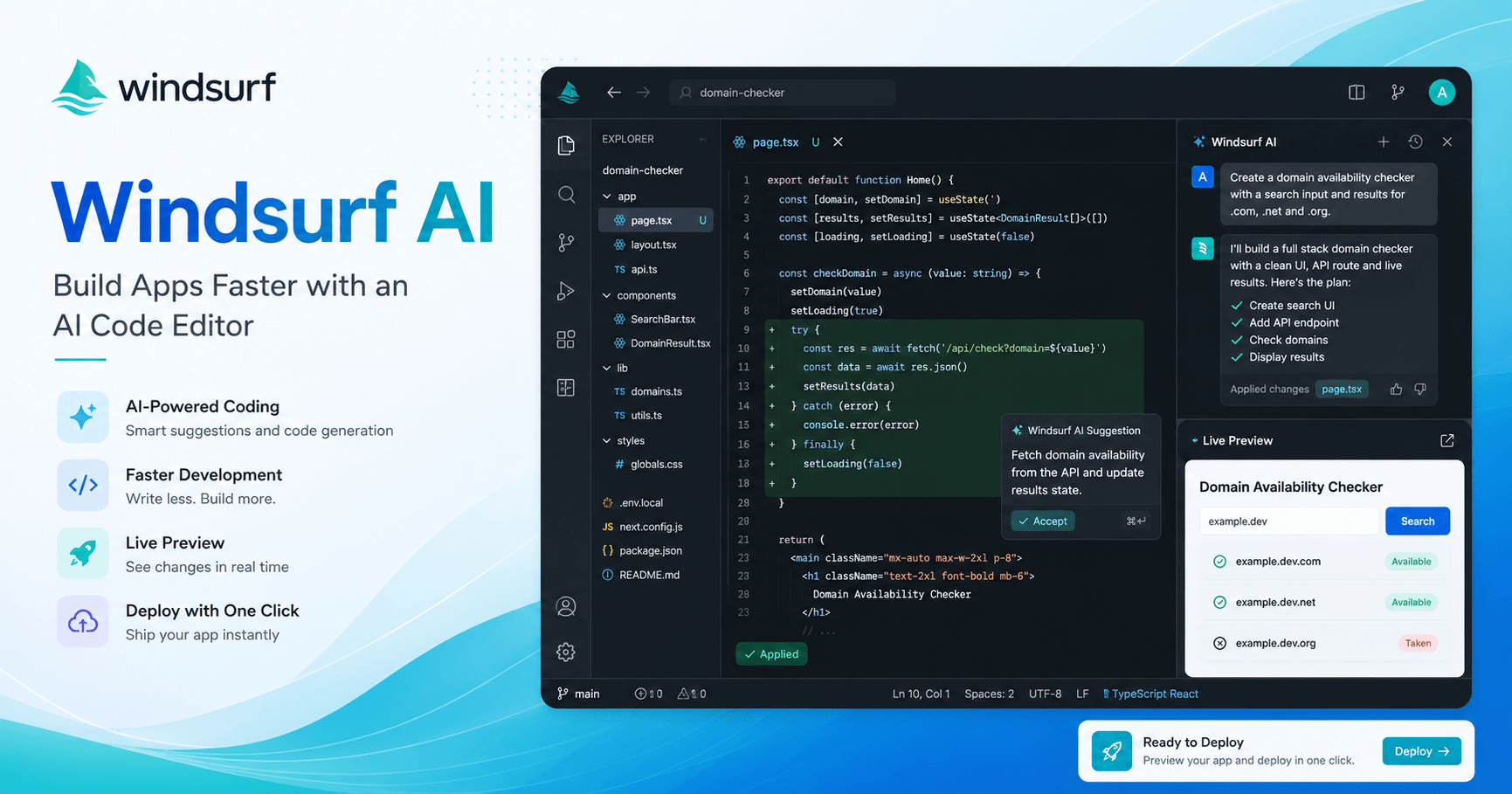

Windsurf AI is an AI-powered code editor designed to help developers build software faster, whether they are beginners or already working with large codebases. It works like a traditional code editor, but with a powerful AI assistant built directly into the development workflow.
Instead of only asking questions in a separate chatbot and manually copying code back into your project, Windsurf can understand your codebase, create new files, modify existing files, run commands, help fix errors, and even preview or deploy certain applications from inside the editor.
What Makes Windsurf Different?
At first glance, Windsurf feels familiar if you have used tools like VS Code. On the left side, you have the file explorer. In the center, you can view and edit code. At the bottom, you can open a terminal to run commands. But the main difference is the Cascade panel on the right.
Cascade is the main AI feature inside Windsurf. You can think of it like ChatGPT connected to your entire project. It can answer questions about your code, suggest architecture decisions, create files, edit code, and help you move from an idea to a working application much faster.
This makes Windsurf useful for many types of users. A beginner can use it to understand project structure and get help writing code. A more experienced developer can use it to speed up repetitive work, explore architecture decisions, or refactor larger projects.
Starting a Project with Windsurf
To begin, you download Windsurf from the official website and install it on your computer. Unlike some AI coding tools that run only in the browser, Windsurf is a desktop code editor.
The tool has a free tier, but it is mostly useful for testing. For regular AI coding, the Pro plan is usually the better option because it gives more room to use advanced models and build real projects.
Once inside Windsurf, you can open an empty folder and start planning your application directly with Cascade. In the tutorial, the project idea is a full stack application that checks whether domain names are available across multiple TLDs using a WHOIS API.
Before writing code, the user asks Cascade to help choose the right technologies and create a high-level architecture. This is a smart way to use AI coding tools. Instead of jumping straight into code, you first let the AI help you think through the structure.
For this project, the chosen stack is a JavaScript full stack setup with React on the frontend, Node.js and Express on the backend, and a WHOIS package to check domain availability.
Building the First Version
After planning the structure, Windsurf is switched into write mode. This allows the AI to create and modify files directly inside the project.
The project is organized with two main folders:
The UI folder contains the React frontend.
The server folder contains the Node.js backend.
Windsurf creates several files, suggests commands to install dependencies, and helps set up the application. Some commands can be run directly from the Cascade chat, while others may need to be opened in the terminal when confirmation is required.
Once the frontend and backend are running, Windsurf’s preview feature becomes very useful. Instead of opening a browser separately, you can view the application directly inside the editor. This makes the workflow faster because you can code, test, and improve the app in one place.
In the first version, the domain checker works, but the interface is not very readable. This is normal when working with AI-generated code. The first result is often a rough draft, and the next step is improving it.
Improving the UI with AI
A useful practice shown in the tutorial is starting a new chat for each new feature or improvement. This matters because long AI conversations can become messy. Every new prompt carries previous context, and too much unrelated context can distract the model.
For the UI improvement, the user starts a new chat and asks Windsurf to use Tailwind CSS to make the interface look better. Windsurf automatically finds the relevant file, such as App.jsx, and begins making changes.
One powerful feature here is that Windsurf highlights the changes it makes. Removed code appears with one highlight, and new code appears with another. This helps the developer quickly review what changed before accepting everything.
The tutorial also shows a realistic AI coding situation: the Tailwind setup fails because of version issues. Windsurf tries to fix the problem using documentation, but the issue continues. Instead of forcing the wrong solution, the user rolls back to a previous checkpoint and asks Windsurf to use Tailwind version 3, which works.
This is one of the most important lessons from the tutorial. AI coding is not magic. Sometimes the AI makes mistakes, uses outdated information, or creates errors. The key is knowing how to troubleshoot, provide better context, and roll back when needed.
Fixing Errors and Making the App More Reliable
After the UI is improved, the app runs again, but some domain checks may produce timeout errors. Windsurf allows the user to select terminal logs and add them to the chat as context.
This is very useful because the AI does not need a vague explanation like “it is broken.” Instead, it receives the actual logs and can use them to improve the code.
The user asks Windsurf to make the server more resilient to timeout errors and other possible cases. Windsurf then updates the backend code directly. The developer can review the modified files, accept the changes, and test again.
This workflow shows why AI code editors are powerful. The AI is not only generating isolated snippets. It is reading the project, understanding the error context, and applying changes where they belong.
Adding a Full Stack AI Feature
The next feature adds AI-powered domain name suggestions. The idea is simple: the user enters a business description, and the app uses the Gemini API to generate possible domain names.
For this, the user tags web context inside Windsurf because the request depends on external information about the latest Gemini API. Windsurf can search web resources and use that information to modify the project.
This feature affects both frontend and backend code, but it is still focused enough for the AI to handle well. That is another important lesson: the best AI coding prompts are not too small and not too broad. A focused full stack feature is usually a good size.
After Windsurf adds the feature, the user needs to place the Gemini API key inside an .env file. Windsurf respects the .gitignore file, which helps prevent sensitive information like API keys from being sent or committed accidentally.
The tutorial also introduces the .windsurfrules file. This is a special file where you can define instructions that Windsurf should follow in every request. For example, you can specify your testing framework, preferred libraries, or coding rules. This can be helpful in larger projects, although it is not always necessary for smaller workflows.
Using Windsurf Tab for Faster Editing
Besides Cascade, Windsurf also has autocomplete features through Windsurf Tab. This helps predict code changes while you are editing directly in a file.
In the tutorial, the user wants to click multiple AI-generated domain suggestions and add them to the search input instead of replacing the previous value. As the user starts editing the code, Windsurf predicts the next changes and allows them to press Tab to complete the logic.
This makes small edits much faster. Instead of asking the AI to rewrite an entire file, you can guide the change manually and let autocomplete speed up the repetitive parts.
Deploying from Windsurf
Another useful feature is deployment directly from the editor. At the time shown in the tutorial, Windsurf deployment works mainly for static frontends. The example uses a simple 3D game inspired by Space Invaders.
The user asks Windsurf to deploy the application. Windsurf prepares the deployment configuration and uses Netlify under the hood to publish the project. This makes it easy to share small tools, frontend demos, games, and prototypes without leaving the editor.
For full stack apps, backend deployment support is still more limited, but the feature is promising for quick projects and experiments.
Other Useful Windsurf Features
The tutorial also mentions additional features that were not explored deeply, such as generating code from images, creating memories from previous conversations, and using MCP servers.
MCP support is especially interesting for advanced users because it allows the AI agent to interact with external tools, databases, and services. This can make Windsurf more powerful when working with real-world systems.
Final Thoughts
Windsurf AI is more than a code editor with a chatbot attached. Its real strength is how deeply the AI is integrated into the coding workflow.
You can plan an app, generate files, run commands, preview the result, fix errors, improve the UI, add full stack features, use external documentation, and even deploy certain projects from the same environment.
The best way to use Windsurf is not to ask it to build an entire product in one prompt. A better workflow is to break the project into focused steps: plan the architecture, create the first version, improve the interface, fix errors, add one feature at a time, and review the changes carefully.







Comments0
Please sign in to leave a comment.