
AI coding agents like Claude Code and Codex are becoming part of the daily workflow for many developers. But while these tools are powerful, using them only through the terminal can sometimes feel limited. You can ask the agent to edit files, run commands, and inspect a project, but it is not always easy to see everything clearly, manage multiple tasks, review changes, or organize your workflow.
That is where Nimbalyst comes in.
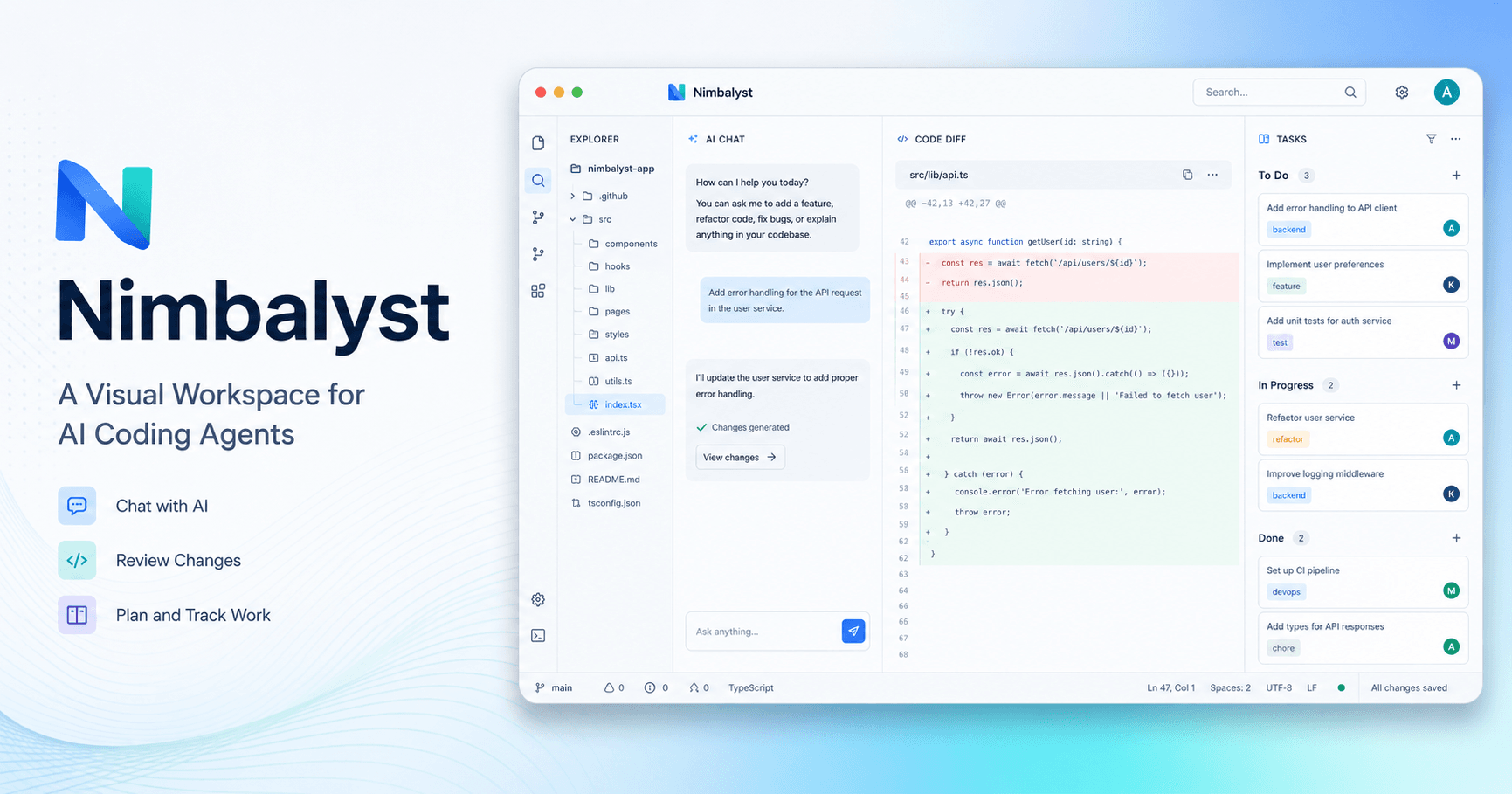
Nimbalyst is a visual workspace designed for people who work with AI agents. Instead of managing everything through a terminal, it gives you a cleaner interface where you can open your project, chat with your coding agent, review file changes, manage sessions, track tasks, and even work with markdown, CSV files, diagrams, and mockups.
The main idea is simple: keep the power of AI coding agents, but make the experience more visual, organized, and easier to control.
What Is Nimbalyst?
Nimbalyst is a desktop app that works as a visual layer over AI agents like Claude Code and Codex. It does not replace those tools. Instead, it connects to the agents already installed on your computer and gives you a better interface to use them.
For example, if you already use Claude Code in your terminal, Nimbalyst can invoke it from inside the app. You still get the same kind of AI-powered coding help, but now you can see your file tree, inspect edits, review diffs, open terminals, manage sessions, and organize tasks in one place.
This makes it feel much closer to a modern IDE, but with AI agents built directly into the workflow.
Getting Started With a Project
After installing Nimbalyst, the first step is to open a project folder. In the tutorial, the example used is a Next.js application. Once the folder is selected, Nimbalyst loads the project and shows a familiar file tree on the left side.
From there, you can browse your files, open code, make manual edits, and inspect the structure of your app. This is useful because you are not forced to jump between a terminal, code editor, browser, notes app, and Git tool all the time.
You can also open a built-in terminal inside Nimbalyst. For example, if you are working on a Next.js app, you can run the development server directly from the app and keep it running while the AI agent works on your code.
Choosing Permissions Safely
One important part of using AI coding agents is permission control. Nimbalyst gives you permission settings when you open a project.
You can allow file reads, writes, and edits, while keeping more sensitive actions like bash commands or web fetches under stricter control. This is important because AI agents can be very powerful, and you should only use them in folders you trust.
Instead of blindly giving full control, you can start with safer permissions and adjust them later if needed.
Using Claude Code or Codex Inside Nimbalyst
The main workflow happens through the chat panel. On the right side, you can choose the agent or model you want to use, such as Claude Code or Codex. Then you type a prompt just like you would in the terminal.
For example, you might ask:
“Add some default prompts to the prompt input box.”
Nimbalyst then sends the task to the selected agent. Under the hood, it works similarly to running Claude Code or Codex from the terminal, but the interface is much easier to follow. You can see the agent exploring the project, calling tools, editing files, and producing changes.
This is useful because you do not lose visibility. You can understand what the agent is doing instead of treating it like a black box.
Reviewing Changes With a Diff Viewer
One of the strongest parts of Nimbalyst is the visual diff review.
After the AI agent edits files, you can inspect the changes directly inside the app. The diff viewer shows what was changed, allowing you to move through edits and decide whether to keep or revert them.
This makes the workflow safer and more practical. Instead of accepting everything blindly, you can review each change before moving forward.
For developers, this is a big advantage. AI can move fast, but speed is only helpful when you still have control. Nimbalyst gives you that control in a clean interface.
Sessions Help Separate Tasks
When working with AI agents, it is easy for a conversation to become messy. One prompt may be about adding a feature, another about improving the design, and another about fixing a bug.
Nimbalyst solves this with sessions.
Each session can represent a separate task or idea. For example, one session can be about adding default prompts, while another session can be about making the interface more visually appealing. This separation keeps the workflow organized and makes it easier to understand what was done in each task.
This is especially useful when you are working on multiple features at the same time.
Built-In Kanban Board
Nimbalyst also includes a built-in Kanban board. This is one of the features that makes it feel more like a complete AI development workspace instead of just a chat interface.
Each session can move through different stages, such as planning, implementation, validation, and complete. The app can update these stages automatically as the agent works, but you can also move tasks manually.
This gives you a clear overview of what is happening in your project. You can see which tasks are still in progress, which ones need validation, and which ones are finished.
For people who usually track tasks in a separate app, this can reduce a lot of context switching.
AI-Generated Git Commits
After reviewing and keeping changes, you still need to commit them. Nimbalyst includes an AI-powered commit feature that can generate a commit message for you.
You can review the suggested message, confirm it, and complete the commit directly from the interface.
This keeps the development flow smooth. The AI helps not only with writing code, but also with the small organizational steps around the code.
Git Worktrees for Parallel Agent Work
Nimbalyst also supports the idea of Git worktrees. This is useful when you want multiple agents to work on different parts of a codebase without interfering with each other.
A worktree creates a separate copy of your repository, allowing agents to work in parallel. Later, you can merge the changes back into the main project.
For simple tasks, you may not need this. But for larger projects or more advanced AI workflows, it can be very helpful.
Tracker for Bugs, Tasks, and Ideas
Another useful feature is the built-in tracker. Instead of keeping your project ideas in a separate notes app, you can add tasks, bugs, or ideas directly inside Nimbalyst.
For example, if you think of a feature but do not want to work on it immediately, you can add it to the tracker and leave it in your to-do list. Later, you can move it to in progress or complete.
This helps keep your thoughts connected to the project itself.
More Than Just Code
Although Nimbalyst is very useful for coding, it is not limited to code files.
It can also render and edit markdown files, CSV files, diagrams, mockups, Mermaid diagrams, and even data models like Prisma schemas. This makes it useful for workflows that involve planning, documentation, architecture, research, or writing.
For example, if an AI agent generates a markdown plan for your project, you can open it, edit it, move sections around, and review changes visually. If it creates a CSV file, you can inspect and edit it directly. If it creates an architecture diagram, you can zoom, move elements, and adjust the diagram inside the app.
This makes Nimbalyst useful for builders who want a more visual way to manage both code and project materials.
Custom Extensions and Advanced Settings
Nimbalyst also supports extensions. Some file types are supported by default, but you can enable extension development mode and create custom extensions for your own workflow.
There are also advanced settings for MCP servers, Claude Code, Codex, local models through providers like LM Studio, themes, permissions, and more.
This means Nimbalyst can be customized depending on how you like to work.
Mobile App Support
Another interesting feature is that Nimbalyst also has a mobile app. This allows you to manage agents on the go.
For example, if you are away from your computer but want to check a task, manage an agent, or quickly review something, the mobile app can help. This makes the tool feel less tied to a single desktop workflow.
Why Nimbalyst Matters
The biggest benefit of Nimbalyst is not just that it makes AI coding look nicer. The real value is that it brings structure to AI-assisted work.
When using agents only in the terminal, you may need separate tools for your editor, Git changes, task tracking, notes, diagrams, and project planning. Nimbalyst combines many of those pieces into one visual workspace.
This can make the workflow faster, clearer, and safer.
You still get the power of Claude Code or Codex, but with better visibility and organization.
Final Thoughts
Nimbalyst is a strong option for developers and builders who already use AI agents but want a better interface for managing them.
It helps you open projects, run agents, review changes, manage sessions, track tasks, commit with AI, and work with different file types in a visual way. It is especially useful for people who like the power of terminal-based agents but want the clarity of a modern workspace.

Comments0
Please sign in to leave a comment.