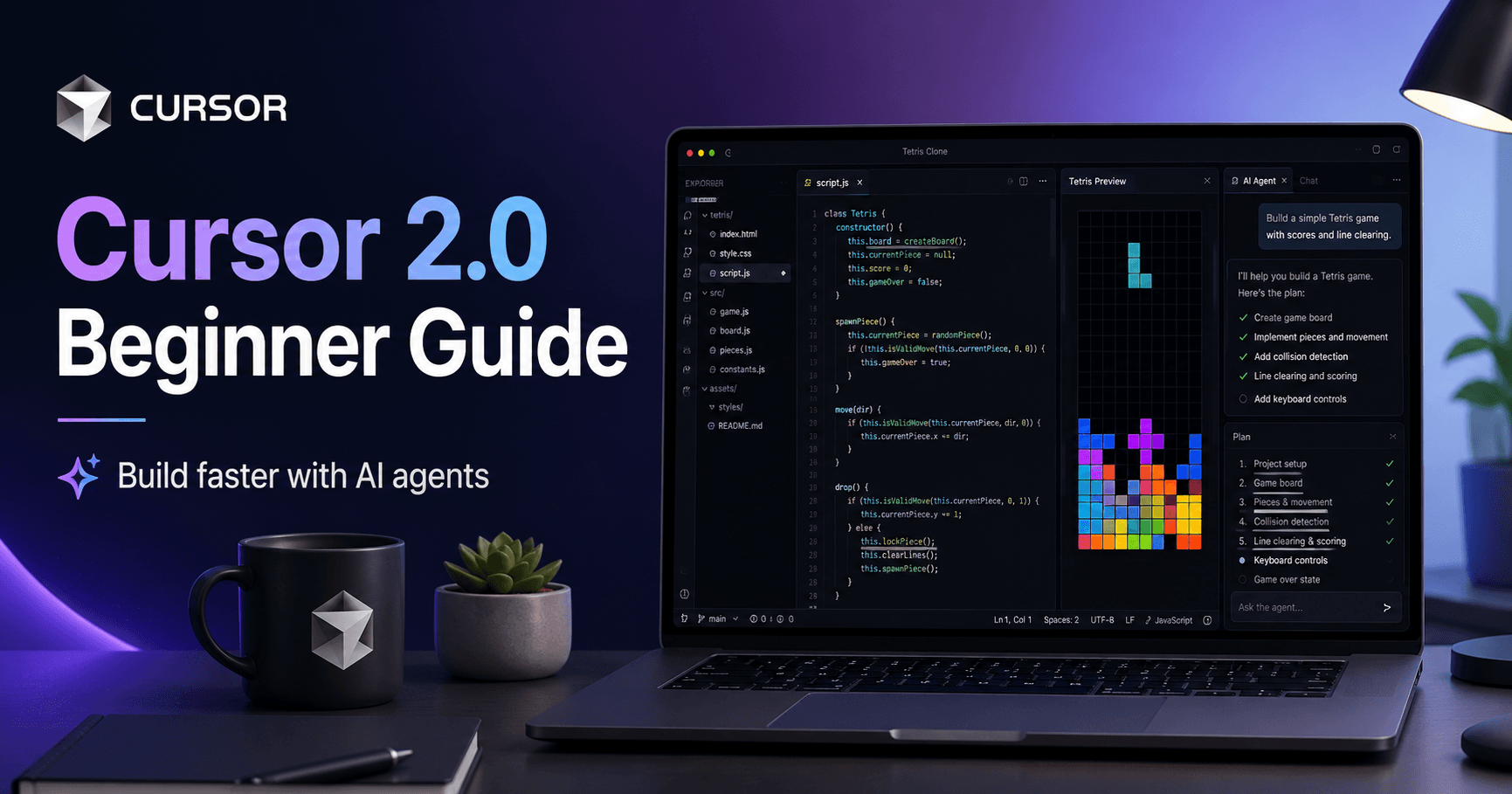

Cursor 2.0 is an AI-powered code editor designed to help developers build projects faster, write code with less manual effort, and work with AI agents directly inside their development environment.
At first glance, Cursor looks very similar to VS Code. That is because it is built as a fork of VS Code, meaning it keeps many of the same core features, shortcuts, extensions, themes, and file management tools. The main difference is that Cursor adds a powerful AI layer on top of the editor.
With Cursor, you can ask AI to generate files, create features, explain code, fix bugs, review changes, and even build small applications from a simple prompt.
Getting Started with Cursor
After downloading Cursor and signing in, the first step is to open a folder for your project. This folder is where all generated code, files, and changes will be stored.
You can do this by going to the file menu, selecting “Open Folder,” and choosing or creating a folder on your computer. Once the folder is open, Cursor is ready to start helping you build.
The interface may look different depending on your setup, theme, or layout, but the main areas are usually the same. You have the editor, where your files appear, and the agent or chat area, where you can talk to the AI.
Understanding the Cursor Interface
Cursor 2.0 has a redesigned interface focused heavily on AI agents. There are two main views you will use often: the editor view and the agent view.
The editor view is where you read and edit your files like in a normal code editor. The agent view is where you interact with AI agents that can plan, generate, or modify your project.
Cursor also includes panels for the terminal, file explorer, extensions, source control, and settings. If the layout feels confusing at first, you can toggle panels on and off until the workspace feels comfortable.
You can also change the editor theme using the command palette with Ctrl Shift P on Windows or Command Shift P on Mac. This lets you search for commands, change colors, access settings, and customize the editor.
Start with a Clear Plan
One of the most important lessons when using Cursor is this: do not ask the AI to build something without knowing what you want.
Before generating code, you should have a basic idea of the final result. Are you building a website, a game, a backend tool, or a full application? What features should it have? What should the interface look like?
The clearer your prompt is, the better Cursor performs.
For example, instead of saying “build a game,” you could say:
“Build a simple Tetris game that runs in the browser. Keep it minimal. It should have basic shapes, movement controls, a score system, and a start button.”
This kind of prompt gives the AI enough direction without making the task too broad.
Plan Mode, Agent Mode, and Ask Mode
Cursor has different modes for working with AI, and each one serves a different purpose.
Plan Mode is useful when you want the AI to think before coding. It creates a step-by-step plan, usually in a markdown file, so you can review the approach before anything is built.
Agent Mode allows the AI to actually create and change files. This is powerful, but it should be used carefully because the agent can make many changes at once.
Ask Mode is the safest option. It does not modify files. It only answers questions, explains code, or gives instructions. This is useful when you want to understand something without risking changes to your project.
For beginners, a good workflow is to start with Plan Mode, review the plan, then use Agent Mode to build, and finally use Ask Mode to understand or test the result.
Building a Simple Project with Cursor
In the tutorial example, Cursor is used to build a simple Tetris game. The user asks the AI to generate a plan first, then presses the build button to let the agent create the project files.
Once the agent finishes, Cursor shows an “awaiting review” section. This is where you can see the code changes before deciding whether to keep them or undo them.
This review step is very important. Cursor may generate code quickly, but you should not blindly accept everything. The best practice is to run the project, test if it works, and only then click “keep all.”
If something is wrong, you can ask the agent to fix it or undo the changes.
Reviewing AI-Generated Code
One of the most important parts of using Cursor is understanding how review works.
When the AI generates code, the changes are already applied to your files. The review screen shows what was changed, but if you do not want those changes, you need to use the undo option before moving too far ahead.
That is why testing before accepting changes is so important.
For example, if Cursor creates an HTML, CSS, and JavaScript version of a game, you should run it in the browser first. If it works correctly, then you can keep the changes. If it does not work, you can reject or ask the AI to fix the issue.
This habit helps prevent messy projects and makes it easier to stay in control.
Making Small Code Edits
Cursor is not only useful for generating entire projects. It is also very helpful for small, targeted changes.
You can highlight a function or a section of code and use the quick edit feature with Ctrl K or Command K. Then you can ask Cursor to clean up the code, add comments, improve readability, or fix a specific issue.
This is often better than asking the agent to change the whole project. As your codebase grows, smaller and more precise prompts usually give better results.
You can also use Ctrl L or the chat context tools to reference a specific file, function, or piece of code. This helps the AI understand exactly what you are talking about.
Autocomplete and Inline Help
Cursor also includes AI autocomplete. As you write code, it predicts what you may want to type next. If the suggestion looks good, you can press Tab to accept it.
This makes Cursor useful even when you are writing code manually. Instead of replacing your work, the AI becomes a coding assistant that helps you move faster.
You can use autocomplete for simple lines, repeated patterns, functions, and small improvements while still staying in control of the code.
Using Multiple Agents
One of the newer features in Cursor 2.0 is the ability to run multiple agents at the same time.
This means you can have one agent working on a game, another creating a landing page, and another helping with documentation or testing.
However, it is important to use this carefully. If the task is related to the current work, it is usually better to continue in the same agent because it already has the context. If the task is separate, then creating a new agent makes sense.
For example, if one agent built the Tetris game and you want to improve the game mechanics, continue with the same agent. But if you want a separate landing page that links to the game, a new agent can be useful.
Cursor Rules
Cursor also allows you to create rules for your project or for all projects.
Rules are instructions that the AI should follow automatically. For example, you can create a rule that says:
“Always generate docstrings for functions.”
You can create global rules that apply everywhere or project rules that only apply to one specific project.
This is very useful when you want consistent code style, specific conventions, or restrictions. If you are working with a team, rules can help Cursor follow the same standards as the rest of the project.
Version Control Is Essential
When using AI to generate code, version control becomes even more important.
Cursor can make large changes very quickly. If something breaks, you need a way to return to a previous working version. That is why Git is highly recommended.
Git works like a checkpoint system for your code. After Cursor creates something that works, you can commit the changes. If a later change causes problems, you can go back to the previous version.
Even if Cursor can help run Git commands, it is still important to understand the basics of source control. This can save you from losing hours of work.
MCP and External Tools
Cursor also supports MCP, which stands for Model Context Protocol. MCP allows AI agents to connect with external tools, services, databases, APIs, and workflows.
This gives Cursor more power because the AI can interact with systems outside the editor. For example, an MCP server could allow the agent to access a database, call an API, or use a specific developer tool.
For beginners, MCP is not required to start using Cursor. But as your projects become more advanced, it can unlock more powerful workflows.
Final Thoughts
Cursor 2.0 is more than a simple code editor. It is an AI-powered development environment that can help you plan, build, review, explain, and improve code.
For beginners, the best way to use Cursor is to start simple. Open a folder, create a clear prompt, use Plan Mode first, let the agent build, test the result, and carefully review the changes before accepting them.
The biggest mistake is giving vague prompts and accepting code without understanding what changed.
Cursor can save a lot of time, but it works best when you stay involved in the process. Think of it as a powerful coding partner, not a replacement for your judgment.
With clear prompts, small iterations, version control, and good review habits, Cursor can help you build real projects much faster.







Comments0
Please sign in to leave a comment.