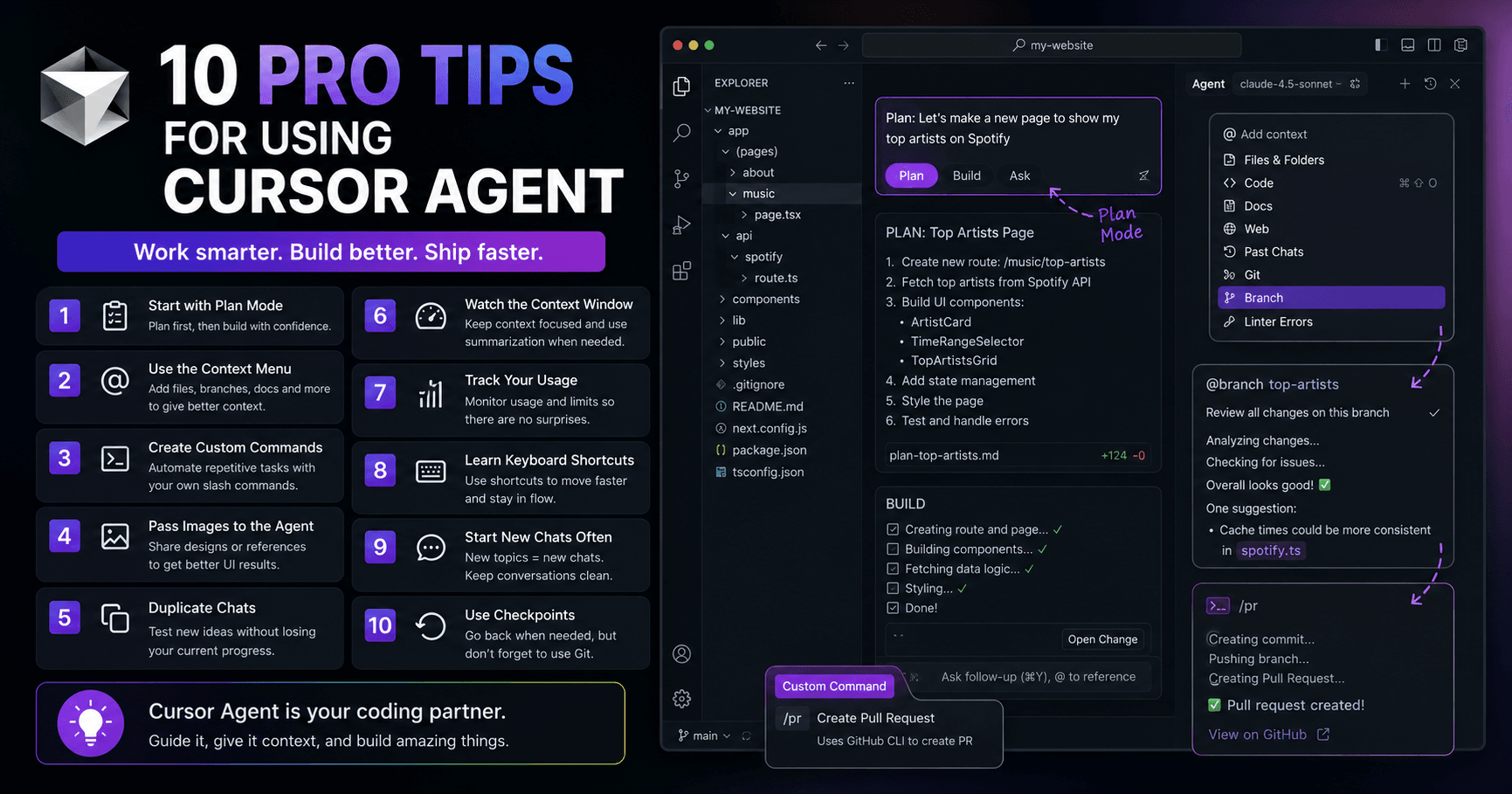

Cursor is not just a code editor with AI chat. When used correctly, it becomes a powerful development assistant that can understand your codebase, plan features, review changes, generate pull requests, and even help you visualize how your application works.
But to get the best results, you need to use the Cursor Agent with the right workflow. Many beginners simply ask the agent to build something and hope for the best. That can work for small tasks, but as your project grows, you need more control, better context, and smarter habits.
Here are 10 practical tips to use Cursor Agent more effectively.
1. Start with Plan Mode
One of the best ways to begin a new feature is by using Plan Mode.
Instead of asking Cursor to immediately write code, Plan Mode lets the agent inspect your codebase, understand how your app is structured, and create a step-by-step implementation plan.
For example, if you want to add a new page that shows your top Spotify artists, the agent can look at your existing Spotify setup, find the related files, understand the current API flow, and then suggest what needs to be created or updated.
This gives you a safer starting point because you can review the plan before any major code changes happen. You can also edit the plan manually, remove unnecessary parts, or ask Cursor to adjust it.
Once the plan looks good, you can hit Build and let the agent implement it.
2. Use the Context Menu
Cursor’s context menu is one of its most useful features. When you type the @ symbol inside the agent chat, Cursor opens a menu where you can reference files, folders, documentation, past chats, linter errors, Git branches, and more.
This is especially helpful when you want the agent to focus on a specific part of your project.
For example, if you just created a new feature on a Git branch, you can reference that branch and ask Cursor to review all the changes. The agent can inspect what changed, look for possible issues, and suggest improvements.
This is a smart way to use AI not only to write code, but also to review AI-generated code.
3. Create Custom Commands
Cursor lets you create your own custom commands using Markdown files inside a commands folder.
This is useful for repetitive workflows. For example, you can create a custom PR command that tells Cursor to generate a pull request with a clear title, use the GitHub CLI, create a commit if needed, and follow your preferred commit guidelines.
After creating the command, you can run it from the agent chat using a slash command.
This saves time and makes your workflow more consistent. Instead of rewriting the same prompt over and over, you create it once and reuse it whenever needed.
4. Pass Images to the Agent
Cursor Agent can also work with images.
This is very useful when you want to improve the visual design of a page or match a specific reference. For example, if you have a list of top Spotify artists and want it to look more like Spotify Wrapped, you can paste an image into the agent and ask it to adapt the layout.
The agent can use the image as visual context and update components, styling, image handling, and configuration files.
It may not create a perfect design on the first try, but it gives you a strong starting point. From there, you can continue refining the result with smaller, targeted prompts.
5. Duplicate Chats When Testing Ideas
Sometimes you may like the current direction of a feature, but still want to test another version.
In Cursor, you can duplicate a chat and keep the same context. This allows you to experiment without losing the previous conversation.
This is helpful when comparing different design options, implementation strategies, or UI ideas.
However, it is also important not to overload the context. If the task is completely new, starting a fresh chat may be better. Duplicating works best when you want to explore a variation of the same idea.
6. Watch the Context Window
The context window shows how much information is currently being used in the conversation.
As your conversation grows, the agent has to process more and more context. Over time, this can reduce the quality of the output, especially if the chat includes multiple unrelated tasks.
Cursor shows a context gauge so you can monitor how much of the available context has been used.
You can also use summarization commands to compact the current conversation. This can help reduce context size, but you should use it carefully. A summary may remove details that are important for the agent to understand the task.
The best habit is to keep conversations focused.
7. Track Your Usage
If you care about cost or usage limits, Cursor lets you show your usage summary in the settings.
You can change the usage display from automatic to always visible. This lets you see how much of your usage limit has been consumed and when it resets.
This is useful if you work with premium models or if you use Cursor heavily throughout the day.
Having this visibility helps you decide when to use a stronger model and when a faster or cheaper model is enough.
8. Learn the Keyboard Shortcuts
Keyboard shortcuts make Cursor much faster to use.
Two useful shortcuts are:
Command I to open the agent window.
Command Slash to change the selected model.
You can also use shortcuts to create new chats, switch modes, and access different parts of the editor.
If you use Cursor daily, learning shortcuts will save a lot of time. You can also customize them in the settings to match your personal workflow.
9. Start New Chats Often
One common beginner mistake is using the same chat for too many tasks.
At first, this feels convenient because the agent remembers everything from the conversation. But after a while, the chat becomes too large and mixed with old context. This can make the model less accurate.
A better habit is to start a new conversation for each new feature or clearly separate task.
If you are still working on the same feature, continue in the same chat. But if you are moving from a Spotify page to a totally different dashboard, start fresh.
This keeps the agent focused and improves the quality of the responses.
10. Use Checkpoints to Go Back
Cursor allows you to go back to previous checkpoints in an agent conversation.
This is helpful when the agent makes a change and you later decide you do not like it. For example, if you ask Cursor to make ranking numbers smaller in a design, but then prefer the older version, you can return to the previous checkpoint.
Checkpoints are great for small rollbacks during a conversation.
However, they should not replace Git. Git is still better for saving important versions of your project in a more permanent way. Ideally, you should use both: checkpoints for quick conversation-level changes and Git for serious project history.
Bonus Tips
Cursor also includes extra features that can improve your workflow.
You can enable completion sounds so the agent plays a sound when it finishes a task. You can also turn on system notifications, which is useful when the agent is running in the background or waiting for permission to execute a command.
Another powerful trick is asking Cursor to generate visualizations for your codebase. For example, it can create a Mermaid diagram that explains how your Spotify OAuth flow works, including the user, app, API routes, access tokens, and refresh tokens.
This is useful for documentation, onboarding, and understanding complex systems.
Cursor is also testing a new agent layout, designed specifically for managing AI agents. In this layout, agents appear on the left, the main conversation stays in the center, and code diffs appear on the right. It can also integrate with the browser, inspect the DOM, read network logs, and run terminals.
Final Thoughts
Cursor Agent becomes much more powerful when you use it with structure.
Plan before building. Give the agent the right context. Use custom commands for repeated workflows. Start new chats when the task changes. Watch your context usage. Review AI-generated code carefully. And always use Git for important checkpoints.
The goal is not to let the AI control the entire project blindly. The goal is to guide it like a smart coding partner.
When you combine Cursor Agent with good development habits, you can build faster, review better, and keep more control over your codebase.







Comments0
Please sign in to leave a comment.