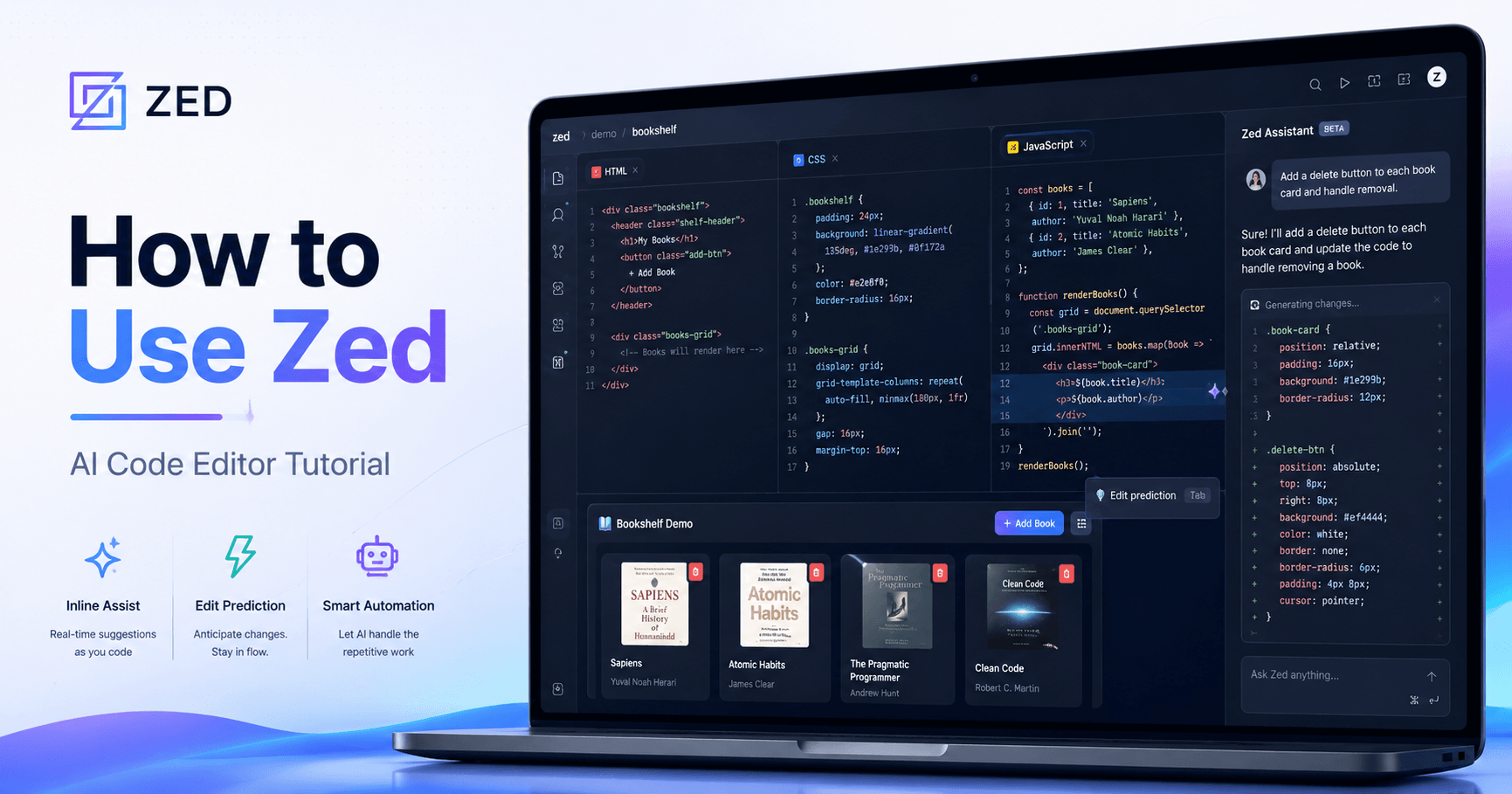

Zed is becoming one of the most interesting code editors for developers who want speed, simplicity, collaboration, and AI support in one place. It is a next-generation editor built by the team behind Atom and written in Rust, which helps make it fast, responsive, and smooth to use.
But Zed is not just another text editor. Its main difference is how deeply it integrates artificial intelligence into the coding workflow. Instead of only helping you write code manually, Zed can generate files, edit existing code, suggest improvements, predict your next steps, and help you stay focused on the idea behind your project.
In this tutorial, we will look at how Zed works, what makes its AI features useful, and how it can help you build a small interactive project faster.
What Makes Zed Different?
Most code editors give you a place to write, organize, and run your code. Zed goes further by adding AI directly into the development experience.
It includes an AI agent that can write and edit files, answer questions, and help you improve your project while you work. You can use models hosted by Zed, connect other AI tools, add your own API keys, or even run local models depending on your setup.
Another useful feature is collaboration. Zed includes tools for comments, discussions, and shared workflows, making it easier to work with teammates without leaving the editor.
For developers who enjoy a clean and fast interface, Zed also feels lightweight. The editor is designed to keep you in flow, so you can move from idea to implementation without constantly switching between tools.
Using the Agent Panel
One of the most powerful parts of Zed is the Agent Panel. This is where you can ask the AI to help with your code.
The agent can work in different modes. In write mode, it can create and edit files directly. In ask mode, you can use it to ask questions without changing your code. There is also a minimal mode for quick interactions.
For example, imagine you want to create a small interactive bookshelf project. You can ask Zed’s agent to create three files: an HTML file, a CSS file, and a JavaScript file. The HTML file can handle the structure, the CSS file can style the page, and the JavaScript file can later add interactivity.
After you send the prompt, the agent starts working inside the project. One helpful detail is that you can follow what the agent is doing in real time. If it is editing the HTML file, you can see that. If it moves to the CSS file or JavaScript file, you can track that too.
This makes the process feel transparent. You are not just waiting for a black-box result. You can actually see which files are being changed and what the agent is doing.
Building an Interactive Bookshelf
In the example from the tutorial, the project starts with a simple bookshelf interface.
The HTML file includes the basic structure: a title, a form to add books, fields for the book name and author, and an empty bookshelf area. The CSS file adds the visual design, making the shelf look clean and realistic, with wooden-style details and book spines.
At this point, the page looks good, but it does not do much yet. That is where the JavaScript comes in.
The next prompt asks the Zed agent to add functionality. When the user submits the form, the app should create a new book spine with the title and author. Each book receives a random color from a palette, so the shelf looks more interesting. The books should appear with a smooth animation, the form should reset after submission, and each book should be removable when clicked.
The agent quickly updates the script. After refreshing the page, the bookshelf becomes interactive. You can add books, see them appear on the shelf, and remove them easily.
This shows one of the biggest advantages of using Zed with AI: you can move from an idea to a working prototype much faster.
Inline Assist for Quick Code Changes
Zed also includes Inline Assist, which is useful when you want to generate or edit code exactly where you are working.
Instead of opening a separate chat or copying code back and forth, you place your cursor in the file and ask the assistant to make a specific change.
For example, if you want the book spines to look more three-dimensional, you can use Inline Assist to generate the necessary CSS directly in the right place. The AI adds the code immediately, and you can review the result.
This is especially useful for small improvements. You do not need to stop your workflow or explain the entire project again. The assistant understands the context of your files and helps you improve the current section.
Adding More Features
After the basic bookshelf works, the project can be improved further.
One useful addition is a book counter. This lets the user see how many books are currently on the shelf. Another improvement is a category dropdown, where each book can be assigned a genre such as fiction, fantasy, detective, or classics.
The agent can read the existing files, understand the current structure, and integrate the new features into the project. Once added, each book can display its category, and the shelf can visually separate different types of books.
Another important feature is local storage. With local storage, the books remain saved even after the browser is closed or the page is refreshed. This makes the project feel more complete and practical.
For example, if you add “The Hobbit” under the fantasy category, it will still be there after reloading the page. The title, author, color, category, and counter can all remain intact.
Edit Prediction in Zed
One of the most impressive Zed features is edit prediction.
This tool tries to anticipate your next coding action. For example, if you start writing a sorting function, Zed can predict the rest of the code and suggest a complete implementation. You can then accept, adjust, or reject the suggestion.
This can save time when working on repetitive or predictable tasks. The AI might suggest sorting books by author, publisher, or category, depending on the context of your project.
The important part is that you stay in control. Zed does not force changes into your project without your approval. You can accept all changes, skip suggestions, or reject edits that are not useful.
This balance is important because AI should speed up development without taking control away from the developer.
Is Zed AI Worth Using?
Zed is more than a simple code editor. It feels like a fast, modern workspace where AI is part of the development process from the beginning.
Its strongest features are the Agent Panel, Inline Assist, edit prediction, real-time file tracking, and support for different AI models. These tools can help you create files, improve code, test ideas, and reduce repetitive work.
For beginners, Zed can make coding feel less intimidating because the AI helps explain, generate, and organize code. For experienced developers, it can speed up prototyping and reduce time spent on routine edits.
Of course, you still need to review everything the AI creates. Zed is powerful, but it works best when the developer guides the process, checks the output, and decides what should be accepted.
Final Thoughts
Zed is a strong option for developers who want a clean, fast, and AI-powered coding environment. It helps you focus more on building and less on repetitive setup tasks.
With features like the Agent Panel, Inline Assist, edit prediction, local model support, and collaborative tools, Zed can make the coding workflow smoother and more enjoyable.
If you want an editor that combines speed, modern design, and practical AI assistance, Zed is definitely worth trying.


Comentários0
Faça login para comentar.