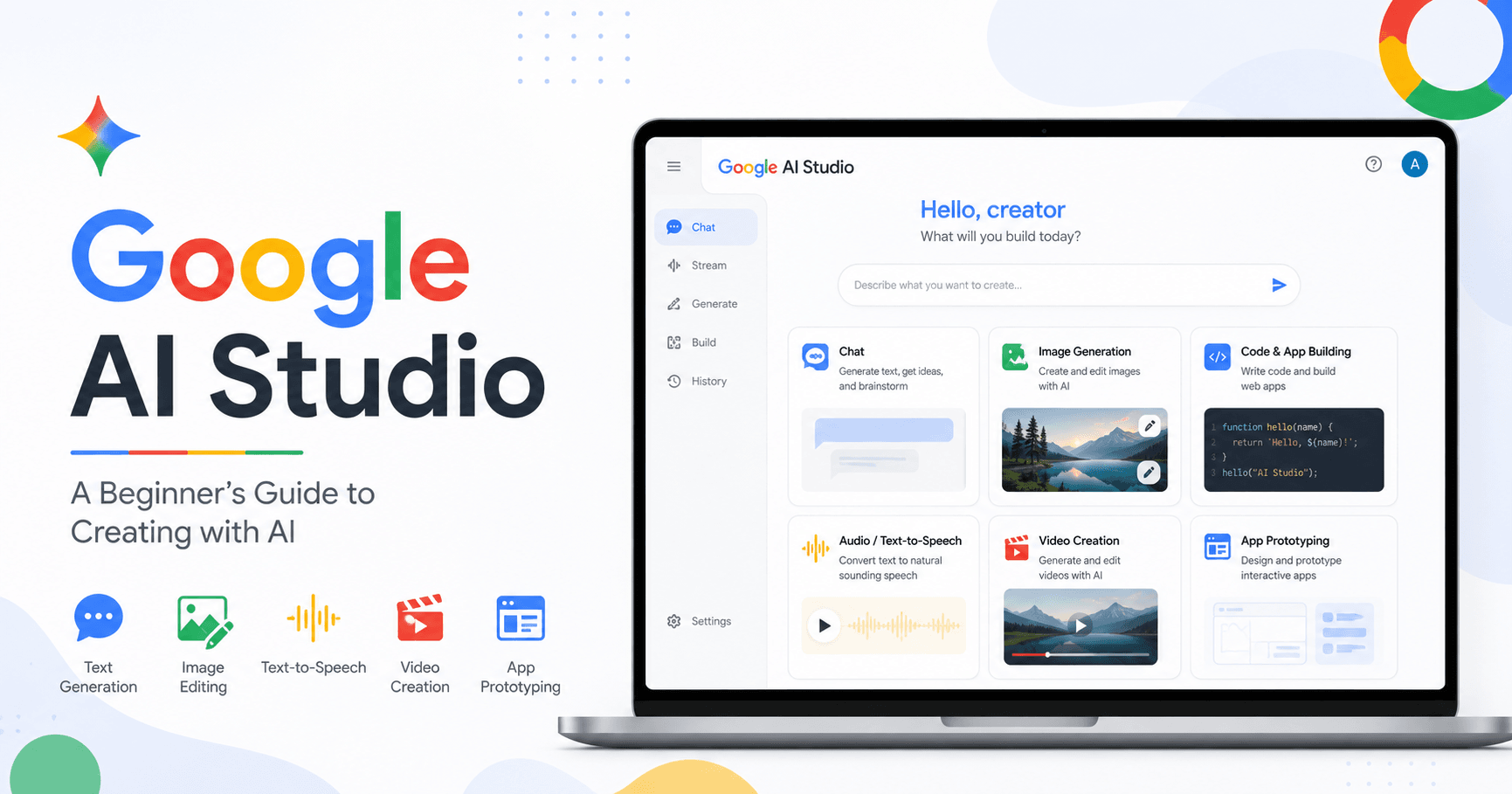

Google AI Studio is much more than a basic chatbot. It is a complete AI workspace where you can chat with Gemini models, generate images, edit visuals, create videos, turn text into speech, analyze files, research links, and even build simple apps with AI.
The best part is that many of its features can be used for free, making it a great tool for beginners, creators, developers, students, and professionals who want to understand how AI can help in everyday work.
What Is Google AI Studio?
Google AI Studio is a platform created by Google that gives users access to Gemini, Google’s family of AI models. Instead of using only one general chatbot, you can choose different models depending on what you want to do.
For example, you can use one model for fast text answers, another for advanced reasoning, another for image generation, another for image editing, and another for audio or video creation.
This makes Google AI Studio useful for many types of tasks, such as:
Writing and brainstorming ideas
Editing images
Generating videos
Creating voiceovers
Uploading files for analysis
Researching webpages
Building simple apps with AI
Getting real-time help through screen sharing
Getting Started
To begin, go to Google AI Studio and sign in with your Google account. Once inside, you will see a menu with sections like Home, Chat, Build, Dashboard, and Documentation.
The Home page gives you quick access to new features and model options. However, most users will spend more time in the Chat and Build sections.
The Chat section is where you interact with Gemini models. The Build section is where you can create apps and test AI-powered projects.
Choosing the Right Model
One of the most important parts of using Google AI Studio is choosing the right model.
Gemini has different models for different tasks. Some are better for deep reasoning, while others are faster and better for simple questions.
For example, if you need a detailed answer, advanced thinking, or complex problem solving, a Pro model may be better. If you only need quick help, a Flash model may be enough.
Google AI Studio also includes models for images, videos, audio, and live interactions. This means you should always choose the model based on the result you want.
Using Live Screen Sharing
One of the most useful features in Google AI Studio is the live mode. With it, you can talk to Gemini in real time, use your webcam, or share your screen.
This can be extremely helpful when you are working on something and need guidance. For example, you can share a PowerPoint presentation and ask Gemini how to change the background, improve the design, or make the slide look cleaner.
It works almost like having a live AI assistant beside you while you work.
This feature can be useful for:
Editing presentations
Learning software
Getting coding help
Reviewing designs
Asking real-time questions
Solving problems while looking at your screen
Just be careful not to share private or sensitive information while using screen sharing.
Generating Images
Google AI Studio also allows you to generate images using image models. You can type a prompt, choose the model, select the aspect ratio, adjust the resolution, and create images directly inside the platform.
This is useful for blog images, presentations, thumbnails, social media posts, and creative projects.
Some models are faster, while others are better at quality or text rendering. For example, a more advanced image model may be better if you need signs, labels, or readable words inside the image.
After generating an image, you can copy it, download it, or export it to Google Drive.
Editing Images With Nano Banana
Another powerful feature shown in the tutorial is image editing with the model commonly called Nano Banana.
Instead of generating a completely new image, this model is especially useful for editing an existing one. You can upload a photo and ask the AI to make specific changes.
For example, you can upload a portrait and ask it to add glasses, remove a logo, change an object, or adjust part of the image while keeping the rest consistent.
This is useful because it allows you to make visual edits without opening professional editing software like Photoshop.
You can use it for:
Profile photo edits
Product image adjustments
Removing small unwanted details
Trying different styles
Adding objects to an image
Improving visual content for articles or marketing
Customizing Gemini With System Instructions
Google AI Studio also lets you control how Gemini responds using system instructions.
System instructions are like giving the AI a role or personality before the conversation starts. Instead of repeating the same direction in every prompt, you can set the behavior once.
For example, you can tell Gemini:
“Act as my Spanish teacher.”
Or:
“Act as a strict reviewer and analyze my work carefully.”
Or:
“Act as a friendly writing coach and help me improve my article.”
This is helpful because it shapes the way Gemini answers. It can make responses more focused, more professional, more creative, or more educational depending on what you need.
Creating Videos
Google AI Studio also includes video generation options. Some video models are more basic and may be available inside the chat area, while more advanced models may require API access or billing setup.
With video generation, you can describe a scene and ask the AI to create a short clip. For example, you could ask for a plant growing in the desert as a time-lapse video.
This feature is useful for creators who want quick visual clips, concept videos, social media content, or experimental video ideas.
However, video generation is still more limited than text or image generation. Results may not always match the prompt perfectly, especially with older or lighter models.
Building Apps With AI
One of the most interesting parts of Google AI Studio is the Build section.
Here, you can describe an app idea and let Gemini help create it. For example, you can ask it to create a simple Snake game. Google AI Studio can generate the project and show a working preview on the screen.
You can then ask for changes, such as renaming the game, making it fullscreen, changing the design, or adding features.
This style of development is often called “vibe coding,” where you describe what you want in natural language and the AI helps generate the code.
This feature is especially useful for:
Beginners learning to code
Developers creating quick prototypes
Entrepreneurs testing app ideas
Designers experimenting with interactive concepts
Creators building simple tools without starting from zero
Using the App Gallery
The Build section also includes a gallery of existing app examples. These examples can help you understand what is possible with Gemini and Google AI Studio.
Instead of starting from a blank idea, you can explore pre-made apps, test them, and build your own version from those examples.
This is helpful if you want inspiration or if you are not sure what kind of AI app you want to create yet.
Researching Links and Uploading Files
Google AI Studio can also work with URLs and uploaded files.
You can paste a webpage link and ask Gemini to answer questions based on that page. This is useful for research, article summaries, product analysis, documentation, or studying online resources.
You can also upload PDFs, images, contracts, documents, or multiple files and ask Gemini to analyze them.
This can help with:
Summarizing long documents
Comparing files
Extracting important points
Understanding contracts
Reviewing research papers
Analyzing images
Organizing information from different sources
Turning Text Into Speech
Another feature inside Google AI Studio is text-to-speech. You can paste text, choose the tone, select voices, and generate audio.
This can be used to create voiceovers, AI podcast-style audio, narration for videos, or audio versions of written content.
You can also create single-speaker or multi-speaker audio. This makes it useful for creators who want to turn scripts into natural-sounding conversations.
For example, you could write a short dialogue and use Google AI Studio to generate audio with different voices for each speaker.
Final Thoughts
Google AI Studio is a powerful platform for anyone who wants to do more with AI than just ask basic questions. It combines chat, image generation, image editing, video creation, text-to-speech, file analysis, link research, and app building in one place.
For beginners, the best way to start is simple: open the Chat section, choose a Gemini model, and test small prompts. Then, explore image generation, live screen sharing, and system instructions.
For more advanced users, the Build section is where Google AI Studio becomes especially interesting. It allows you to turn ideas into working prototypes with the help of AI.
Overall, Google AI Studio is a flexible tool for learning, creating, researching, designing, and building with AI. It is not just a chatbot. It is a complete creative and development environment powered by Gemini.







टिप्पणियाँ0
टिप्पणी करने के लिए कृपया साइन इन करें।