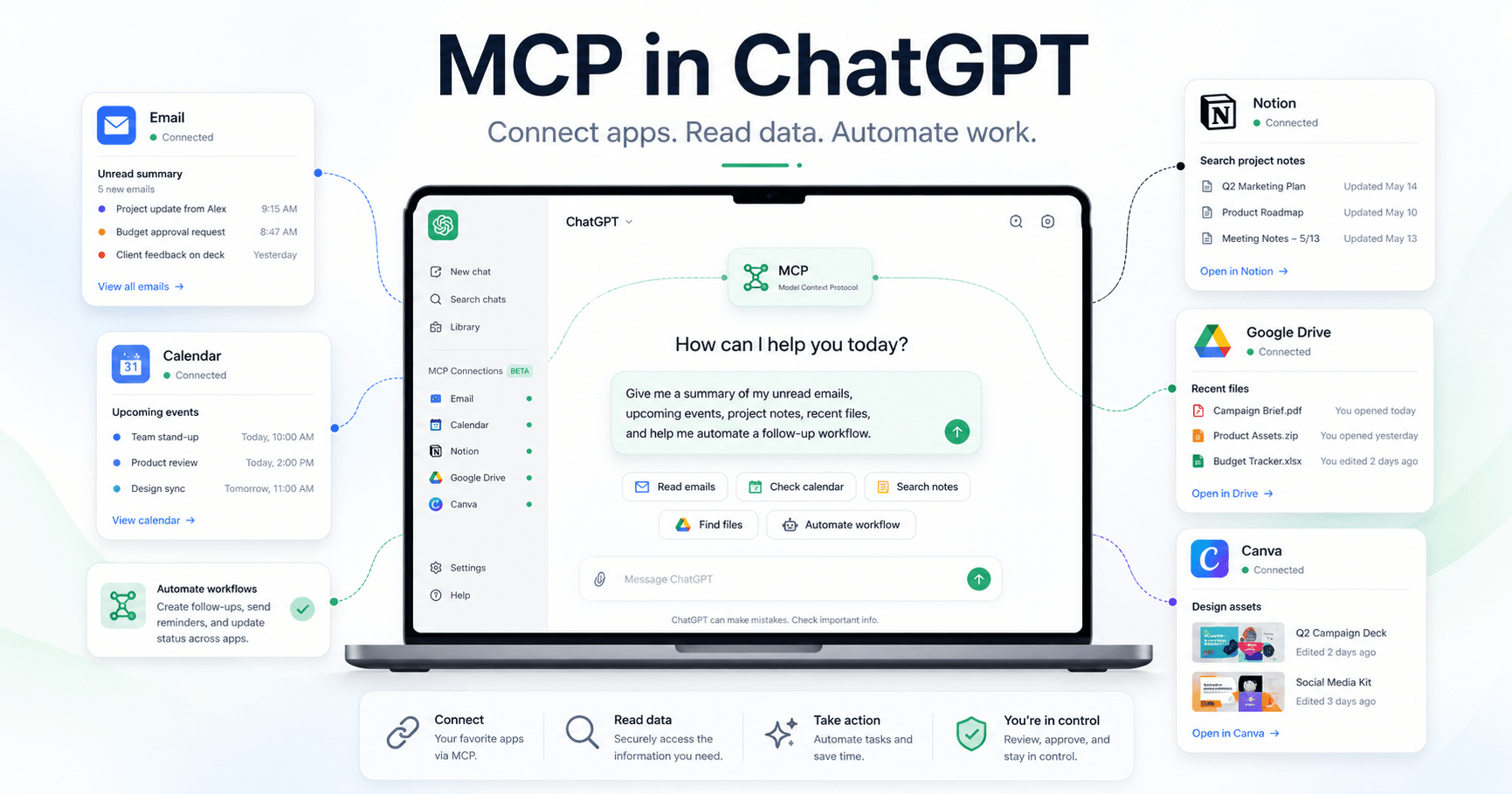

Many people still use ChatGPT only to write texts, create ideas, or answer questions. But the tool’s potential goes far beyond that. With MCP, ChatGPT can connect to other apps and services, access external information, and even perform actions on your behalf, such as checking emails, viewing your calendar, searching data in Notion, or automating tasks across connected platforms.
In practice, MCP works like a bridge between ChatGPT and external tools. Instead of manually copying information from one app to another, the AI can access these sources directly, as long as it has permission to do so.
What Is MCP Inside ChatGPT?
MCP stands for Model Context Protocol. It allows AI models to connect to external servers that provide tools, data, and actions.
In simple terms, it is like giving ChatGPT “superpowers.” Instead of being limited to the conversation, it can use connected tools to do things like:
Check recent emails
View calendar events
Search information in documents
Access Notion data
Run automations
Connect services such as Gmail, Google Calendar, Drive, Canva, and other apps
This turns ChatGPT into something closer to an operational assistant. It does not only respond. It can interact with external systems.
Why Is This Important?
Before, if you wanted to analyze something from Gmail, Drive, or Notion, you had to open the app, find the information, copy the content, and paste it into ChatGPT. With MCP or connectors, this process becomes much more direct.
For example, you can ask:
“Check my latest emails and tell me which ones need attention.”
Or:
“Check my calendar and tell me if I have any meetings tomorrow.”
Or even:
“Search my Notion for the page about this project and summarize it for me.”
This saves time, reduces manual work, and makes AI much more useful in everyday tasks.
How the Setup Works
The transcript shows an example using OpenAI’s platform and Zapier as the MCP server. Zapier is useful because it allows you to connect several apps through a single MCP connection.
The process starts inside ChatGPT, in the apps area. This area used to be called connectors. To create a custom connection, you need to go into settings, access the apps section, open advanced settings, and enable developer mode.
After that, you can create a new app connected to an MCP server.
This MCP server is what allows ChatGPT to access external tools. In the example, the server is created through Zapier, which then provides an MCP link to be added to ChatGPT.
Example 1: Connecting Gmail
The first example in the transcript shows how to connect Gmail to ChatGPT.
In Zapier, the user creates an MCP server and adds a tool related to Gmail. In this case, the selected permission allows ChatGPT to find emails in the inbox.
After connecting the account, Zapier generates an MCP link. This link is copied into the app configuration inside ChatGPT. A description is also added, which helps ChatGPT understand how to use that tool.
Once the connection is created, ChatGPT can use Gmail as a tool inside the conversation.
In practice, the user can ask:
“What was my latest email?”
ChatGPT then calls the connected tool, accesses Gmail, and returns the information it found.
This type of use can be very helpful for productivity. Instead of opening your inbox and searching manually, you can ask the AI to identify important messages, summarize conversations, or find specific emails.
Example 2: Connecting the Calendar
The second example shows how to use MCP in OpenAI’s API platform to connect a calendar.
In this case, the user accesses the OpenAI dashboard, creates a new chat, and adds an MCP Server tool. Then, they select the Zapier connection and create an integration with Google Calendar.
After that, an API token is generated. This token must be kept secure because it allows OpenAI and Zapier to exchange information with access to the connected tools.
With the calendar connected, ChatGPT can answer questions like:
“Do I have any upcoming events?”
Or:
“What meetings do I have this week?”
Depending on the permissions granted, it can also help create events, organize schedules, and automate tasks related to appointments.
This is especially useful for anyone who wants to use ChatGPT as a personal or professional assistant.
Example 3: Connecting Notion to an Agent
The third example involves OpenAI’s Agent Builder.
In this case, the idea is to create an agent that has access to documents and information stored in Notion. This is powerful because many people use Notion as a knowledge base, project organizer, or documentation center.
Inside Agent Builder, the user creates a new workflow, adds an MCP tool to the agent, and connects Notion through Zapier.
Because Notion can contain pages, blocks, databases, and many types of content, the example shows several permissions being selected so the agent can access different information structures.
After the connection is complete, the agent can answer questions based on the Notion documents.
For example:
“Explain what Axel Design is.”
The information was hidden inside Notion documents, but the agent was able to find the page and explain its content.
This shows how MCP can turn ChatGPT into an assistant connected to your own knowledge base.
Where Can MCP Be Used in Daily Work?
MCP can be used in many workflows.
A professional can connect Gmail and Calendar to review the day’s messages and meetings.
A team can connect Notion to consult internal documentation without opening multiple pages.
A content creator can connect Drive, Canva, or planning tools to search references, scripts, and campaign materials.
A company can use agents connected to internal tools to answer questions, organize processes, and automate repetitive tasks.
A developer can connect technical tools to search data, run actions, or create agent-based workflows.
The main advantage is that ChatGPT no longer depends only on what you type in the prompt. It can search information in the right places.
Important Precautions
Although MCP is very useful, it requires care.
The first point is permission. When you connect Gmail, Calendar, Notion, or any other app, you need to understand exactly what actions you are allowing. Some tools may only read data. Others may write, edit, or perform actions.
The second point is security. API tokens and connection links should not be shared. If someone gets access to these credentials, they may be able to use your integrations improperly.
The third point is review. Even when connected to real data, ChatGPT can still interpret something incorrectly. Important actions should be checked before being executed.
MCP increases the power of AI, but it also increases the responsibility of setting everything up correctly.
Is MCP Only for Programmers?
Not necessarily.
The technical part can seem intimidating at first, especially when it involves MCP servers, tokens, APIs, and developer mode. But tools like Zapier make the process easier because they allow you to connect several apps without building everything from scratch.
For regular users, the simplest path is to use ready-made connectors or platforms that already support MCP integrations.
For advanced users, MCP opens the door to custom tools, specialized agents, and more complete automations.
In other words, MCP can be useful both for someone who only wants to connect Gmail and Calendar and for someone who wants to create more advanced workflows with agents.
Conclusion
MCP represents an important evolution in how ChatGPT can be used. It allows AI to move beyond the role of a simple chatbot and become a central hub connected to apps, documents, emails, calendars, and work systems.
With it, ChatGPT can consult information, use external tools, and help with real everyday tasks.
The transcript shows three clear examples: connecting Gmail to read emails, connecting Calendar to check events, and connecting Notion to an agent so it can access internal documents.
The main point is that the future of using AI is not only about writing better prompts. It is about connecting AI to the places where your information already exists.
When ChatGPT can access your data, understand your context, and use external tools safely, it stops being just a conversation tool and starts working as a true productivity assistant.







Comentarios0
Inicia sesión para comentar.