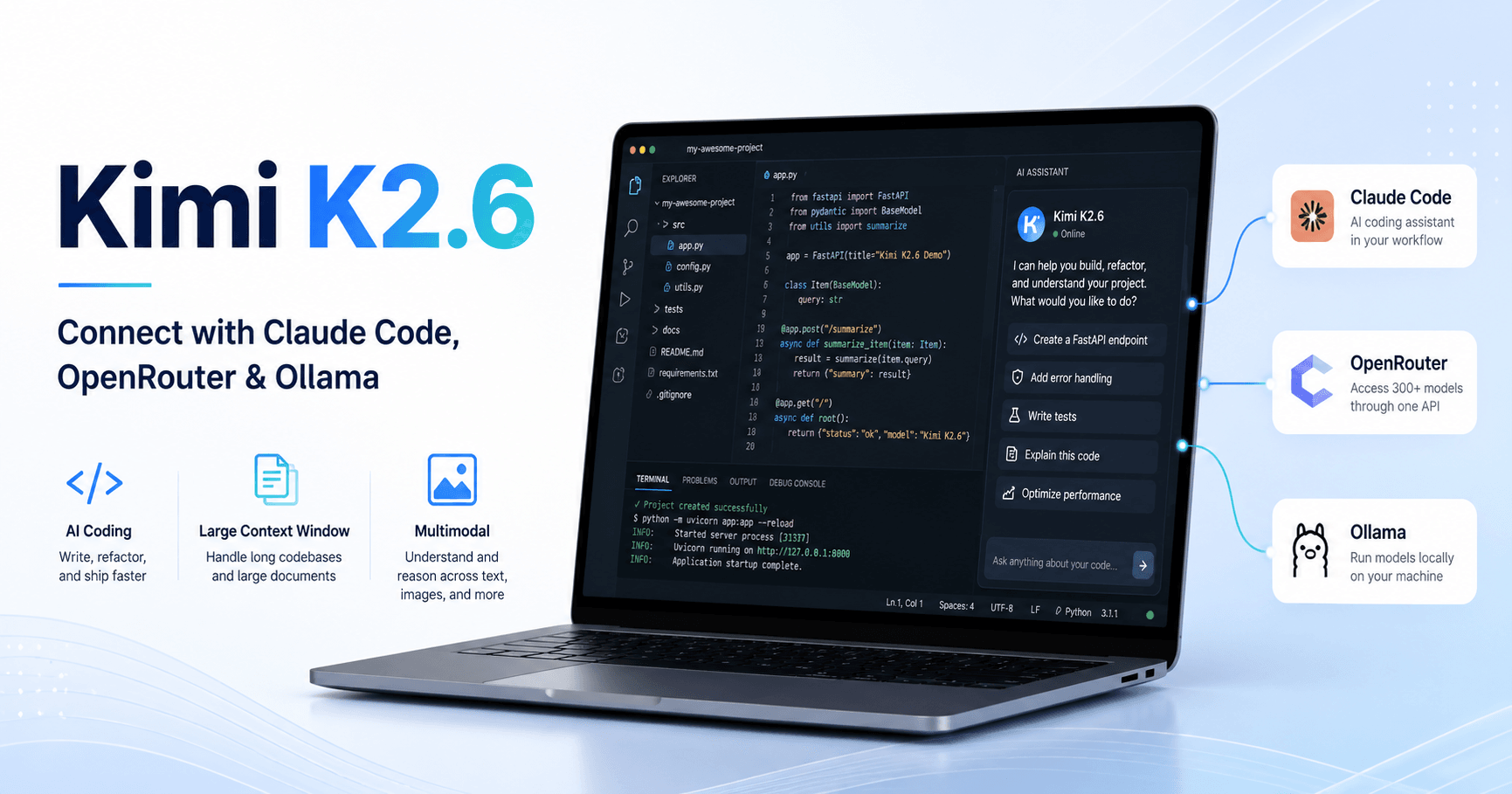

Kimi K2.6 is one of the newest AI models released by Moonshot AI, and it is getting attention because of its strong coding, reasoning, and multimodal capabilities. For developers and AI power users, the most interesting part is not only what the model can do, but how it can be connected to existing coding tools like Claude Code.
In this guide, we will look at what makes Kimi K2.6 special and how it can be used inside Claude Code through two different methods: OpenRouter and Ollama.
What Makes Kimi K2.6 Special?
Kimi K2.6 is a large AI model with 1.1 trillion parameters. It supports both text and image input, which makes it useful not only for coding tasks but also for workflows that require visual understanding.
Another important feature is its 256K context window. This means the model can handle very large amounts of information in a single session. For coding, this is extremely useful because it allows the model to understand bigger projects, longer files, documentation, and complex instructions without losing context quickly.
The model has also been compared against major AI models in benchmarks involving coding, reasoning, agentic tasks, and vision. According to the transcript, Kimi K2.6 performs strongly in several of these areas, making it a serious option for developers who want to experiment with advanced AI coding workflows.
Why Connect Kimi K2.6 to Claude Code?
Claude Code is a powerful command-line coding assistant, but it can also be used with different models through external providers. By connecting Kimi K2.6 to Claude Code, you can use the Claude Code workflow while running Moonshot’s model behind the scenes.
This setup is useful if you already like the Claude Code interface but want to test another model for coding tasks. You can ask the assistant to create projects, edit files, explain code, generate websites, or help with development directly from your terminal.
Method 1: Using Kimi K2.6 Through OpenRouter
The first method is connecting Kimi K2.6 through OpenRouter. OpenRouter gives access to different AI models through a single API system, including Moonshot models.
Before starting, you need to make sure Claude Code is installed on your machine. You can do this by visiting the Claude Code official website and copying the installation command for your operating system. The installation command may be different depending on whether you are using Mac, Linux, WSL, or Windows.
After installing Claude Code, open a new terminal and type the Claude command to confirm that it is working.
Next, go to the OpenRouter integration page for Claude Code. This page provides the environment variables and project settings needed to connect Claude Code to OpenRouter.
The important values include:
Anthropic base URL
Anthropic auth token
Anthropic API key
Anthropic model
Because the connection is going through OpenRouter, you need to use your OpenRouter API key. To get it, go to your OpenRouter account, open the API key section, create a new key, and copy it.
It is important to know that using Kimi K2.6 through OpenRouter may require a paid OpenRouter account or available credits. The model is not necessarily free when accessed through OpenRouter.
Setting Up the Project Configuration
After getting the required configuration from OpenRouter, open VS Code and create a Claude settings folder inside your project. Then create a settings.json file.
Inside that file, paste the project settings copied from the OpenRouter integration page. Then add your OpenRouter API key in the correct auth token field.
You also need to specify the model name. To find the correct model name, go to the OpenRouter models page, search for Kimi K2.6, and copy the official model identifier. It should be added under the Anthropic model field.
Once the configuration is ready, open the terminal inside your project and start Claude Code. If everything is correct, Claude Code should launch using the Kimi K2.6 model.
You can test it with a simple prompt like “Hi.” If the model responds, the connection is working.
After that, you can ask it to build something, such as a portfolio website, generate code, or work inside your project folder.
Method 2: Using Kimi K2.6 Through Ollama
The second method shown in the transcript is connecting Kimi K2.6 through Ollama.
This approach may require an Ollama Pro account, especially if you are using the cloud version of the model. The command shown in the tutorial runs Kimi through the cloud version, which means a subscription may be needed.
To test this method, you copy the Ollama command for Kimi K2.6 cloud and paste it into your terminal. If your account does not have the required subscription, the terminal will return a message saying that the model requires a paid plan.
If you do have access, you can launch the model and connect it with Claude Code in a similar way to the OpenRouter setup. The idea is to specify Kimi K2.6 as the model and use Claude Code as the coding interface.
Which Method Should You Use?
OpenRouter is probably the easier option for many users because it gives you a clear API-based setup and access to many models in one place. If you already use OpenRouter, connecting Kimi K2.6 to Claude Code can be a practical way to test the model quickly.
Ollama may be more interesting for users who already use Ollama workflows or want to experiment with cloud-based model access through that ecosystem. However, depending on the model and setup, it may require a Pro subscription.
For beginners, OpenRouter is likely the better starting point. For more advanced users, Ollama can be another flexible option.
What Can You Build With This Setup?
Once Kimi K2.6 is connected to Claude Code, you can use it for many development tasks, such as:
creating portfolio websites
generating full project structures
editing existing code
debugging errors
explaining codebases
building small apps
writing documentation
improving UI components
creating automation scripts
The large context window makes it especially useful for bigger projects where the AI needs to understand more files and instructions at once.
Final Thoughts
Kimi K2.6 is an impressive model for developers who want to test a powerful AI coding assistant outside the usual options. With support for text, images, a large 256K context window, and strong performance in coding and reasoning benchmarks, it is a promising tool for modern AI development workflows.
By connecting Kimi K2.6 to Claude Code through OpenRouter or Ollama, you can use a familiar coding interface while experimenting with Moonshot AI’s latest model.
If you want the easiest path, start with OpenRouter. If you already use Ollama and have the right subscription, the Ollama method is also worth testing.
Either way, this setup gives developers another powerful option for building, coding, and experimenting with AI-assisted development.







Comentarios0
Inicia sesión para comentar.