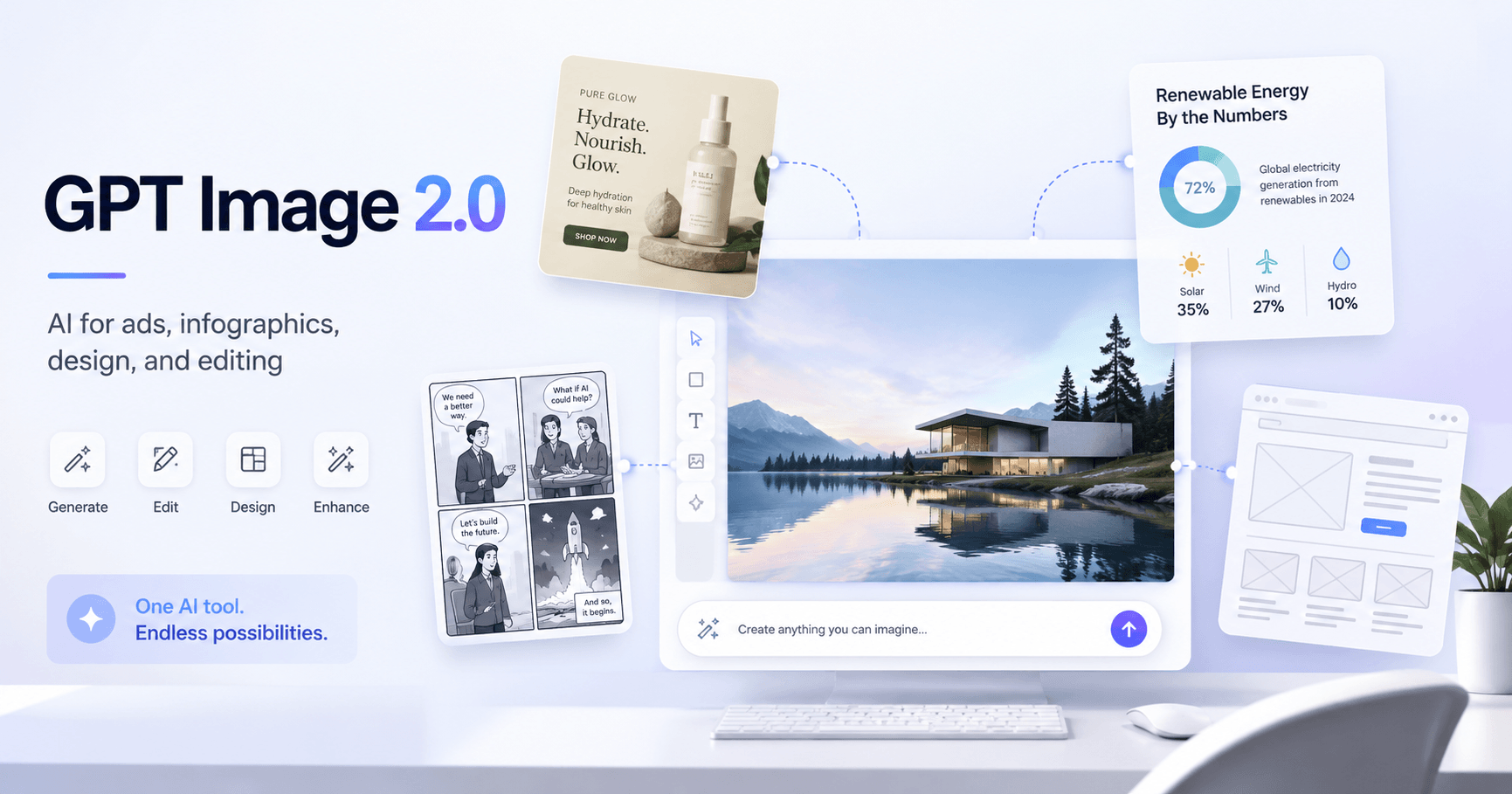

GPT Image 2.0 represents an important evolution in the way we use artificial intelligence to create images. Its purpose is not just to generate a beautiful image from a prompt. The main difference is its ability to understand context better, keep details consistent, and perform more complex edits with less effort.
In practice, this means users can create ads, infographics, comics, storyboards, social media visuals, interfaces, and even visual presentations using simple commands. The tool works as a creative assistant for anyone who needs to produce images faster without starting from scratch.
What Changed in GPT Image 2.0?
The biggest improvement is visual understanding. In previous versions, AI could often generate beautiful images, but with errors in logos, text, products, or important details. For example, when creating a product ad, the model might change the packaging, distort the brand, or alter colors that should stay the same.
With GPT Image 2.0, the tool seems to handle these details much better. When it receives a product image and a prompt explaining the type of ad you want, it can keep the product more faithful to the original and create a more coherent visual composition.
This is very useful for brands, designers, content creators, and small businesses that need to generate visual ideas quickly.
Creating Ads and Product Images
One of the most interesting use cases is ad creation. The user can upload an image of a product and ask something like:
“Create a professional ad for this mango drink, with natural light, an urban aesthetic, and a summer feeling.”
The AI can turn this request into an advertising-style image with scenery, lighting, and visual direction. It is also possible to ask for changes afterward, such as changing the background, replacing the product, adapting the image format, or creating a version with another color palette.
This type of workflow is very useful for testing ideas before creating a final campaign. Instead of opening an editor from scratch, the user can generate several creative directions and choose the best one.
More Detailed Infographics
Another strong point is infographic creation. Before, image models often struggled with small text, tables, labels, and technical information. The result could look nice, but it often contained errors or confusing information.
With GPT Image 2.0, infographic generation becomes more advanced, especially when the user activates the reasoning mode, called “thinking” in the video. This mode helps the AI analyze the request better before generating the image.
One example mentioned is the creation of a complete periodic table in a wide format. The tool was able to generate a more organized image, with more details and fewer visual errors. Still, there is one important point: the user needs to review everything.
AI can help a lot with the visual base, but it does not replace human review. In infographics with data, text, and explanations, it is always necessary to check whether the information is correct.
Manga, Comics, and Storyboards
GPT Image 2.0 can also be used to create visual stories, such as manga, comics, and storyboards. The user can upload a reference image and ask the tool to transform the character into a specific scene.
For example, it is possible to ask for a manga-style page about a historical battle, with dramatic expressions and an action-focused atmosphere. The tool tries to keep the style, organize the panels, and create a visual narrative.
For commercials, AI can also generate storyboards. You only need to write the video idea in natural language, explaining the scenes, the product, and the desired mood. From that, it can create a visual sequence that works as a base for a campaign, presentation, or audiovisual production.
This does not completely replace an art director or designer, but it can greatly speed up the ideation process.
Editing Images With Simple Commands
Another powerful feature is image editing. The user can ask the AI to remove objects, add elements, expand the image, or change specific parts.
One example from the transcript is removing a person from an image just by using their name, without needing to describe exactly where they are. The AI understands the context and tries to remove the element while keeping the rest of the composition natural.
It is also possible to make several changes in a single prompt. For example:
“Change the neon sign to ‘Cutting Edge Group’, change the sticky note to ‘Holidays’, write ‘Coffee’ on the mug, and change the neon colors.”
In previous versions, this kind of request often caused problems. The AI would fix one part but break another. Now, consistency seems better, allowing more complex adjustments in fewer steps.
Canva Integration for Editable Social Media Posts
One of the most useful points for content creators is the Canva integration. AI can help generate layouts for social media, and then the user can open the result in Canva to edit text, fonts, colors, and elements.
This solves a common limitation of AI-generated images: the result may look good, but it is often hard to edit. With Canva, the user can adjust the design more practically.
A good workflow would be:
First, ask ChatGPT to create a campaign post for a specific product using Canva.
Then, open the design in Canva and edit the text.
Finally, generate a separate image of the product with no text and replace the placeholder inside the layout.
This process combines AI speed with manual control over the final design.
UI, Pitch Decks, and Visual Identity
GPT Image 2.0 can also help product designers and sales teams. For UI design, it can generate a first interface idea. The result is not an editable file ready for development, but it works as a visual starting point.
This helps anyone starting a project who wants to avoid a blank screen.
Another interesting use case is pitch deck creation. The user can upload a PDF, such as a course brochure or sales material, and ask the AI to create a presentation based on that content and the visual identity of the file.
The tool can generate slides with a professional appearance, following the colors, style, and visual elements of the original material. Still, the result should be seen as a visual draft, not a final production version.
Important Limitations
Despite the improvements, GPT Image 2.0 still has limitations.
It can make mistakes in tasks that require real-world physics, very precise step-by-step instructions, maps, arrows, origami, puzzles, Rubik’s cubes, or very complex patterns. Sometimes the image looks visually correct, but the process does not make sense if someone tries to follow it in real life.
This is an essential point: beautiful images do not automatically mean correct images.
That is why, in educational, technical, or commercial content, the ideal approach is to use AI as a starting point. After that, the user should review texts, data, proportions, names, instructions, and visual details.
Who Is GPT Image 2.0 Useful For?
The tool can be useful for many types of users.
Students can create infographics to study more effectively.
Teachers can turn complex topics into educational visuals.
Businesses can create ideas for ads and campaigns.
Designers can generate visual drafts faster.
Content creators can produce posts, thumbnails, and social media visuals.
Sales teams can create ideas for pitch decks and presentation materials.
The biggest benefit is speeding up the beginning of the creative process. Instead of starting with a blank canvas, the person starts with a visual base that can be reviewed, adjusted, and improved.
Conclusion
GPT Image 2.0 represents an important step forward in AI image creation. It understands context better, keeps products and text more consistent, allows multiple edits in a single prompt, and can be used in workflows with tools like Canva.
Even so, it does not remove the need for human review. AI can create a strong first version, but the human eye is still essential to validate information, adjust details, and turn the result into something truly professional.
In the end, the best way to use GPT Image 2.0 is not to treat it as a magic solution. It is better to use it as a creative partner to generate ideas, speed up workflows, and create better images in less time.







Comentarios0
Inicia sesión para comentar.