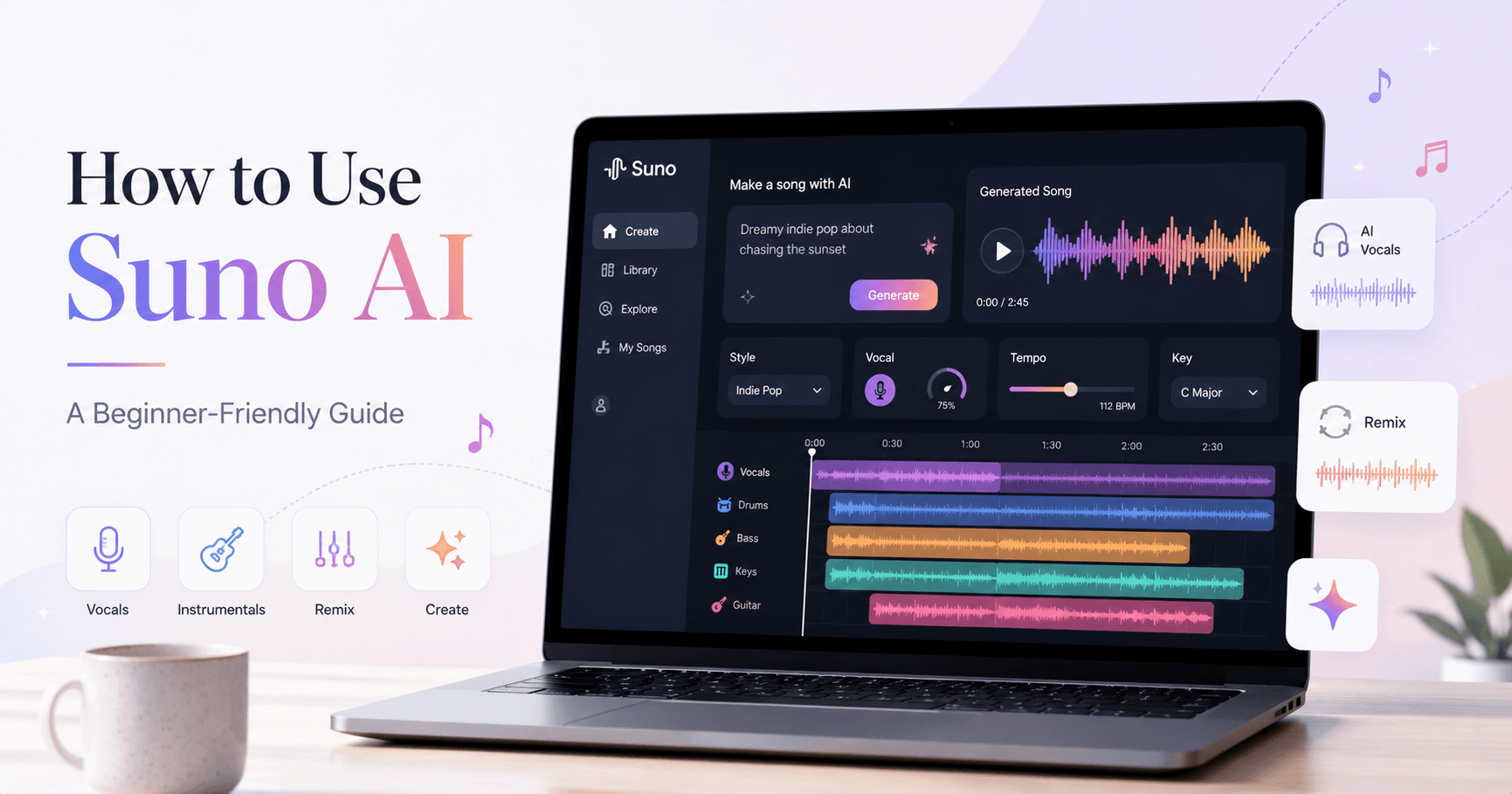

Suno AI is one of the most popular tools for creating music with artificial intelligence. It can generate complete songs, instrumentals, vocals, remixes, covers, samples, sound effects, and even consistent AI singers.
At first, Suno may look complicated because it has many options, models, sliders, and editing tools. But once you understand the basics, the workflow becomes simple.
This guide explains how to use Suno AI to create better songs from scratch.
Understanding Suno AI Plans
Suno offers different plans depending on how much you want to create.
The free plan is good for testing the platform. It gives you daily credits, but it has limits. You may not get access to the newest model, cannot buy extra credits, and usually do not have commercial rights.
The Pro plan is the best option for most users. It gives you access to newer models, more credits, stems, personas, longer audio uploads, early features, and commercial usage rights. This means you can use your songs on platforms like YouTube, Spotify, or social media.
The Premier plan is mainly for power users. It gives more credits and access to advanced tools like Suno Studio. If you are just starting, the free or Pro plan is usually enough.
Navigating Suno
The Home tab shows trending songs, recommended tracks, songs from people you follow, remix contests, hooks, and activity notifications.
The Library stores all your generated songs. You can organize them into playlists, workspaces, personas, studio projects, and more.
The Create tab is where you make music. This is where you write prompts, choose simple or custom mode, upload audio, remix tracks, and generate new songs.
Each song also has a three-dot menu. From there, you can remix, edit, open in Studio, create samples, adjust speed, get stems, publish the song, and more.
Choosing the Right Model
Suno has different AI music models. Newer models usually provide better sound quality, while older models can sometimes be more creative.
For beginners, the best choice is usually the newest available model. But it is worth testing different models to see which one gives you the sound you want.
A useful workflow is creating a song with a more creative model and then remastering it with a newer model for better audio quality.
Creating a Song in Simple Mode
Simple mode is the easiest way to start.
You only need to describe the song you want. For example:
“An emotional country song about missing home, with acoustic guitar and warm male vocals.”
After clicking create, Suno usually generates two versions of the song. This gives you options to compare.
You can also turn on instrumental mode if you want a track without vocals. This is useful for beats, background music, songwriting ideas, or cinematic tracks.
The magic wand feature can improve your prompt automatically. It expands a simple idea into a more detailed prompt that Suno can understand better.
Using Custom Mode
Custom mode gives you more control.
Here, you can write your own lyrics, define the music style, choose vocal direction, exclude unwanted styles, and adjust advanced settings.
A simple framework for better prompts is:
Genre, Mood, Instruments, Vocals.
For example:
“90s grunge rock, dark emotional mood, distorted guitars, live rock drums, raspy male baritone vocals, laid-back delivery.”
This gives Suno a much clearer direction than only writing “rock song.”
Writing Lyrics
In the lyrics box, you can organize your song with sections like:
[Intro]
[Verse 1]
[Chorus]
[Verse 2]
[Bridge]
[Outro]
These labels help Suno understand the structure.
You can also use brackets as production instructions, also called metatags. For example:
[Intro, acoustic guitar only]
[Verse 1, soft whisper vocal]
[Chorus, full band, emotional delivery]
[Guitar solo]
[Outro, fade out]
Metatags can guide instruments, vocal delivery, energy, and arrangement.
Parentheses can be used for backing vocals, harmonies, or ad libs. For example:
I left my heart behind (behind)
Line breaks also matter. Shorter lines can create more space in the vocal delivery, while longer lines may be sung faster. Commas can help create pauses.
If Suno mispronounces a word, try spelling it phonetically, the way it sounds.
Auto Lyrics and Sliders
If you do not want to write lyrics manually, Suno can generate them for you. In auto lyrics mode, you describe the idea, and Suno writes the lyrics.
The weirdness slider controls how experimental the result becomes. Lower values create safer results. Higher values create more chaotic and unexpected results. A middle value is usually a good starting point.
The style influence slider controls how strongly Suno follows your style prompt. If you want a very specific sound, increase it. If you want Suno to be more flexible, keep it lower.
Uploading Audio
Suno lets you upload or record audio. You can hum a melody, upload a demo, record a vocal idea, or use an existing track.
After uploading audio, Suno can analyze it, describe it, transcribe lyrics, and use it in different ways.
You can cover it, extend it, add vocals, add instruments, remix it, use it as inspiration, or turn it into a sample.
The audio influence slider controls how much Suno follows the uploaded audio. Higher values follow the original melody more closely. Lower values create something more new.
Covers, Remixes, and Samples
The cover feature lets you transform a track into a new version. You can turn an electronic song into an acoustic version, a vocal idea into a piano piece, or a demo into a full arrangement.
You can also create live versions by using prompts like:
“Played live in front of a crowd, energetic performance, audience singing along, crowd cheering.”
The mashup feature combines elements from two songs. It can blend lyrics, styles, melodies, or instrumentation.
The sample feature turns uploaded audio into a new musical idea. This works well for hip-hop beats, chopped samples, experimental loops, and creative production ideas.
Adding Vocals and Extending Songs
If you have a beat, Suno can add vocals to it. You can provide lyrics and let Suno create a vocal performance over the instrumental.
The Extend feature is useful when you like part of a song but need a new section. You can choose where Suno should continue, and it will generate the next part.
This is helpful for creating choruses, bridges, drops, outros, or new ideas.
After extending a track, use “Get Full Song” to combine the original part with the new extension.
Creating Personas
Personas let you create a consistent AI singer or artist.
If you generate a song with a voice you like, you can turn that voice into a persona and reuse it in future tracks. This is useful for creating an AI band, virtual artist, or album with a consistent vocal identity.
To create a persona, choose a song with the voice you like, select the best vocal section, name the persona, and save it.
Editing Songs
Suno’s editor lets you change lyrics after a song is generated. If one word or sentence is wrong, you can select a section and replace the lyrics.
It is usually better to select a full phrase or verse instead of only one word. This helps the change sound smoother.
The editor can also rearrange sections, delete parts, duplicate choruses, and extend audio.
Stems and Studio
Suno can separate songs into stems, such as vocals, instrumental, drums, guitars, and effects. This is useful if you want to mix the song in a DAW, create remixes, or improve the production manually.
Suno Studio is a more advanced workspace for editing and producing. You can work with multiple tracks, record audio, replace parts, cover sections, and even turn your voice into an instrument.
For beginners, Studio is not required, but it is powerful for users who want more control.
Sound Effects and Prompt Saving
Suno can also generate sound effects. You can create one-shots, such as impacts, short vocal phrases, or rain sounds, and loops, such as drum breaks, synth loops, or ambient textures.
If you create a prompt that works well, save it to your library. You can reuse it later and build your own collection of reliable prompt formulas.
You can also study songs you like by looking at their style prompts and lyrics when available.
Publishing Your Songs
When your song is ready, you can publish it on your Suno profile. You can add a title, generate cover art, create a video, add a caption, and choose how lyrics are displayed.
Suno also has a Hooks feed, similar to a short-form music discovery feed. You can create hooks from your songs and share them with the community.
Final Thoughts
Suno AI is more than a simple text-to-music generator. It can help beginners create complete songs quickly, while also giving advanced users tools for remixing, sampling, editing, extending, creating personas, generating stems, and producing inside Studio.
The best way to improve is to experiment. Start with simple prompts, then add more detail. Use the GMIV framework: genre, mood, instruments, and vocals. Write clear lyrics, use metatags, test different models, and save the prompts that work best.
Suno will not always generate the perfect result on the first try, but with the right workflow, it can become a powerful tool for creating original music faster.







Comentarios0
Inicia sesión para comentar.