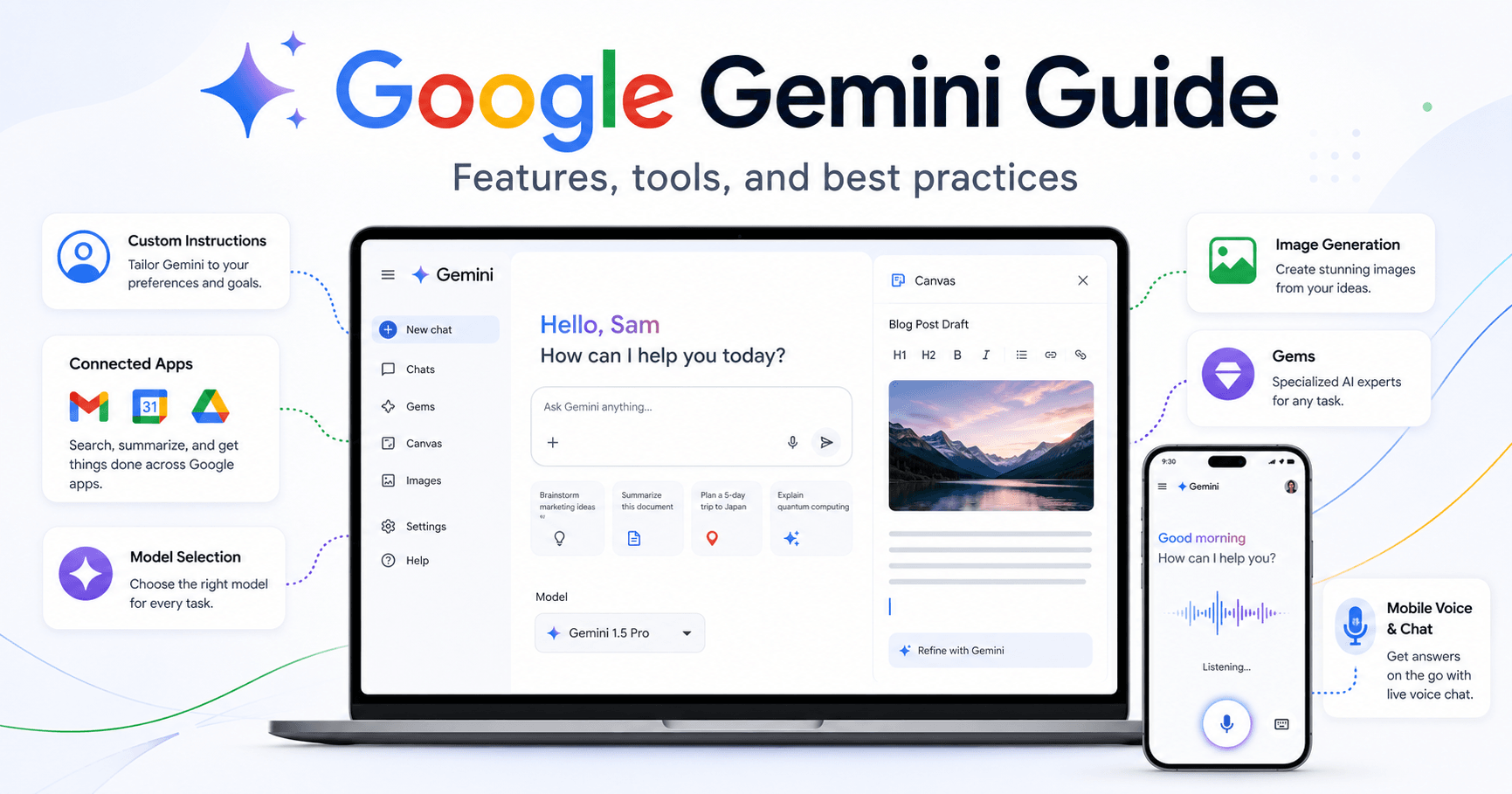

Google Gemini is one of the most powerful AI assistants available today, but many people still use it in a very basic way. They open the tool, type a simple question, and expect a perfect answer.
The problem is that Gemini becomes much more useful when you know how to configure it, choose the right model, use connected apps, upload files, create Gems, and work with tools like Canvas, Deep Research and Guided Learning.
This guide explains how to use Google Gemini in a practical way, based on the main features shown in the tutorial transcript.
Getting Started with Gemini
To use Gemini, you can go to gemini.google.com and sign in with your Google account. Since Gemini is a Google service, it connects naturally with other tools like Gmail, Google Drive, Google Calendar, Docs and YouTube.
There are different plans available, including free and paid options. For most users, the free plan is enough to start. It already gives access to many useful features. Paid plans become more interesting when you need more advanced tools, more usage limits, better reasoning models, video generation or personal intelligence features.
The best approach is simple: start with the free plan and upgrade only when your needs grow.
Set Up Custom Instructions
One of the first things you should configure is Instructions for Gemini.
This feature lets you tell Gemini how you want it to respond. For example, you can say:
“I prefer detailed answers with examples and analogies.”
You can also add personal context, such as your profession, your devices, your work style or your preferences. This helps Gemini give better answers because it understands your situation before responding.
For example, if Gemini knows you use a MacBook and an iPhone, it will avoid giving Windows instructions when helping you solve a technical problem.
The more useful context you provide, the more personalized your answers become.
Use Personal Intelligence and Connected Apps
On paid plans, Gemini may include a feature called Personal Intelligence. This combines your instructions, past chats and connected Google apps to generate more relevant responses.
Gemini can connect with tools like:
Gmail
Google Docs
Google Drive
Google Calendar
Google Keep
Google Photos
YouTube
YouTube Music
Even on the free plan, connected apps can still be useful. You can ask Gemini to search your Gmail, check your calendar or find information in your Drive.
For example, you could ask:
“When is my next trip? Check my Gmail.”
This makes Gemini more than a chatbot. It becomes an assistant that can work with your own information.
Use Temporary Chats for Private Topics
Gemini also has Temporary Chat, which works like an incognito mode.
Temporary chats do not appear in your recent chat history. They also are not used for future personalization. This is useful when you want to discuss something more private or when you do not want that information to affect future responses.
It is a good option for sensitive questions, one-time tasks or information you do not want stored in your regular Gemini history.
Choose the Right Gemini Model
Gemini offers different model options, such as Fast, Thinking and Pro.
The Fast model is best for everyday questions. It answers quickly and is usually enough for simple tasks like writing emails, summarizing text, generating ideas or answering basic questions.
The Thinking model takes longer but gives better results for complex prompts. It is useful when you need deeper reasoning, better structure or more accurate planning.
The Pro model is more useful for advanced tasks, especially coding, math and technical work.
A practical rule is:
Use Fast for simple tasks.
Use Thinking for important or complex tasks.
Use Pro only when you need advanced reasoning, coding or technical support.
Use Voice Input to Save Time
Gemini has a microphone option that lets you speak instead of typing. This can make your workflow much faster, especially when asking long questions or explaining a complex situation.
For many users, voice input is one of the easiest ways to get better results because you naturally provide more context when speaking.
Instead of typing a short prompt like:
“Help with Gmail.”
You can say:
“What are the best ways Gemini can help me organize my Gmail inbox, summarize important emails and identify messages that need a response?”
More context usually leads to better answers.
Deep Research for Detailed Reports
Gemini includes a tool called Deep Research.
This tool creates long, detailed reports with structured information, charts and deeper analysis. It is useful for academic research, business reports, market analysis or complex topics that need more than a quick answer.
However, Deep Research can be too much for simple tasks. If you only need a short explanation, summary or idea list, a normal Gemini chat is usually better.
Use Deep Research when you need depth, not speed.
Canvas for Writing, Studying and Coding
One of the most useful Gemini features is Canvas.
Canvas creates an interactive workspace beside the chat. Instead of only receiving text inside the conversation, you can edit the content directly, highlight sections and ask Gemini to improve specific parts.
This is especially useful for:
Writing emails
Creating articles
Editing documents
Building study guides
Writing code
Creating structured content
For example, if Gemini writes an email and one sentence sounds too soft, you can highlight only that sentence and ask Gemini to make it firmer.
Canvas also lets you export content, send it to Google Docs, create web pages, generate quizzes, flashcards, infographics and audio overviews.
For writing and studying, Canvas can make the process much more organized.
Create Images and Infographics
Gemini can also generate images. You do not always need to manually select an image tool. In many cases, you can simply write:
“Create an image about…”
or
“Create an infographic explaining…”
If you want to download an image more easily, it may be better to generate it in a normal chat instead of inside Canvas. The transcript points out that Canvas may copy the code behind an infographic rather than giving a simple image download option.
For shareable visuals, normal chat image generation can be more practical.
Guided Learning for Students
Gemini also has a Guided Learning feature. This works almost like a personal tutor.
Instead of simply giving you an answer, Gemini asks questions, explains concepts step by step and checks if you understand the topic.
This can be helpful for students learning subjects like law, languages, history, science or exam preparation.
For example, you can ask:
“I am studying for an exam. Help me learn contract law.”
Gemini will guide the conversation, explain concepts and ask follow-up questions to test your understanding.
Upload Files and Use NotebookLM
Gemini lets you upload files such as images, screenshots, PDFs and documents. You can also attach files from Google Drive, Google Photos and NotebookLM.
This is very powerful because Gemini can analyze your own material instead of giving only generic answers.
A good workflow is to organize your sources inside NotebookLM and then connect those notebooks to Gemini. This allows you to create study guides, training plans, summaries or explanations based on your saved sources.
For example, if you have a NotebookLM notebook about fitness, you can ask Gemini to create a training guide based on that material.
Gems: Custom AI Assistants Inside Gemini
One of the strongest features in Gemini is Gems.
A Gem is like a custom version of Gemini designed for a specific task. You can create a Gem for writing emails, studying, customer support, content creation, coding, marketing or any repetitive workflow.
For example, if you often ask Gemini to write emails in a specific tone, you can create an “Email Helper” Gem. Inside it, you can add instructions like:
Write in a professional tone.
Be direct and friendly.
Never use numbered lists.
Always create the email inside Canvas.
You can also upload knowledge files to a Gem. This is useful for companies, support teams or creators who want Gemini to follow specific documentation, brand rules or internal procedures.
Instead of repeating the same instructions every time, you set them once inside the Gem.
Image Editing and Video Creation
Gemini can also edit images. For example, you can upload a photo and ask it to turn it into a professional LinkedIn profile picture.
On paid plans, Gemini can also generate videos. A useful tip from the transcript is to create the image first, approve the visual style, and only then turn it into a video. This helps avoid wasting limited video generation credits.
Video generation is powerful, but usually has stricter limits than text or image generation.
Final Thoughts
Google Gemini is much more than a simple chatbot. When used correctly, it can become a personal assistant, study tutor, research tool, writing partner, image editor and productivity system.
The key is not just asking random questions. The real value comes from setting up your instructions, choosing the right model, connecting your apps, using Canvas, uploading files, creating Gems and using voice or mobile features when they make sense.







Comentarios0
Inicia sesión para comentar.