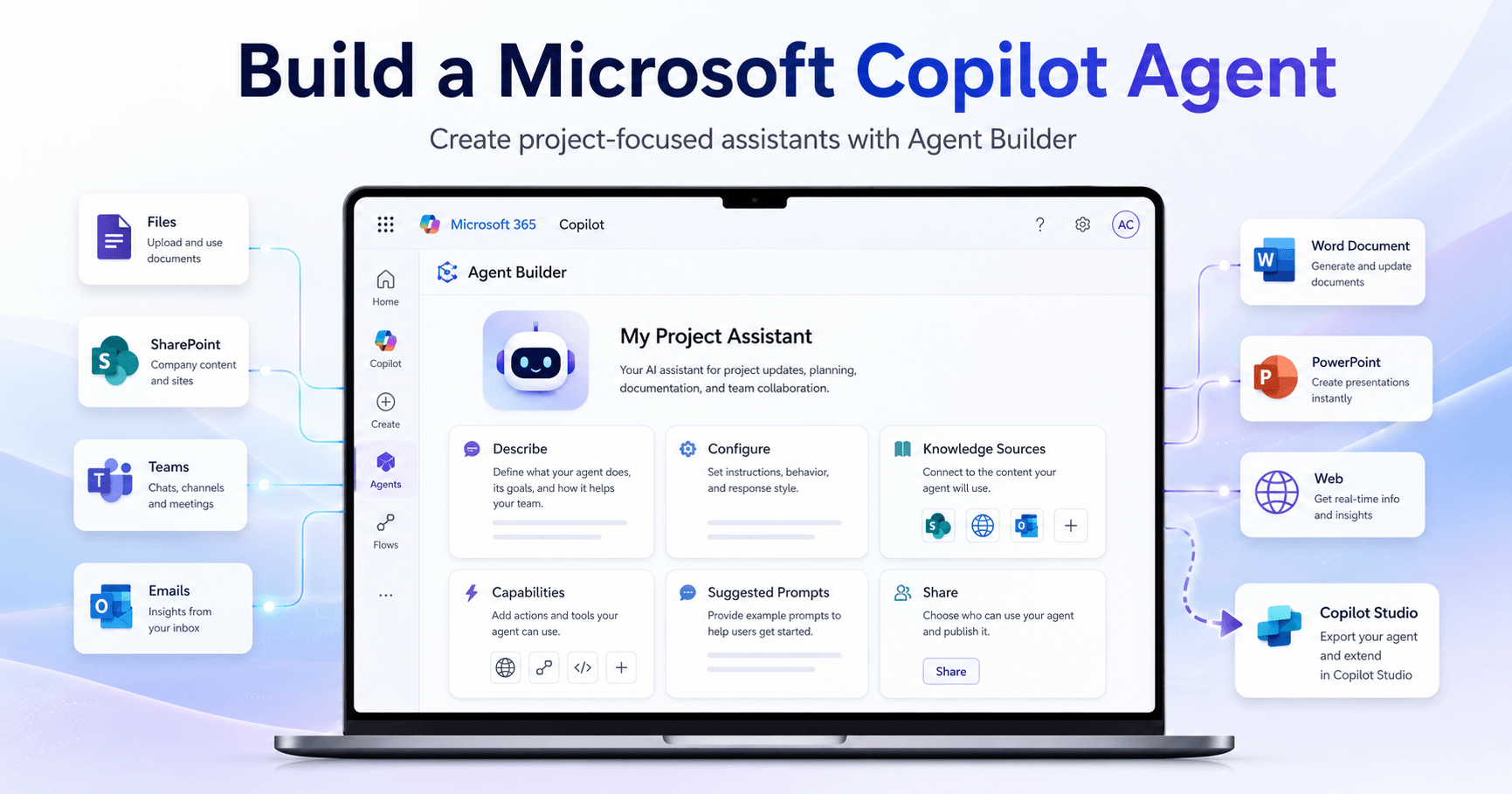

Microsoft Copilot is no longer just a chat assistant. One of its most useful features is the ability to create custom agents inside Microsoft 365 Copilot.
These agents can be built for specific tasks, projects, teams, or workflows. Instead of asking Copilot the same type of question every time, you can create an assistant that already understands its role, its instructions, and the sources of information it should use.
What is a Copilot agent?
A Copilot agent is a custom AI assistant created inside Microsoft 365 Copilot. It can be designed to help with a specific activity, such as managing a project, answering questions about company documents, creating reports, reviewing information, or helping a team stay organized.
The main advantage is that the agent can be configured with instructions, knowledge sources, capabilities, and suggested prompts. This makes it more focused than a normal AI chat.
For example, instead of creating a generic assistant, you can create a Project Assistant that helps you understand project status, find next steps, generate documents, and summarize priorities.
Creating an agent is simple
Inside the Microsoft 365 Copilot app, there is a section called Agents. From there, you can create a new agent.
At first, Agent Builder opens in the configuration area. But the easiest way to start is by using the Describe option.
In this area, you simply describe what kind of agent you want to create. For example, you can say that you want an agent that helps with specific projects, asks what project you are working on, reviews the current situation, and suggests the next actions.
After you send the description, Copilot automatically creates the first version of the agent. It can generate a name, description, instructions, workflow, and suggested prompts.
This makes the process much easier because you do not need to build everything manually from zero.
Customizing the agent
After Copilot creates the agent, you can open the configuration screen and customize it.
You can change the name, edit the description, upload an icon, and adjust the instructions. In the example from the transcript, the agent was renamed to My Project Assistant.
The description is important because it explains what the agent does, especially if you plan to share it with other people in your company.
Copilot also creates a full instruction structure. This may include the agent’s purpose, general guidelines, skills, and step-by-step workflow. You can edit anything in this section.
This is useful because the first version may not be perfect. You can remove steps, add new instructions, or make the agent behave in a more specific way.
Adding knowledge sources
One of the strongest parts of Agent Builder is the knowledge section.
This is where you decide what information the agent can use. The agent can work with files, SharePoint sites, Teams chats, meetings, emails, website links, and other data sources.
You can be very specific. For example, you can choose only certain files, only certain SharePoint sites, or only specific Teams channels.
You can also allow the agent to use general web knowledge, or you can limit it to only the sources you specify.
This is important because using only selected sources can help reduce incorrect answers. If the agent is supposed to answer based on company files, project documents, or internal data, limiting the sources makes the responses more controlled and relevant.
Using SharePoint, Teams, and emails
Agent Builder can connect the agent to Microsoft 365 data sources like SharePoint, Teams, and Outlook.
This means your custom agent can use project files, chats, meetings, and emails as context.
For a project assistant, this is extremely useful. The agent can review project documents, understand conversations, check updates, and help identify what needs to happen next.
Instead of searching manually through different apps, the agent can bring the information together and summarize it in a useful way.
Enabling extra capabilities
Agent Builder also includes a capabilities section. This allows you to make the agent more powerful.
You can enable options for creating documents, generating code, and creating images. Once these capabilities are turned on, the agent can do more than answer questions.
For example, after reviewing project information, it can create a Word document, generate a PowerPoint, produce an infographic, or prepare a structured report.
This turns the agent into a practical work assistant, not just a chatbot.
Suggested prompts
Another useful area is suggested prompts.
These are the prompts that appear when someone opens the agent. They help users understand what the agent can do.
You can edit the prompt titles, change their order, delete prompts, or add new ones.
For a project assistant, suggested prompts could include:
“Help me identify the next steps for this project.”
“Summarize the project status.”
“Create a report with today’s top priorities.”
“Generate a PowerPoint with the next actions.”
Good suggested prompts make the agent easier to use, especially when sharing it with teammates.
Sharing the agent with others
After creating the agent, you can share it inside your organization.
You can share it with specific people or make it available to everyone in your company. You can also copy a link and send it through Teams.
This is one of the best parts of Microsoft 365 Copilot agents. If you create an assistant that solves a useful problem, other people can use it too.
For example, a project manager could create a project assistant and share it with the team, so everyone can use the same agent to check status, next steps, files, and priorities.
Copying the agent to Copilot Studio
Another important feature is the option to copy the agent to Copilot Studio.
This is useful when you want to go beyond the basic Agent Builder experience. Copilot Studio gives more advanced options to modify, expand, and manage the agent.
In the transcript, the speaker shows that the agent can be copied into a Copilot Studio environment, where it can be further customized.
This makes Agent Builder a simple starting point, while Copilot Studio becomes the place for more advanced agent development.
Testing the agent
After the agent is created, you can open it from the Agents section in Microsoft 365 Copilot.
In the example, the agent is tested with a project file about airplane engineering. The file contains information about activities, owners, priorities, supervisors, and project status.
The user asks the agent what should be done next. The agent reviews the project context and returns a list of high-impact actions and next steps.
Then, because document creation was enabled, the user asks the agent to create a one-page Word document with the top 10 things to do today.
The agent generates the document automatically.
Next, the user asks it to create a PowerPoint slide about the project’s next steps. The agent creates a presentation with key actions and project priorities.
This shows how useful a custom Copilot agent can be when it is connected to the right information and given the right capabilities.
Managing and editing the agent
After the agent is created, you can pin it so it stays visible in the Agents section.
You can also share it, edit it, uninstall it, or update its configuration later.
This is important because agents can improve over time. If the suggested prompts are not good enough, you can change them. If the instructions are not working well, you can adjust them. If the agent needs new knowledge sources, you can add them.
The agent does not need to be perfect on the first try. You can build it, test it, improve it, and keep refining it.
Why this is different from a normal AI chat
The biggest difference is context.
A normal AI chat starts from a prompt. A Copilot agent starts from a role, instructions, data sources, and capabilities.
This means it can be more consistent and more useful for repeated work.
A project assistant, for example, does not need to be told every time that it should focus on project status, next steps, files, and priorities. That behavior is already part of the agent.
This makes Copilot agents especially useful for companies, teams, and people who repeat similar workflows every week.
Final thoughts
Microsoft 365 Copilot Agent Builder makes it much easier to create custom AI assistants for real work.
You can describe the agent you want, customize its instructions, connect it to company knowledge, enable document creation, add suggested prompts, share it with others, and even move it into Copilot Studio for more advanced customization.
For anyone using Microsoft 365, this is one of the most interesting Copilot features because it turns AI from a general chatbot into a focused assistant that understands a specific task.
A well-built Copilot agent can help organize projects, summarize information, identify next steps, create documents, generate presentations, and support team collaboration inside the Microsoft ecosystem.







Comentarios0
Inicia sesión para comentar.