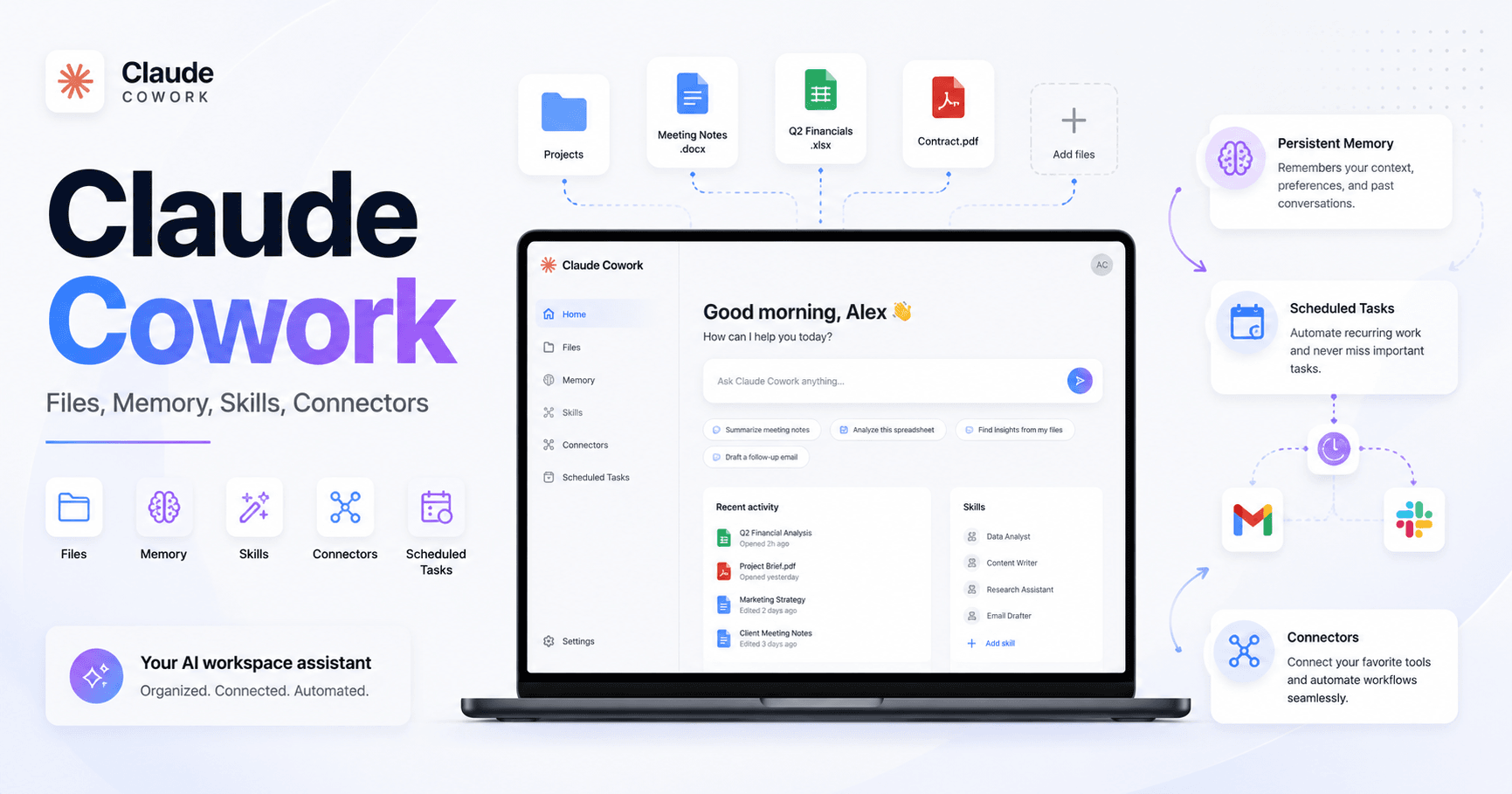

Claude Cowork is designed for people who already use Claude Chat but want something more practical than a normal chatbot. Instead of only giving answers inside a chat window, Cowork can work directly with files, folders, tools, projects, and recurring tasks.
The big idea is simple: Claude Chat helps you think and write. Claude Cowork helps you get work done.
Claude Chat vs Claude Cowork
Claude Chat is useful when you want to ask questions, brainstorm ideas, summarize text, or get a quick answer. But it has limits. You usually upload files manually, wait for a response, then copy, format, download, or organize the result yourself.
Claude Cowork works differently. It can access local folders on your computer, read and organize files, create new documents, edit existing files, and save finished outputs directly where you need them. According to the transcript, this is one of the main differences between the two tools: Chat gives you a response, while Cowork can actually produce ready-to-use files inside your folder.
This changes how you should prompt it.
With Claude Chat, you usually use task-first language, such as:
“Review these files and recommend a folder structure.”
With Claude Cowork, it is better to use outcome-first language:
“I have 15 raw images in this folder. Organize them into subfolders by topic and rename each file with a clear, descriptive name.”
Instead of asking for advice, you define the final result.
1. Local File Access
One of Claude Cowork’s strongest features is local file access. It can create, edit, split, rename, and organize files directly on your computer.
For example, you could give it a folder with more than 100 receipt images and PDFs, then ask it to create an expense report with dates, vendors, categories, amounts, and totals. Cowork can inspect the files, extract the information, flag unclear items, and save a formatted spreadsheet in the same folder.
This is especially useful because Claude Chat has file upload limits, while Cowork can work with larger groups of local files.
Another useful example is splitting a large PDF into smaller files by chapter or section. Instead of manually searching for page breaks, Cowork can identify natural divisions, create separate files, and give them descriptive names.
It can also rebuild presentations. If you have a slide deck where each slide is just a static image, Cowork can recreate it as an editable PowerPoint with real text boxes.
2. Persistent Memory
Persistent memory is another major advantage. Claude Chat can remember some preferences, but that memory is stored online and has limits.
Claude Cowork can save memory into actual files on your computer, such as project instruction files and memory documents. This allows it to remember how you like things done across future sessions.
For example, if you ask Cowork to summarize a meeting transcript and then edit its summary, you can tell it to compare your version with its version and save the preferences. Over time, it learns your preferred structure, tone, formatting, and decision-making style.
This makes Cowork more useful the longer you work with it. It becomes less like a generic assistant and more like a personalized workflow partner.
3. Tools and Connectors
By default, Cowork can only access the files and folders you give it permission to use. But connectors allow it to work with tools like Gmail, Google Drive, Google Calendar, and Notion.
This is where Cowork becomes much more powerful.
For example, you can connect Gmail and ask Cowork to analyze your emails from the past month to understand your writing style. It can identify patterns in your tone and save them as writing principles for future drafts.
You can also combine tools. Imagine your meeting transcript is stored in Google Drive, while your team notes are in Notion. Cowork can compare both, identify commitments that were mentioned in the transcript but missing from the notes, and surface the action items that were forgotten.
This is not just a chatbot answering questions. It becomes a bridge between different work tools.
4. Claude Skills
Skills are reusable workflows. They let you teach Cowork how to do something once, then repeat that process whenever needed.
A simple skill might be “make this text clearer and more concise.” Cowork can turn that editing process into a skill and reuse it later.
A more advanced skill could be a weekly report workflow. For example, if different teams send updates in different formats, Cowork can learn how to combine them into one leadership-ready report. You can give feedback, ask for a better structure, limit the word count, request highlights and lowlights, and then turn the final workflow into a reusable skill.
The best way to create a skill is not to start with a template. It is better to go through the workflow manually first, refine the result, and then ask Cowork to turn the process into a skill.
That way, the skill is based on how you actually work.
5. Cowork Projects
Claude Cowork Projects are similar to Claude Chat Projects, but with more power. They can use local files, memory, connectors, and skills together.
The key difference is that Cowork can write directly to project knowledge files. This means that when it learns a new rule or preference, it can save that principle without you manually replacing old files.
For example, if you are building a writing assistant project and you teach it, “When explaining a concept, always start with an example,” Cowork can save that instruction directly into the project.
This helps projects improve over time.
6. Browser Extension
Claude Cowork can also work with the Claude browser extension, but the transcript points out that this is currently one of its weaker areas.
The extension can theoretically let Cowork control browser-based tasks, but it may be slow, unreliable, and usage-heavy. Since it often relies on screenshots and step-by-step decisions, it can take longer than expected and may stop before completing a task.
For now, this feature is promising, but not the strongest reason to use Cowork.
7. Scheduled Tasks
Scheduled tasks are where Cowork can become especially useful.
You can set up recurring workflows, such as a daily inbox triage every morning. If Cowork is connected to Gmail and has access to your saved rules, it can review your emails, categorize them, create a report, and draft replies based on your tone and preferences.
At first, you may need to correct its drafts and give feedback. But because Cowork has persistent memory, it can learn from those corrections and improve over time.
This makes scheduled tasks powerful because they combine several capabilities at once: file access, memory, connectors, and personalized workflow rules.
How to Start Using Claude Cowork Safely
If you are just starting, create a separate folder called something like “Cowork Playground.” Use this folder to test Cowork without giving it access to important files.
Also, add clear instructions that require Cowork to ask before deleting, overwriting, or renaming files. This gives you more control while you learn how it behaves.
A good beginner rule is:
“Before deleting, overwriting, or renaming any existing file, show me what will change and wait for confirmation.”
As you become more confident, you can loosen these rules.
Final Thoughts
Claude Cowork is not just another version of Claude Chat. It is a more action-oriented workspace assistant.
Claude Chat is better when you need quick thinking, writing help, or conversation. Claude Cowork is better when you need outcomes: organized files, finished reports, edited documents, reusable workflows, connected tools, and scheduled tasks.
The real value of Cowork appears when you stop asking it only for answers and start giving it clear outcomes to produce.
Instead of saying:
“Tell me how to organize these files.”
You say:
“Organize these files into clear folders, rename them descriptively, and save the final structure here.”
That is the shift.
Claude Cowork is most useful when you treat it less like a chatbot and more like a junior assistant that can work inside your actual digital workspace.







Comentários0
Faça login para comentar.