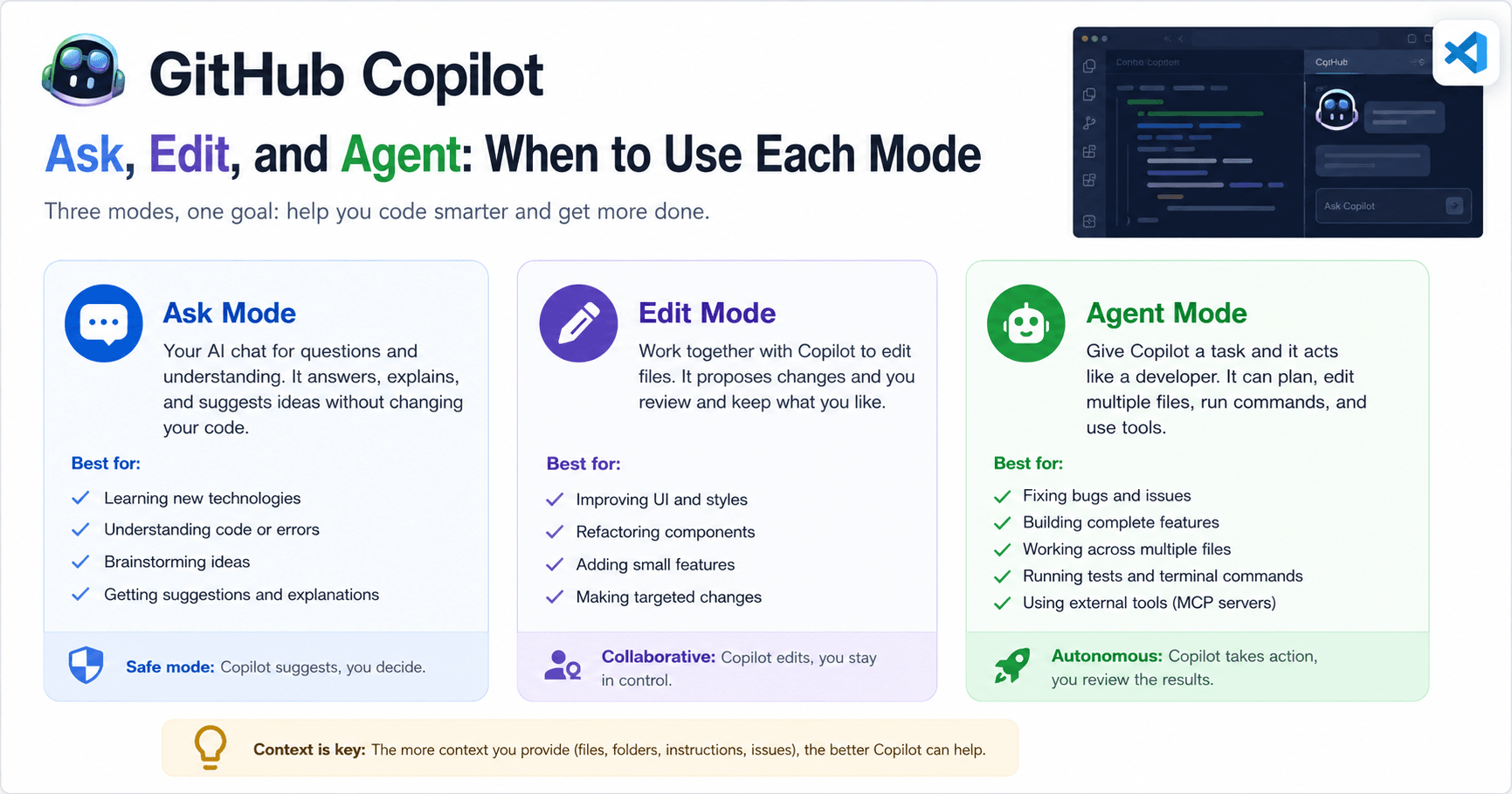

GitHub Copilot is no longer just a tool that automatically completes code. Today, inside VS Code, it works as a much more complete assistant, capable of explaining projects, suggesting improvements, editing files, and even executing more advanced tasks with Agent Mode.
But one common question appears when developers open Copilot Chat: which mode should you use? Ask, Edit, or Agent?
Each one has a different purpose. Understanding the difference helps you work better, avoid unwanted code changes, and use AI in a more productive way.
Ask Mode: the best mode for asking and learning
Ask Mode is the safest mode in GitHub Copilot. It works like a chat inside VS Code, where you can ask questions about programming, architecture, libraries, errors, or even the project itself.
The main advantage is that it does not automatically change your files. It only answers, explains, and suggests possible solutions.
This mode is great for situations like:
Understanding a technology used in the project
Asking how a specific function works
Requesting improvement suggestions
Learning new concepts
Analyzing errors without modifying the code
For example, if you open a React project and find a library called Nanostores, you can simply ask Copilot: “What is Nanostores and how is it being used in this project?”
Copilot can analyze the code context and explain it more directly, without you needing to search through several websites.
Another useful point is that Ask Mode also allows you to add context. You can reference files, folders, VS Code problems, or even images. This helps the AI better understand what you want.
Even though it is the safest mode, it can still suggest code. You can copy the suggestion, insert it into a new file, or use the option to apply it in the editor. But you remain in control. Nothing is kept permanently without your review.
Edit Mode: when you want to work together with Copilot
Edit Mode sits between asking questions and letting the AI act more independently. Here, Copilot starts editing files with you.
Unlike Ask Mode, where the AI only responds, in Edit Mode you can ask for something more direct, such as:
“Improve the button design”
“Add a new loading state”
“Refactor this component”
“Adjust this layout to make it cleaner”
Copilot then looks for the necessary files and applies changes. Even so, you still have a lot of control. It shows the changes as a diff, allowing you to review what was modified before keeping it permanently.
An important detail is the difference between saving and keeping. In some cases, you can save the file to test it in the browser, but you have not yet confirmed those changes as final. If you do not like the result, you can undo it.
This flow is very useful for visual adjustments, small improvements, refactoring, and localized changes. For example, if you want to improve the style of buttons in an application, Edit Mode can find the component, change classes, add variants, and show the result for you to review.
You can also continue talking with Copilot during the process. If it changes a button color and you do not like it, just say: “I do not want blue. Use a more subtle red version for destructive actions.”
In other words, Edit Mode is a good choice when you know what you want to change, but you want Copilot to help with the implementation.
Agent Mode: when AI needs to execute a complete task
Agent Mode is the most advanced mode in GitHub Copilot. It does not just edit files; it tries to act like a developer receiving a task.
You can give it a broader instruction, such as:
“Check why the delete button is not working and fix the problem.”
From there, Agent Mode can analyze the code, search for related files, identify whether an API is missing, create methods, update components, add a confirmation modal, and even run terminal commands, depending on the permission.
This mode is recommended for more complete tasks that involve multiple parts of the project.
For example:
Fixing a broken feature
Creating an entire feature
Adding API integration
Installing dependencies
Running tests
Analyzing terminal errors
Changing frontend and backend at the same time
One of the biggest differences in Agent Mode is that it tries to verify its own work. If it finds an error, it may try to fix it. If it notices duplicated code or a bad practice in the project, it may suggest extra improvements.
This makes Agent Mode powerful, but it also requires attention. Since it has more freedom, it is important to review everything it does. AI can make useful decisions, but it can also make wrong assumptions.
Different models can produce different results
Another point mentioned in the transcript is the model selection inside Copilot. Depending on your account, organization, and VS Code version, you may see different model options.
Some models are faster. Others are better for reasoning, planning, or visual changes. There are also models that are more suitable for tool calling, which means calling tools, running commands, and working better in Agent Mode.
In practice, this means the result can change a lot from one model to another.
For quick answers and simple explanations, lighter models may work well. For larger tasks, such as refactoring components or creating a complete feature, more advanced models usually deliver better results.
The role of context in GitHub Copilot
One of the most important lessons is that context makes a huge difference.
The better you explain what you want, the better Copilot’s answer tends to be. This applies to all modes.
You can provide context in several ways:
Selecting files
Referencing folders
Using the codebase context
Adding VS Code problems
Sending images
Creating custom project instructions
For example, if you want Copilot to follow a specific CSS pattern, you can add that to your custom instructions. This way, it will consider that rule in future responses.
This helps avoid repeating the same instruction several times and makes the AI work in a way that is more aligned with your project.
MCP and external tools in Agent Mode
The transcript also mentions the use of MCP servers in Agent Mode.
MCP stands for Model Context Protocol. In practice, it is a way to connect Copilot with external tools, such as GitHub, databases, Figma, or other sources of information.
With this, Agent Mode can do more advanced things, such as:
Checking GitHub issues
Creating a new issue
Reading database information
Understanding the schema of an application
Using external tools as part of the development workflow
An interesting example is asking Copilot to analyze the issues in a repository and organize them by priority. Another example is asking it to create a new issue describing the requirements for a feature, such as a light and dark mode for the application.
This shows how Copilot can go beyond code and also help with work organization.
When should you use each mode?
Use Ask Mode when you want to learn, understand, or discuss an idea without changing the project. It is ideal for questions, explanations, and safe analysis.
Use Edit Mode when you want to modify files but still keep close control over each change. It is great for visual adjustments, small features, and refactoring.
Use Agent Mode when the task is bigger and requires multiple steps. It is ideal for fixing bugs, creating complete features, running commands, and working with different parts of the project.
The easiest way to think about it is as a scale:
Ask is the safest mode.
Edit is the collaborative mode.
Agent is the most autonomous mode.
Conclusion
GitHub Copilot has evolved a lot. It is no longer useful only for suggesting lines of code, but also for helping in several stages of development.
Ask Mode helps you learn and understand the project better. Edit Mode lets you make changes with control. Agent Mode works as a more autonomous assistant, capable of executing complete tasks and even interacting with external tools.
The key to using Copilot well is knowing how to choose the right mode for each situation. If you only want to understand something, use Ask. If you want to edit together with AI, use Edit. If you need to solve a more complex task, use Agent.
With this workflow, Copilot becomes much more than autocomplete. It becomes a productivity, learning, and automation tool for developers.







Comentários0
Faça login para comentar.