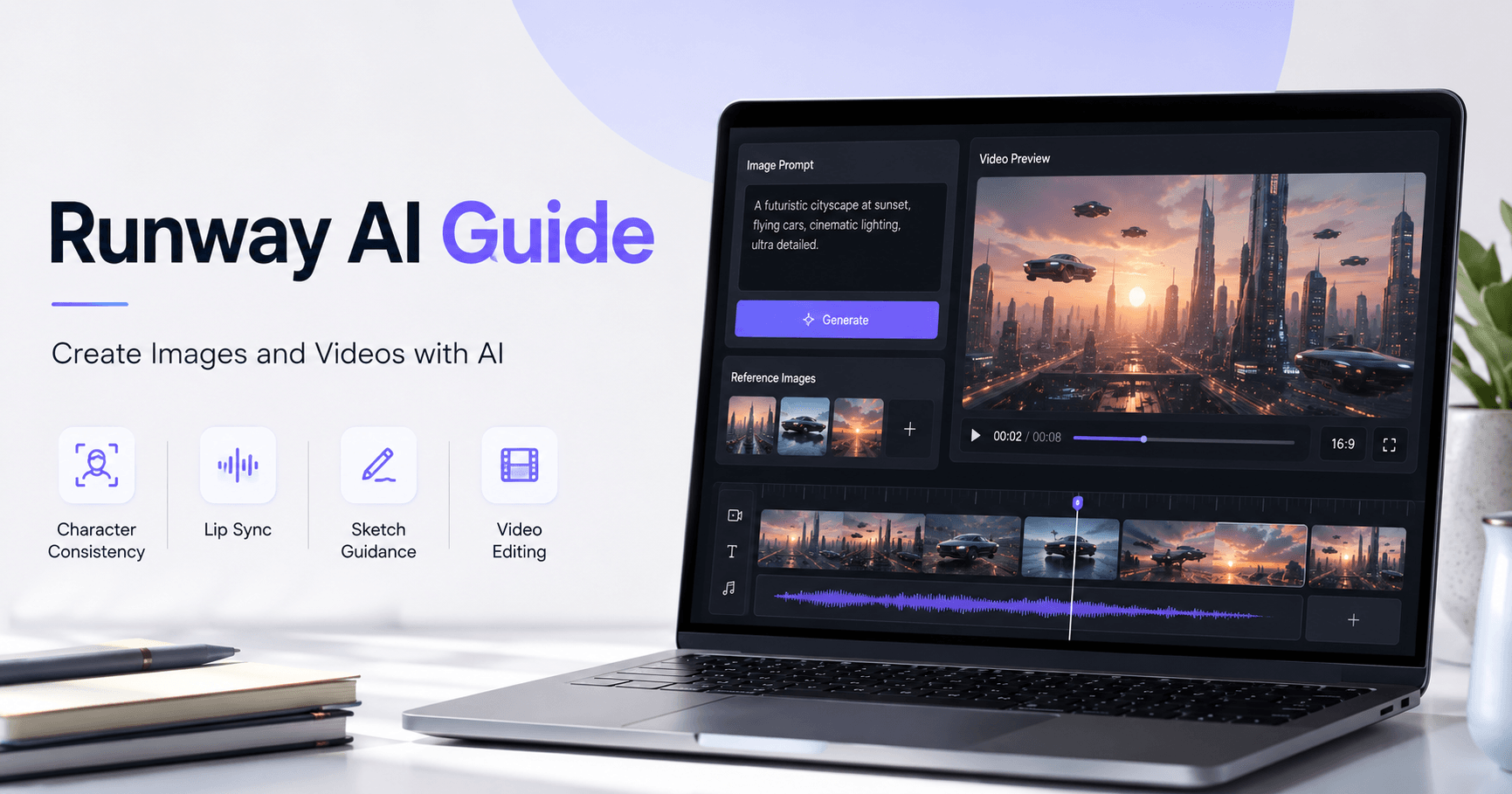

Runway is an AI creative platform that helps users create, edit, and transform images and videos directly from the browser. It brings several creative tools into one workspace, making it useful for creators, marketers, designers, video editors, and anyone who wants to explore AI-powered visual content.
With Runway, you can generate images, create videos, animate static pictures, edit existing clips, build consistent characters, use reference images, add lip sync, and guide visual changes with sketches. Everything happens online, without the need to install complex editing software.
Getting Started with Runway
After logging into Runway, you arrive at the main homepage. On the left side, you can find your sessions, which are your active projects. Below that, the Assets area stores files you uploaded or generated inside the platform.
The Create section gives access to different AI tools, while All Tools shows the complete list of features available in Runway.
To start creating, you can begin a new session or use the chatbot at the top of the homepage. This gives you two main ways to work: Chat Mode and Tool Mode.
Chat Mode
Chat Mode is the easiest way to start. You can type what you want, such as an image of a blonde horse running through the desert, or request a video. You can also upload reference images to guide the result.
Good prompts should be clear, direct, and specific. Instead of using confusing instructions or negative phrases, describe exactly what you want to see. Mention the subject, movement, environment, mood, style, and camera action.
After a generation is complete, Runway can suggest follow-up options. This is helpful for beginners because it gives ideas for improving or modifying the result, such as restyling an image or creating another version.
Tool Mode
Tool Mode gives more control over each generation. It is better for users who already understand how AI image and video tools work.
In this mode, the left side contains input controls, while the right side shows previous results. You can choose whether to generate an image or video, select the AI model, adjust the aspect ratio, define the duration, and manage other settings.
Runway currently offers models such as Gen-4, Gen-4 Turbo, Gen-3 Alpha, and Gen-3 Alpha Turbo. Older models like Gen-1 and Gen-2 are no longer available in the newest version.
Creating Videos with Gen-4 Turbo
Gen-4 Turbo is one of Runway’s main models for video generation. It is useful for live-action scenes, visual effects, motion clips, and simple image animation.
This model requires a reference image. You can choose one from your Assets folder, generate a new image with AI, or reuse a previous result.
After selecting the image, write a prompt describing the video. A strong video prompt should include the subject, its movement, the action, the mood, the camera movement, the background, and the visual style.
For example, instead of writing only “a horse running,” you could describe a blonde horse running powerfully through a desert while the camera tracks its movement and sand rises behind it in a cinematic realistic style.
After setting the aspect ratio and duration, you can generate the video. Runway videos are created in 720p resolution and 24 frames per second. You can preview, download, restyle, continue from a frame, or upscale the video to 4K using credits.
Credits and Commercial Use
Runway uses a credit system. Each image or video generation consumes credits depending on the selected model and type of content.
Free accounts start with limited credits, while paid plans provide more monthly credits and unlock premium features. Paid plans can also remove watermarks and allow access to features such as 4K upscaling and more powerful models.
Generated media belongs to the user, which means Runway creations can be used freely, including in commercial projects.
Gen-4 and Better Consistency
Gen-4 is Runway’s more advanced model. It is better for complex projects, especially when you need stronger consistency with characters, objects, or reference images.
If Gen-4 Turbo is not enough, Gen-4 is usually the better choice. For example, when using a detailed image as a reference, Gen-4 can help the subject stay more consistent during movement.
It is a strong option for cinematic scenes, branded visuals, AI characters, and projects that need more control.
Editing Videos with Runway Aleph
Runway Aleph allows you to edit existing videos using simple instructions. Instead of manually editing a clip, you can tell Runway what you want to change.
You can ask it to change the camera angle, adjust lighting, modify the weather, add details, remove objects, or replace elements in the scene.
The best instructions are simple and action-based, using words like Add, Remove, Change, or Replace. For example, you could ask Runway to replace a normal horse with a fire horse. You can also upload a reference image to guide the edit more precisely.
This makes Aleph useful for creators who want to transform videos without advanced editing skills.
Gen-3 Alpha Turbo and Gen-3 Alpha
Runway also offers Gen-3 Alpha Turbo, an older and lighter model that uses fewer credits. It is useful for testing ideas, but may struggle with complex prompts or detailed scenes.
Gen-3 Alpha provides more precision than Gen-3 Alpha Turbo and is more affordable than Gen-4. One advantage is that it can generate videos using only a text prompt, although adding a reference image or video can improve the result.
For simple scenes, Gen-3 may be enough. For complex movement, characters, or stronger reference accuracy, Gen-4 is usually better.
Keyframes and Camera Control
Runway supports keyframes, allowing you to guide video motion over time. You can define a first image, a middle image, and a final image to influence the direction of the video.
This is useful when you want a scene to move from one visual state to another while keeping the same general style.
Keyframes work best when the images are visually similar. If the final keyframe is too different from the first, the video may jump too quickly or look unnatural.
Runway also includes camera controls such as panning and tilting. These movements apply to the whole video, but you can also describe them directly in the prompt.
Expanding and Reframing Videos
The Expand feature lets you change the aspect ratio of a video. For example, you can turn a portrait video into a landscape version.
This is useful when adapting content for YouTube, TikTok, Instagram, websites, or ads. Instead of recreating the video from zero, you can reframe it for another format.
Image Generation with Runway
Runway also includes image generation powered by Gen-4. To create an image, switch from Video to Image and write a prompt describing the subject, action, background, colors, and style.
You can choose style templates, set the aspect ratio, define how many variations you want, and select the resolution.
For more advanced results, you can upload reference images. Runway lets you name each reference and mention it in the prompt using the @ symbol.
For example, you could upload a lion image, a jaguar fur pattern, and a volcanic landscape. Then, you can ask Runway to use the lion as the main subject, the jaguar pattern as the skin texture, and the volcanic image as the environment.
This gives more control and helps create unique, consistent visuals.
Creating Consistent Characters
One of Runway’s strongest uses is creating consistent characters. By using reference images and naming them properly, you can generate new versions of the same character in different scenes while preserving important visual traits.
This is useful for storytelling, advertising, social media content, animated videos, concept art, and AI short films.
After creating a consistent image, you can use it as a reference for video generation. For complex characters, Gen-4 is usually the best option because it preserves details more accurately.
Act Two and Character Performance
Act Two allows you to use a video reference so a character can follow body gestures, facial expressions, and movement.
You can record yourself or upload a video, then upload the character image or video that should follow the performance. This helps create character animation without manually animating every movement.
You can control expressiveness, aspect ratio, and gesture transfer. For facial expressions only, Runway also has Act One with Gen-3 Alpha Turbo, although this feature may be replaced over time.
Lip Sync
Runway includes a Lip Sync Video feature inside Generative Audio. You can import a character video or use one of Runway’s templates.
The tool analyzes the face, then lets you upload audio or type text for the character to speak. You can also choose a voice and generate the final result.
This works best with human faces and is useful for talking avatars, AI presenters, explainer videos, and character-based content.
Sketch Feature
The Sketch feature lets you draw over an image reference to guide the AI.
For example, you can upload a tree image and sketch cracked ground beneath it. Then, you can export the sketch and add a prompt so Runway understands what you want to create.
You can also use sketches to modify specific parts of an image, such as drawing an arrow to show where a branch should move. This combines text prompts with visual direction, making edits easier to explain.
Final Thoughts
Runway is a complete AI toolkit for visual creation.







Comentários0
Faça login para comentar.