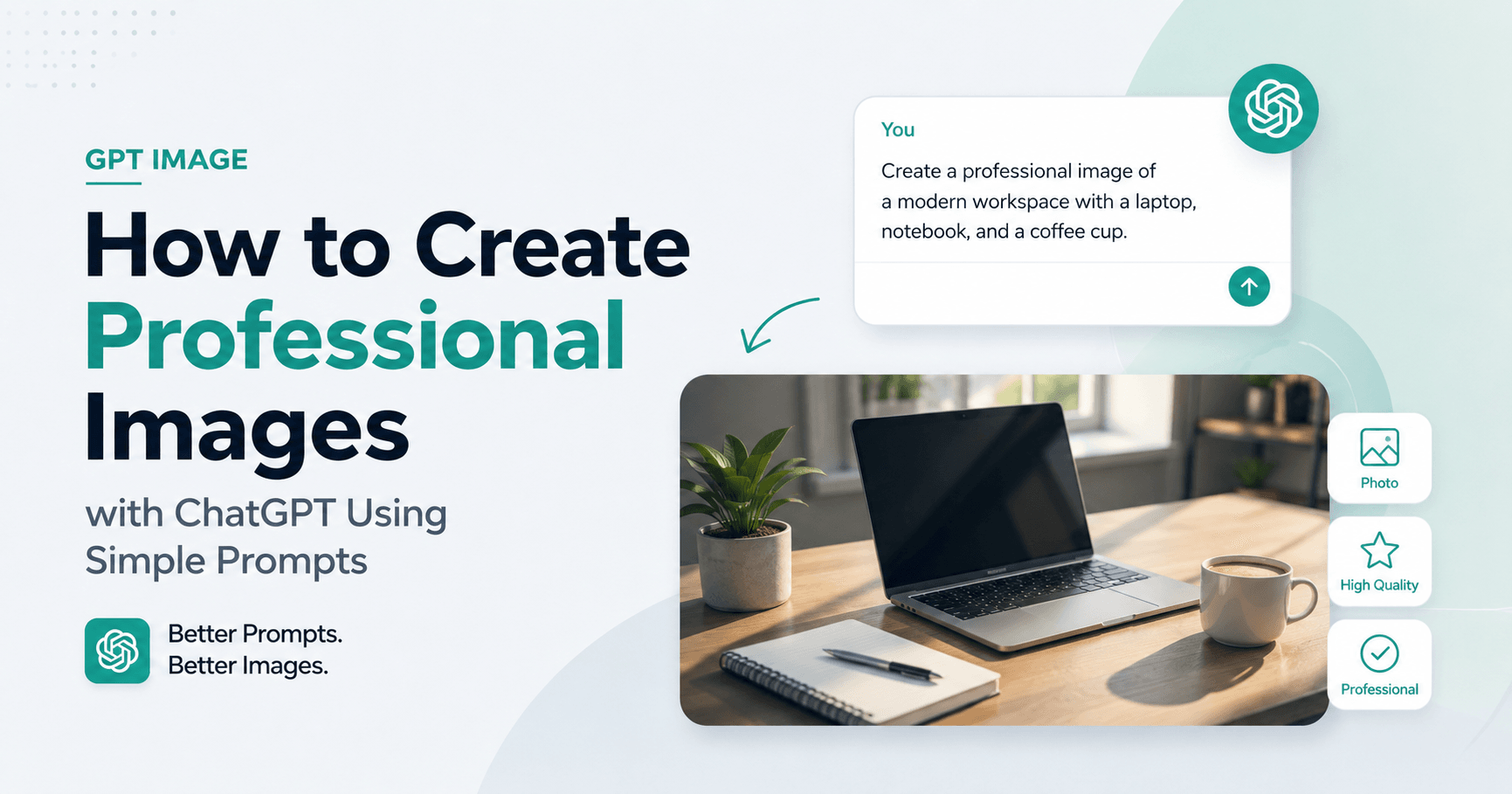

Creating images with artificial intelligence has become much easier. Today, you do not need to master Photoshop, Illustrator, or any advanced design tool to generate a beautiful, useful, and professional-looking image.
With image generation inside ChatGPT, you only need to write what you want in a clear sentence. The tool understands your request and turns your description into an image. This can be used for social media posts, thumbnails, posters, simple logos, mockups, memes, illustrations, images with text, and much more.
The biggest advantage is that the process is simple. You talk to AI as if you were explaining your idea to a designer.
Why ChatGPT Generates Better Images Now
The main difference is prompt understanding. Before, many image generators created beautiful visuals, but they often missed important details. Text looked strange, letters were mixed up, and the result did not always follow exactly what the user asked for.
Now, because image generation is integrated into a model that also understands text, documents, and questions, ChatGPT can interpret descriptions better. It understands what you want, organizes the elements in the image, and handles words inside the artwork more accurately.
This makes a big difference for pieces such as posts, banners, posters, menus, infographics, and any image that needs readable text.
How to Create Your First Image
To get started, simply open ChatGPT in your browser or mobile app. Then, you can write something like:
“Create an image of a dog.”
This command works, but the result will probably be generic. AI will have to guess the breed, the scene, the lighting, the style, and the composition.
Now look at the difference when the request is more complete:
“Create a photorealistic image of a golden retriever sitting in a field of sunflowers during sunset. The dog is looking directly at the camera. Use shallow depth of field, warm light coming from the left, and the look of a photo taken with an 85mm lens.”
The subject is the same, but the result tends to be much better. That happens because the AI received enough direction to create a more specific image.
A Simple Formula for Good Prompts
A good prompt does not need to be complicated. You can think of it in five main parts.
First, define the subject of the image. It can be a person, a product, an animal, an object, or a scene.
Then, choose the style. Should the image look like a realistic photo, an illustration, a drawing, a painting, a poster, or a modern design?
Next, describe the setting. Where does the image take place? What is the background? Is it in a coffee shop, a forest, an office, a beach, or a studio?
It is also important to define the visual mood. Should the image be bright, dark, elegant, fun, dramatic, minimalist, or cozy?
Finally, add specific details such as camera angle, colors, lighting, image ratio, fonts, and extra elements.
The clearer your request is, the more control you will have over the result.
Creating Images With Text
One of ChatGPT’s biggest advantages for image generation is its ability to create text inside images with much more precision. Other image generators often make mistakes with letters, words, and phrases. This makes it difficult to create posts or posters directly with AI.
In ChatGPT, the text tends to be more accurate, especially when you put the exact words inside quotation marks.
For example:
“Create a clean Instagram post with a light pink background. In the center, write ‘5 morning habits that changed my life’ in bold white sans-serif font. Add a small coffee cup icon in the bottom-right corner. Aspect ratio 1:1.”
This type of prompt can generate artwork ready for social media. It is useful for quotes, headlines, posters, thumbnails, carousel posts, menus, and simple ads.
A good tip is to keep the text short. One main phrase and a few details work better than trying to place too much content in a single image.
How to Control Visual Styles
ChatGPT can create many different visual styles. You can ask for a photorealistic image, a watercolor painting, a cartoon illustration, pixel art, oil painting, anime, editorial drawing, or almost any other visual direction.
The secret is to clearly state the style in the prompt.
For a realistic image, you can mention the camera, lens, and lighting:
“Create a photorealistic image of a young woman sitting in a coffee shop in Paris, reading a book and holding a cappuccino. Morning light comes through the window. The image should look like it was shot with a Sony A7 III, 50mm lens, with natural colors.”
For a cozier illustration, the prompt could be:
“Create a cozy illustration of a small cabin in the forest during autumn. Use a warm watercolor palette, soft light through the trees, falling leaves, and a small stream passing near the door.”
By changing only the words, you completely change the result.
Aspect Ratio, Colors, and Transparent Backgrounds
Another important point is to specify the image format. If you do not say anything, the tool may generate a square image. But you can ask for different formats, such as:
“16:9 aspect ratio” for thumbnails and banners.
“1:1 aspect ratio” for square posts.
“4:5 aspect ratio” for carousels and vertical posts.
“2:3 aspect ratio” for poster-style images.
You can also request a transparent background, especially for logos, stickers, and icons. Just include this in the prompt:
“Transparent PNG background.”
If you work with visual identity, you can also use specific hexadecimal colors. For example:
“Use the color #2D1810 for the icon and #F5E6D3 for the background.”
This helps keep the result more consistent with a brand.
Editing Images Just by Talking
One of the most useful features is conversational editing. You do not need to create everything again if you want to change one detail.
Imagine you generated a living room, but you want to change the couch color. Just write:
“Change the couch color to dark green.”
Then, if you want to continue:
“Add a large plant in the left corner.”
AI keeps the image similar and changes only what you asked for. This process is called multi-turn editing because you adjust the image little by little inside the same conversation.
You can also upload your own photos and ask for changes, such as changing the background, removing a person, transforming the image into a painting, or adjusting a specific element.
Use the Selection Tool to Fix Details
When the image has only one small mistake, such as a misspelled word or a misplaced detail, you can use the selection tool. It allows you to mark a specific part of the image and request a correction only in that area.
For example:
“Correct the selected text to say ‘Wednesday’.”
This helps avoid generating the entire image again.
One important tip: ChatGPT remembers the context inside the same conversation. This is great for small adjustments, but it can get in the way if you start a completely different project. For each new visual project, it is better to open a new chat.
Everyday Use Cases
ChatGPT image generation can be used in many practical situations.
For YouTube, you can create thumbnails with large text, eye-catching backgrounds, and 16:9 composition.
For Instagram, you can create posts, carousels, motivational quotes, and minimalist designs.
For online businesses, you can generate product mockups, ad ideas, and promotional images.
For small brands, you can create drafts of logos, icons, and initial visual materials.
For content creators, you can generate memes, banners, covers, and explanatory images.
The result does not always replace a professional designer, especially for final brand projects. But as a starting point, it is extremely useful.
Best Tips for Better Images
The first tip is to be specific. Instead of asking for “a beautiful sunset,” describe the scene, colors, angle, and feeling of the image.
The second is to use reference images. If you like a certain style, you can upload an image and ask: “Create a new image with a similar style.”
The third is to always define the aspect ratio. This prevents you from receiving an image in the wrong format for your goal.
The fourth is to use action words in the prompt, such as “create,” “draw,” “generate,” or “design.” This makes it clear that you want an image, not just a text explanation.
The fifth is to review the result. Even when the image looks perfect, it is worth checking the text, visual details, and important elements.
Conclusion
Image generation in ChatGPT is one of the simplest ways to create visual content with artificial intelligence. It is useful for anyone who wants to produce posts, thumbnails, posters, simple logos, mockups, memes, and images with text without relying on complex tools.
The secret is the prompt. The clearer you are about the subject, style, setting, mood, and details, the better the result will be.
The tool does not completely replace a professional designer for high-level projects, but it greatly speeds up the creative process. For quick ideas, first drafts, and everyday content, ChatGPT has become a powerful, practical, and accessible option.







Comentários0
Faça login para comentar.