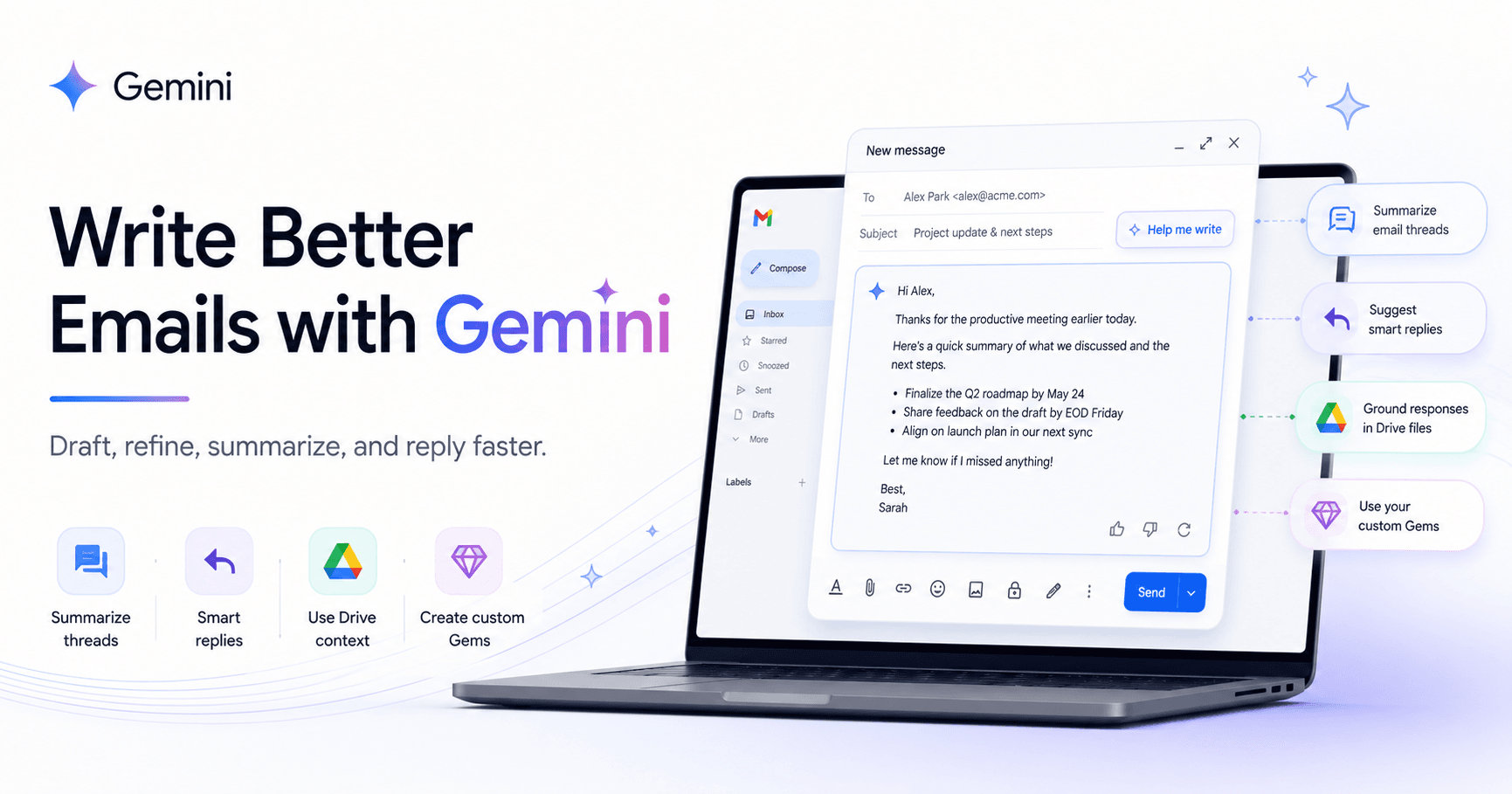

Writing a clear professional email can take more time than expected. You may know exactly what you want to say, but turning that idea into a polished message is not always easy. The tone needs to be right, the request needs to be clear, and the email should be short enough for the reader to understand quickly.
This is where Gemini can make a real difference.
Inside Gmail, Gemini helps you draft emails, improve your writing, summarize long conversations, and even use information from your Google Drive files. Instead of spending several minutes trying to create the perfect message, you can use Gemini as a writing assistant that helps you communicate faster and with more confidence.
Why Use Gemini for Email Writing?
Gemini is useful because it helps with one of the most common problems in daily work: communication overload.
Many people spend a large part of the day answering emails, sending updates, following up with teams, and trying to keep projects moving. Gemini can reduce that effort by helping you write professional messages in seconds.
It can help you:
Draft a new email from a simple prompt
Make your email sound more professional
Shorten long messages
Expand ideas when more detail is needed
Reply based on the context of an email thread
Summarize long conversations
Pull useful details from Google Drive files
Create reusable writing assistants with Gemini Gems
The goal is not to replace your judgment. The goal is to give you a strong first draft so you can review, adjust, and send faster.
How to Draft a Professional Email with Gemini
To start writing with Gemini in Gmail, open a new compose window and look for the “Help me write” option. This opens a prompt bar where you can describe what kind of email you need.
For example, imagine you own a bakery and want to contact a local fruit supplier. Instead of writing the full message manually, you could ask Gemini:
“Write a professional email to Fruit Gold Farms, a local fruit supplier, asking about becoming a vendor for our bakery. Mention our reputation for quality. Ask what fruits they offer, their delivery schedule, and whether they can provide samples.”
With this kind of prompt, Gemini can generate a complete email draft that already includes the purpose, tone, and important questions.
The more context you give, the better the result will be. A vague prompt may create a generic email. A detailed prompt helps Gemini understand who you are writing to, why you are writing, and what outcome you want.
A good prompt usually includes:
Who the email is for
The purpose of the message
The tone you want
The key details to include
The action you want from the reader
For professional emails, it is usually helpful to ask for a polite, clear, and concise tone.
Refining Your Email with One Click
After Gemini creates a draft, you do not need to accept it exactly as it is. Gmail gives you options to refine the text.
You can ask Gemini to:
Shorten the message
Make it more formal
Add more detail
Improve the wording
Make the tone more polished
This is useful when the first draft is good but not perfect. For example, if Gemini writes an email that feels too long, you can shorten it. If the message sounds too casual for a client or executive, you can make it more formal.
This makes Gemini especially helpful for people who often write emails to customers, vendors, managers, or business partners.
Using Google Drive Files for More Accurate Emails
One of the most powerful features is Gemini’s ability to use context from Google Drive.
This is helpful when you need to include information from a document, spreadsheet, or internal file without copying and pasting everything manually.
For example, imagine a customer asks about the ingredients in one of your bakery products because of allergy concerns. Instead of searching for the ingredient list yourself, you can ask Gemini to write a polite reply using a file from your Drive.
A prompt could look like this:
“Write a polite and professional response to this customer using the ingredient list from @Cupcake Ingredient List. Mention the ingredients and offer to switch to another flavor if there are any allergy concerns.”
Gemini can use the referenced file to create a more accurate and complete response. This saves time and helps avoid mistakes, especially when dealing with product details, policies, meeting notes, or internal documents.
Replying Faster with Context-Aware Suggestions
Gemini can also help when you are replying to an email. If Gmail has enough context from the conversation, Gemini may suggest reply options at the bottom of the email.
These suggestions are not random. They are based on the message you received and the existing conversation.
You can preview a suggested reply, insert it into the compose window, and then edit it before sending. This is useful when you need to answer quickly between meetings or respond to a common question without starting from scratch.
Even with AI-generated replies, it is always important to review the message before sending. Gemini can create the structure, but you should make sure the final email matches your intention and includes the correct details.
Summarizing Long Email Threads
Gemini is not only useful for writing new emails. It can also help you understand long email conversations.
If you are managing a project, long threads can become confusing. There may be decisions, questions, deadlines, and action items spread across many messages.
Instead of reading every email again, you can use Gemini to summarize the thread.
A good summary can show:
Key decisions
Open questions
Action items
Deadlines
Important updates
This can turn a messy email chain into a clear overview. After that, you can use Gemini again to draft a follow-up message or project update.
For example, after a weekly project sync, you could ask Gemini to draft a meeting summary email for the team. If you have a meeting transcript stored in Google Drive, you can reference it with the @ symbol to make the summary more accurate.
This workflow is useful because it connects understanding and communication. Gemini helps you identify what matters, then helps you write the message that keeps everyone aligned.
Turning Gmail into a Team Command Center
For team coordination, Gemini can make Gmail feel less like a crowded inbox and more like a productivity hub.
You can summarize a thread, draft an action plan, respond to teammate questions, and even add deadlines to Google Calendar directly from Gmail.
For example, if a teammate asks, “What is the deadline for the design mockups?” Gemini can use the context of the thread to suggest a clear reply. If another teammate suggests a final review date, Gmail can help you add it to Calendar without leaving the inbox.
This kind of workflow is especially useful for project managers, team leads, freelancers, and anyone who needs to keep people informed.
Creating Reusable Assistants with Gemini Gems
Another helpful feature is Gemini Gems. Gems are custom AI assistants that you can create for repeated tasks.
Instead of writing the same instructions again and again, you can build a Gem with a specific role, tone, format, and goal.
For example, you could create a Gem for:
Writing executive summaries
Editing marketing emails
Creating client updates
Summarizing meeting notes
Drafting customer support replies
Reviewing messages for clarity and tone
To create one, go to Gemini, open the Gem manager, and create a new Gem. Give it a name and add instructions. You can define what kind of writing it should produce, what tone it should use, and what format it should follow.
For example, you could create a “Brevity Gem” that turns messy notes into short executive-ready summaries. You can train it to follow a clear structure, such as a headline, what is new, and why it matters.
This is useful for repetitive communication tasks because it helps keep your writing consistent.
Best Prompt Formula for Writing Emails with Gemini
To get better results, use this simple formula:
“Write a [type of email] to [recipient/audience] about [topic]. The goal is to [desired outcome]. Use a [tone] tone. Include [important details]. End with [call to action].”
Example:
“Write a professional email to a potential supplier about starting a partnership with our bakery. The goal is to ask about available products, delivery schedules, pricing, and samples. Use a polite and confident tone. Mention that our bakery values high-quality ingredients. End by asking for a meeting or product catalog.”
This type of prompt gives Gemini enough direction to create a useful first draft.
Final Thoughts
Gemini can make email writing faster, clearer, and less stressful. It helps you move from a blank page to a polished draft in seconds. It can also summarize long conversations, create smart replies, use files from Google Drive, and support repetitive writing tasks through custom Gems.
The best way to use Gemini is not to let it write blindly for you. Instead, use it as a smart assistant. Give it clear instructions, review the output, adjust the tone, and make sure the final message sounds like you.
When used well, Gemini can help you spend less time managing your inbox and more time focusing on the work that actually matters.







Comentários0
Faça login para comentar.