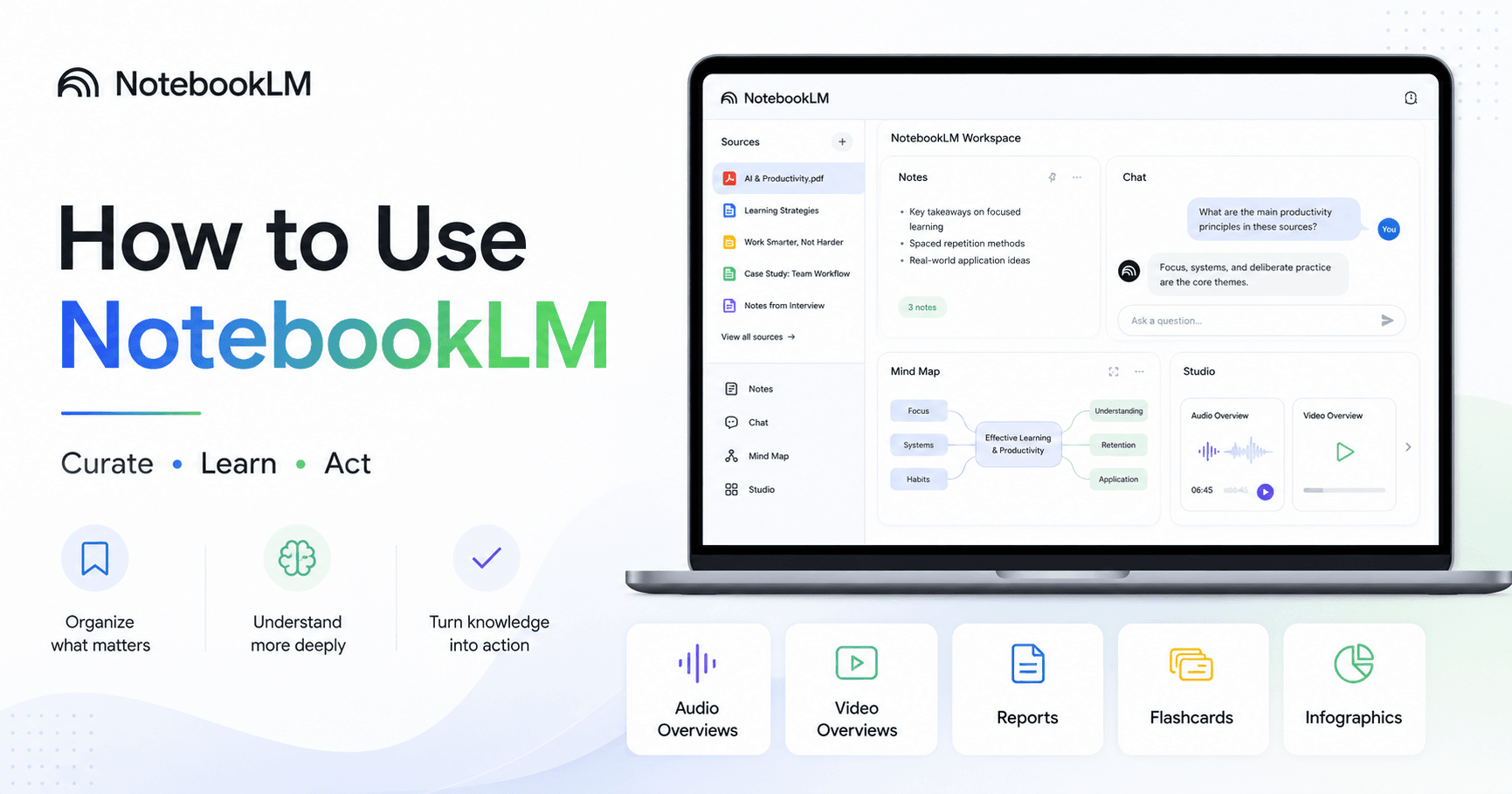

NotebookLM is one of the most useful free AI tools created by Google. But many people still use it the wrong way. They open the tool, upload random links, ask a few questions, and then feel disappointed with the results.
The real power of NotebookLM is not just chatting with AI. Its strength is that it works with the sources you choose. That means you can create a private knowledge base with documents, videos, websites, PDFs, notes, audio files, and other materials you trust.
Instead of asking a general chatbot to answer from the internet, NotebookLM lets you build your own space of information. This makes the answers more focused, more useful, and easier to verify.
What Makes NotebookLM Different
At first glance, NotebookLM may look similar to ChatGPT or Gemini. But it works in a different way.
The chat inside each notebook is grounded in the sources you upload. So, if you create a notebook about marathon training, business strategy, school subjects, research papers, or video ideas, the AI will answer based on that specific material.
This is important because it reduces the chance of generic answers. It also helps you stay organized. Instead of searching through many tabs, files, videos, and notes, you can bring everything into one notebook and ask questions directly.
Another advantage is the large context window. NotebookLM can handle a lot of information at once, which makes it especially useful for students, researchers, creators, professionals, and anyone who needs to understand large amounts of content.
Step 1: Curate Your Sources
The first step to using NotebookLM well is curation.
This is where many people make the biggest mistake. They search a topic on YouTube or Google, copy several random links, paste everything into NotebookLM, and expect great results.
But if your sources are weak, random, or contradictory, your results will also be weak.
The best approach is to upload only sources you already trust. For example, if you are learning about running, choose videos from trainers you respect, articles that explain the topic clearly, PDFs with reliable guidance, and notes that match your goal.
NotebookLM allows you to add many types of sources, such as:
• Website links
• YouTube videos
• PDFs
• Google Drive files
• Copied text
• Images
• Audio files
• Voice recordings
You can even record a voice memo on your phone and send it directly to a notebook. This is useful when you have an idea, a class recording, a meeting note, or a quick thought you want to save.
NotebookLM also has a web search feature that can find sources for you. But you still need to be careful. Do not import everything without checking first. Open the sources, review them, and only add what is actually useful.
The quality of your notebook depends on the quality of your sources.
Step 2: Learn From Your Knowledge Base
After adding your sources, the next step is learning.
This is where the chat becomes powerful. You can ask NotebookLM specific questions based on your material. For example, if your notebook is about marathon training, you can ask:
“Should I bring food during a marathon?”
Instead of giving a generic answer, NotebookLM will use the sources you selected. It can also show citations, so you can see where the information came from. This makes the answer easier to trust and verify.
You can also ask for more complex outputs, such as:
• A 12-week training plan
• A summary of the main ideas
• A comparison between different opinions
• A checklist
• A study guide
• A content outline
• A script draft
• A business plan based on your notes
One useful feature is saving good answers as notes. If NotebookLM creates something valuable, you can save it and even convert that note into a new source. This means your notebook can evolve over time.
For example, if you generate a training plan and convert it into a source, future answers can use that plan as part of the notebook’s knowledge base.
You can also select or deselect specific sources. This is helpful when you want to ask questions based only on one video, one PDF, or one document.
Customize the Notebook
Before asking questions, it is useful to configure your notebook.
NotebookLM allows you to define the role or style of the AI. Instead of using the default mode, you can give custom instructions.
For example, in a marathon notebook, you could tell it:
“Act as an elite marathon training coach with over 20 years of experience helping beginners and advanced runners.”
This changes the way NotebookLM responds. The answers become more aligned with your goal.
You can do the same for other topics. A student can ask it to act as a patient tutor. A content creator can ask it to act as a video strategist. A business owner can ask it to act as a marketing analyst.
The more specific your notebook setup is, the better the results become.
Use Studio to Transform Information
One of the most interesting parts of NotebookLM is the Studio panel.
Studio lets you transform your sources into different formats. This is where NotebookLM becomes more than just a chat tool.
You can create:
• Audio overviews
• Video overviews
• Mind maps
• Reports
• Flashcards
• Quizzes
• Infographics
• Slide decks
• Data tables
Audio overviews are especially popular because they turn your sources into an AI-generated podcast. Instead of reading everything, you can listen while driving, walking, exercising, or working.
But there is an important tip: do not just click generate automatically. Use the customization option. You can choose the format, language, length, and focus of the audio.
For example, if your sources disagree on a topic, you can create a debate-style audio overview. If you want a short explanation, you can choose a brief format. If you want something deeper, you can choose a deep dive.
NotebookLM can also create video overviews, which are useful for visual learners. You can choose different styles and ask the AI presenter to focus on a specific part of the topic.
Mind maps are useful for understanding how ideas connect. Reports are good for detailed explanations. Flashcards and quizzes are excellent for students who want to test their knowledge.
Infographics and slide decks are helpful when you want to share the information with others or turn your research into presentation material.
Step 3: Act on What You Learn
The final step is the most important: act.
Knowledge is only useful when you do something with it.
NotebookLM can help you learn, organize, summarize, and generate ideas, but you still need to apply the information. That might mean creating a video, writing an article, building a business plan, preparing for an exam, developing a training routine, or sharing what you learned with others.
For content creators, NotebookLM can become a research assistant. You can create one notebook for each video or article, add voice notes, references, scripts, links, and ideas, then use the chat to organize everything into an outline.
For students, it can become a personal study system. You can create a notebook for each subject, upload class notes, record lectures, generate flashcards, and quiz yourself before exams.
For professionals, it can organize reports, meeting notes, strategy documents, and research materials in one place.
NotebookLM is not just a tool for storing information. It is a tool for turning information into action.
Final Thoughts
NotebookLM becomes much more powerful when you use it with intention.
The best method is simple:
Curate your sources carefully.
Learn from them using chat and Studio.
Act on the knowledge by creating something useful.
If you only upload random information and ask random questions, the results will feel average. But if you build focused notebooks with trusted sources, NotebookLM can become one of the best tools for studying, researching, creating content, and organizing knowledge.
The real secret is not using more sources. It is using better sources.
That is what turns NotebookLM from a simple AI chat into a personal learning and productivity system.







Comentários0
Faça login para comentar.