
Learning something new can feel overwhelming. Sometimes it feels like you are trying to drink from a fire hose. There are research papers, online articles, videos, notes, PDFs, and endless information everywhere.
That is exactly where Google’s NotebookLM becomes useful.
NotebookLM is not just another AI chatbot. It is a research and learning assistant that helps you work with your own sources. Instead of giving random answers from the internet, it uses the documents, links, videos, and notes you add to a notebook.
This makes it especially powerful for students, teachers, researchers, creators, and anyone who wants to understand complex topics faster.
What Is NotebookLM?
NotebookLM is a free AI tool from Google designed to help you learn from your own materials.
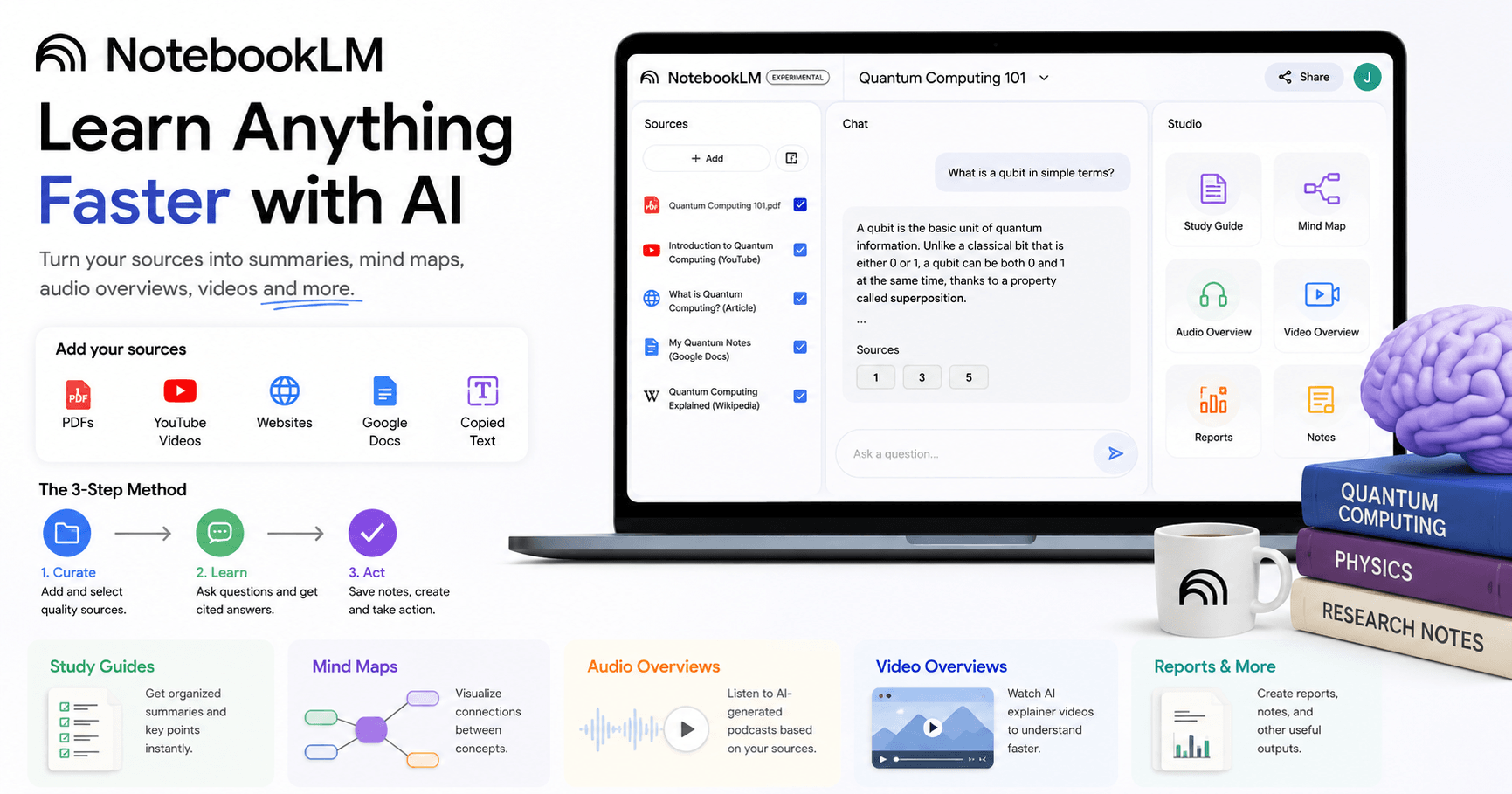
You can create a notebook for any topic and add sources such as PDFs, YouTube videos, websites, Google Docs, copied text, and other documents. After that, NotebookLM reads the material and allows you to ask questions based on those sources.
For example, if you are studying quantum computing, you can upload a PDF, add a YouTube video, include an article, and connect your Google Docs notes. NotebookLM will analyze all of that information and help explain it in a simpler way.
The key difference is that the answers are grounded in your sources. This makes the responses easier to trust because you can check where the information came from.
Creating a New Notebook
To get started, go to NotebookLM and create a new notebook.
The first thing you need to do is upload your sources. These sources become the knowledge base for your notebook.
You can add:
PDF files
YouTube videos
Website articles
Google Docs
Google Slides
Copied text
Notes from your own research
Once a source is added, NotebookLM creates a summary of it. You can save that summary as a note, copy it, or use it later as part of your study process.
You can also rename your notebook to keep things organized. For example, if you are learning quantum computing, you could name it “Quantum Computing 101.”
Adding and Discovering Sources
One of the best features of NotebookLM is how easy it is to add different types of sources.
If you want to add a YouTube video, you simply copy the video link and paste it into NotebookLM. If you want to add a website, you paste the article URL. If the content is in your Google Drive, you can import it from Docs or Slides.
You can also paste text directly. This is helpful when you have notes from a class, a meeting, or a copied section from a source that NotebookLM cannot read directly.
Another useful feature is Discover Sources. You can type a topic, such as “quantum computing,” and NotebookLM will search for related articles, PDFs, and websites that you can add to your notebook.
This can save a lot of time when starting research from scratch. However, it is still important to review the sources before importing them. The quality of your notebook depends on the quality of the information you add.
Asking Questions and Getting Cited Answers
After your sources are added, you can start asking questions.
For example, you might ask:
“What is a qubit in simple terms?”
NotebookLM will search through your selected sources and generate an answer based on them. One of the most useful parts is that it includes citations. You can hover over or click the citation to see exactly where the answer came from.
This is very helpful for learning because you are not just getting an answer. You are also seeing the original source behind that answer.
You can also ask NotebookLM to simplify complex explanations. For example:
“Explain superposition like I am 10 years old.”
This changes the tone and makes the explanation easier to understand. NotebookLM can use analogies, simpler language, and clearer examples depending on how you ask.
Customizing the Notebook
NotebookLM also allows you to configure how it responds.
You can adjust the conversational style, choose the response length, and change the output language. This is useful if you want answers in a specific tone or format.
For example, a teacher might want simple explanations for students. A researcher might want detailed academic responses. A content creator might want short summaries or script ideas.
You can also switch between light mode and dark mode, depending on your preference.
Saving Notes and Turning Them Into Sources
When NotebookLM gives you a useful answer, you can save it as a note.
This is great for building a structured study system. You can save important explanations, summaries, or insights and come back to them later.
Even better, you can convert a note into a source. That means NotebookLM can use your saved note as part of the notebook’s knowledge base.
This turns your notebook into a living research space. As you learn, your notes can become part of the material that helps generate future answers.
Using the Studio Panel
The Studio panel is where NotebookLM becomes even more powerful.
This section helps transform your sources into different learning formats. Instead of only chatting with the AI, you can generate study materials, visual summaries, audio content, and even videos.
NotebookLM can create:
Study guides
Mind maps
Audio overviews
Video overviews
Reports
Notes
Summaries
This is especially useful because different people learn in different ways. Some prefer reading, some prefer listening, and others understand better through visuals.
Creating Study Guides
With one click, NotebookLM can turn your sources into a study guide.
This is useful when you are learning a complex subject and want the main points organized in a clear way. Instead of manually reading every source and taking notes, NotebookLM creates a structured guide based on the material you uploaded.
You can review the guide, save it, or even convert it into a source for future use.
For students, this can be extremely helpful before exams. For teachers, it can help prepare lessons. For professionals, it can summarize research quickly.
Using Mind Maps
Mind maps are another great feature.
NotebookLM can generate a visual map of the concepts inside your sources. This helps you see how ideas connect to each other.
For a topic like quantum computing, a mind map can break down key concepts step by step. You can expand different branches, zoom out, and explore the topic visually.
This is very useful for visual learners because it turns complex information into a clearer structure. You can also download the mind map as a PNG file.
Creating Audio Overviews
Audio overviews are one of the most impressive features in NotebookLM.
They turn your sources into a podcast-style conversation. Instead of reading everything, you can listen to an AI-generated discussion based on your notebook.
This is useful when you want to learn while walking, driving, exercising, or doing other tasks.
You can customize the audio overview by choosing whether it should be shorter or longer. You can also tell NotebookLM what to focus on.
Another powerful feature is interactive mode. This allows you to join the audio conversation and ask a question while listening. It feels almost like calling into a podcast and asking the hosts to explain something more clearly.
Creating Video Overviews
One of the newest and most exciting features is Video Overview.
NotebookLM can create an explainer video from your sources. It works like a slideshow with narration, making the topic easier to understand.
For example, you can ask it to explain quantum computing to a sixth-grade class. NotebookLM will generate a video that uses simpler language and a more engaging presentation style.
This can be very useful for teachers, students, training materials, and anyone who wants to turn research into a more visual format.
You can also rename, download, share, or delete the video after it is created.
Why NotebookLM Is Useful
NotebookLM is useful because it helps you move from information overload to organized learning.
Instead of jumping between PDFs, tabs, videos, notes, and websites, you can keep everything in one notebook. Then you can ask questions, generate summaries, create study guides, listen to audio overviews, and watch video explanations.
It is not just a chatbot. It is a learning workspace.
NotebookLM can help you:
Understand difficult topics
Summarize long sources
Create study materials
Generate visual learning tools
Ask questions based on your own documents
Save notes and reuse them
Turn research into audio or video content
Final Thoughts
NotebookLM is one of the best tools for learning, research, and organizing information.
Its biggest strength is that it works with the sources you choose. This makes the answers more focused, more reliable, and easier to verify.
Whether you are a student trying to study for a test, a teacher preparing a lesson, a creator researching a video, or a professional trying to understand a complex topic, NotebookLM can save time and make learning easier.
The best way to use it is simple: create a notebook, add quality sources, ask clear questions, and use the Studio tools to transform the information into formats that help you learn better.
With features like study guides, mind maps, audio overviews, and video overviews, NotebookLM turns research into something much more interactive, organized, and practical.







Comentários0
Faça login para comentar.