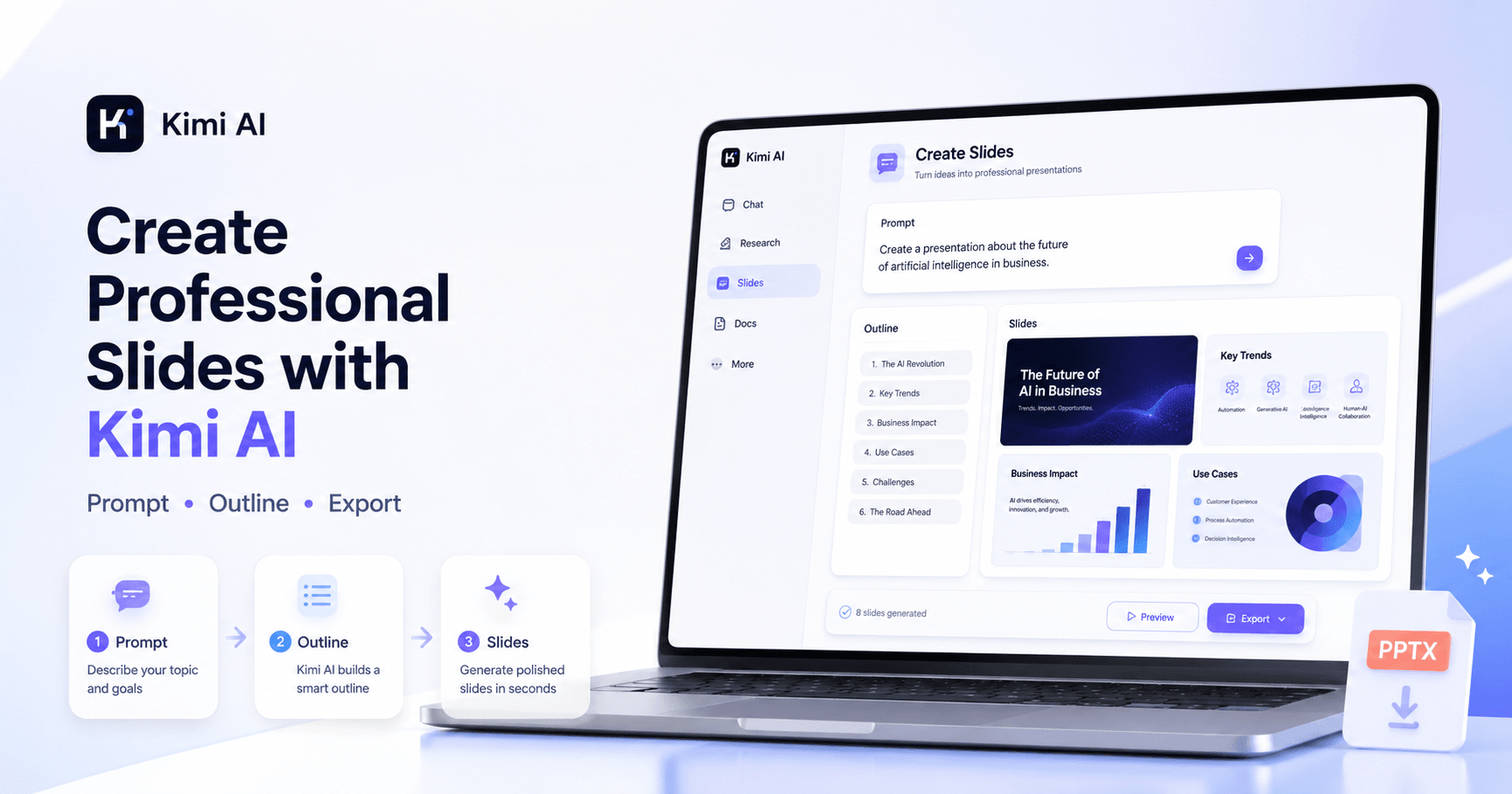

Kimi AI has been gaining attention because it combines a powerful open-source AI model with practical tools that anyone can use. One of the most useful features inside Kimi is the ability to create professional-looking presentations from a simple text prompt.
Instead of starting a slide deck from zero, choosing layouts, searching for images, and writing every section manually, you can describe what you want and let Kimi generate the structure, content, and design for you.
This can be useful for students, creators, business professionals, teachers, marketers, and anyone who needs to create a presentation quickly.
What is Kimi AI?
Kimi AI is an AI platform developed by Moonshot AI. It has become popular because its models are strong enough to compete with major AI tools in areas like writing, coding, reasoning, document analysis, and research.
But Kimi is not only a chatbot. It also includes specific productivity features such as Slides, Docs, Deep Research, Sheets, Websites, Kimi Code, and other agent-based tools.
In this article, the focus is the Slides feature, which allows users to generate presentation documents using only a description.
How to access the Slides feature
To start, go to kimi.com and create a free account.
According to the tutorial, there were two account creation options available at the time of recording: signing in with a Google or Gmail account, or using a phone number. After logging in, you need to select the Slides option from the menu.
One important detail: click Slides first before writing your prompt. The tutorial mentions that if you type your prompt first and then click Slides, the prompt may disappear. So the safer process is:
Open Kimi AI
Click Slides
Then write your presentation prompt
This avoids losing your text and makes sure you are already inside the presentation generation tool.
Creating a presentation from a prompt
Once you are inside the Slides feature, you can describe the presentation you want to create.
In the example from the tutorial, the user asks Kimi to generate a presentation about how auroras are created, with a dark background.
A prompt could look like this:
“Generate a presentation document about how aurora is created. Please use a dark background.”
This is simple, but already gives Kimi two important instructions: the topic and the visual style.
You can make the prompt more detailed if you want better results. For example, you could include:
“Create a professional 10-slide presentation about how auroras are formed. Use a dark background, futuristic style, clean layout, and simple explanations for beginners.”
The more specific you are, the better the final result tends to be.
Uploading documents for extra context
Kimi also allows you to upload files such as PDFs, PPTs, or TXT documents. This is useful if you want the presentation to be based on specific information.
For example, you could upload:
A report
A class document
A research paper
A company file
A product description
A lesson plan
Then Kimi can use that material to help create the slide content.
However, uploading a document is optional. Kimi also has search capability, meaning it can use information from the internet to create more relevant and updated content, depending on the task.
Kimi creates an outline first
Before generating the final slides, Kimi creates an outline.
This is actually a useful step because it lets you review the structure before the presentation is fully designed. You can check if the sections make sense, edit the text, remove topics, or add new points.
The outline works like a guide for the AI. If you change the outline, Kimi will use your edits to decide what content should appear in the slides.
This makes the process more controlled. Instead of accepting whatever the AI creates, you can adjust the direction before the final version is generated.
Choosing the slide generation style
After the outline is ready, Kimi offers different options for creating the final presentation. In the tutorial, three options are mentioned:
Nano Banana Pro
This option creates highly visual slides as images. The design quality is strong, and the model can follow style instructions such as color, layout, and visual direction.
Adaptive
This option combines editable text with generated visual elements. It can be more flexible than classic templates, but the final design may not look as polished as Nano Banana Pro.
Classic
This option works more like a traditional template system. It replaces text inside a fixed layout, but it does not adapt the colors, visuals, and overall design as much.
The tutorial recommends Nano Banana Pro for better visual quality, especially while it is still available for free. The design tends to look more modern and professional.
The main difference between the options
The biggest difference is editability.
If you choose Nano Banana Pro, the slides look better, but they are generated as images. That means you cannot easily edit the text, move elements, change colors, or adjust the layout later inside the platform.
If you choose Adaptive or Classic, the content is more editable. You can modify the text directly and make changes after generation.
So the best option depends on your goal.
Use Nano Banana Pro if you want a beautiful presentation quickly and do not need to edit much later.
Use Adaptive or Classic if you want more control over the final text, fonts, and layout.
Waiting for the presentation to generate
The generation process can take a few minutes, especially when using Nano Banana Pro. This makes sense because Kimi is not only writing text. It is also creating visual slide designs.
Once the process is complete, you can preview the presentation inside Kimi.
In the tutorial example, the final result looked professional and visually attractive because it was generated using Nano Banana Pro. But again, the tradeoff is that the slides are image-based, so the text and design elements are not fully editable.
How to download the presentation
After previewing the final result, you can save it and download it.
The tutorial shows the following process:
Click Save
Wait a few seconds
Click Download
Choose the output format
Select PPT/PPTX if you want a PowerPoint file
Download the presentation to your computer
You can also choose image output if that works better for your use case.
When downloading as PPTX, there may be an option for font embedding. If the slides were created with Nano Banana Pro, embedding fonts is not necessary because the slides are basically images. But if you use Adaptive or Classic, embedding fonts can help avoid formatting problems on another computer.
After downloading the PPTX file, you can open it in Microsoft PowerPoint. You can also import it into Google Slides if you prefer working there.
Best use cases for Kimi Slides
Kimi Slides can be useful for many types of presentations, such as:
School projects
Business proposals
Training materials
YouTube content plans
Product explanations
Startup pitch decks
Educational lessons
Research summaries
Marketing presentations
The tool is especially helpful when you need a strong first version fast. Even if you later edit the content, Kimi can save a lot of time by creating the structure and visual direction.
Final thoughts
Kimi AI’s Slides feature is a practical tool for creating presentations from simple text instructions.
The process is easy: open Kimi, select Slides, write your prompt, review the outline, choose a generation style, preview the result, and download the final PPTX file.
The best option for visual quality is usually Nano Banana Pro, because it creates polished and modern-looking slides. However, if you need full editing control, Adaptive or Classic may be better choices.
Overall, Kimi Slides is a strong option for anyone who wants to create professional presentations faster, especially when starting from a simple idea or short description.







Komentar0
Silakan masuk untuk meninggalkan komentar.