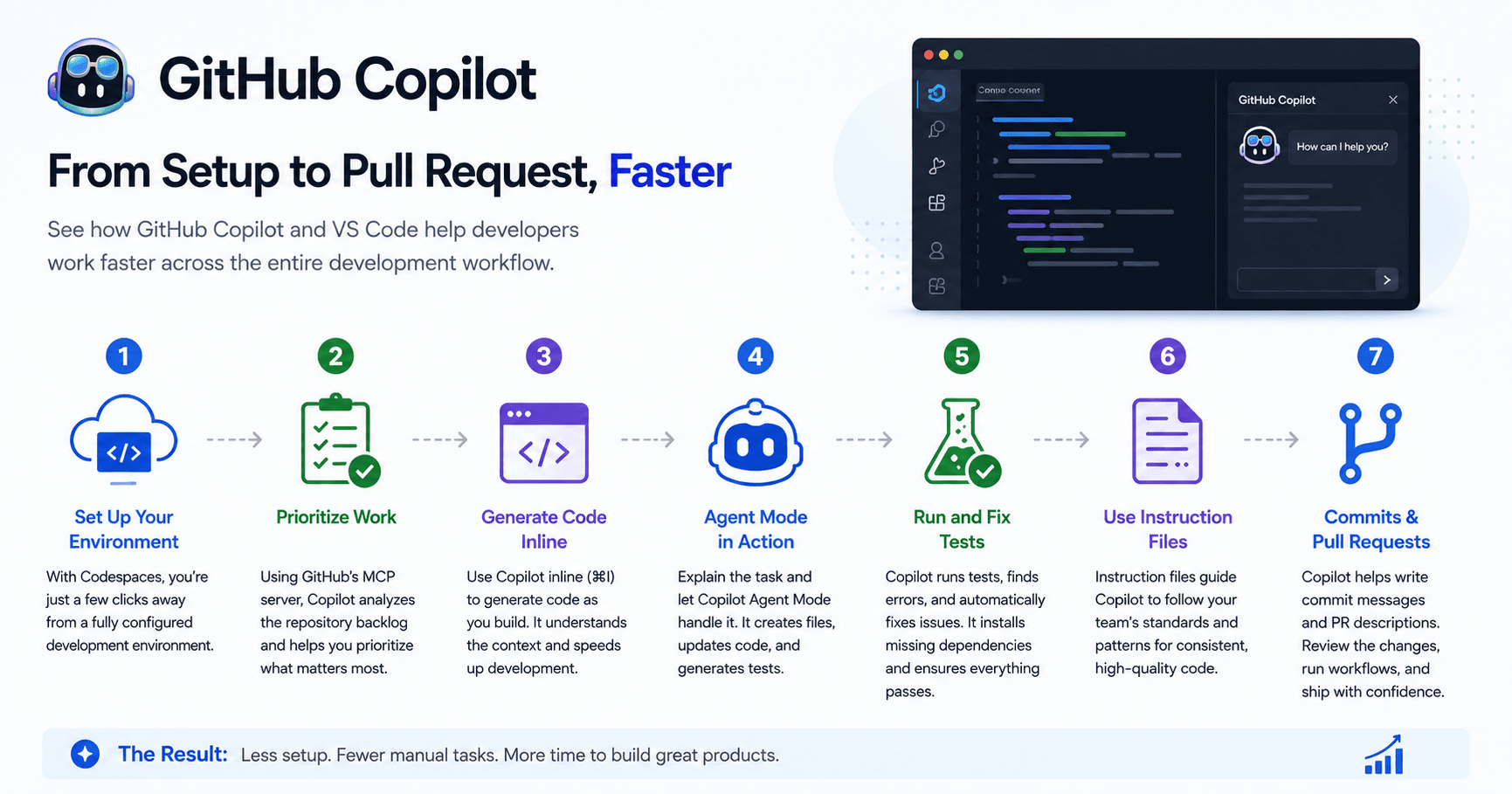

GitHub Copilot is becoming much more than a simple code completion tool. Today, it can help developers set up environments, understand repositories, prioritize work, generate code, run tests, fix errors, and even write commit messages and pull request descriptions.
The transcript shows a complete development workflow using GitHub Copilot, VS Code, Codespaces, Agent Mode, MCP servers, instruction files, and automated testing. Instead of focusing only on writing code, Copilot supports the developer across the entire process.
Starting with a ready-to-code environment
For many developers, the first challenge is setting up the project environment. Normally, this can take time. You may need to install frameworks, libraries, packages, services, and dependencies before writing a single line of code.
With GitHub Codespaces, this process becomes much faster. The development environment is already defined in a devcontainer.json file, which means the project can load with everything needed.
The developer can open the project directly in the browser using a web version of VS Code. If they prefer the desktop version, they can also connect to the same environment with just a few clicks.
This removes one of the most boring parts of development: spending time configuring tools before actually solving problems.
Prioritizing what to work on
After the environment is ready, the next step is deciding what to work on.
In the transcript, Copilot is connected to GitHub through an MCP server. MCP stands for Model Context Protocol, and it allows Copilot to interact with external tools and sources of information.
Using this connection, the developer asks Copilot to review the repository backlog and prioritize the issues.
Copilot identifies different types of work, including new features, accessibility tests, and migrations. It highlights the feature request as the item with the biggest potential impact on customers.
At the same time, accessibility is still important, so the developer assigns that issue to Copilot while focusing on the feature work manually.
This shows an important use case: Copilot can help developers not only write code, but also organize tasks and make better decisions about priorities.
Generating code inline
The feature request is about adding filtering by category and publisher to a website.
The developer starts by asking Copilot to generate code for returning all publishers. This is done inline inside VS Code using Command + I.
Copilot creates the initial code, and the developer reviews and accepts the changes. Then, while the developer begins writing the route to get a publisher by ID, Copilot understands the pattern and suggests the rest of the implementation.
This is one of Copilot’s strongest everyday uses. It can detect what you are trying to build based on the surrounding code and generate useful suggestions that match the project structure.
Instead of writing every function from scratch, the developer can focus on reviewing, adjusting, and confirming the code.
When a task becomes bigger than expected
At first, adding category and publisher filters seems simple. But the developer quickly realizes there is more work involved.
The project needs backend routes, frontend updates, interface changes, and tests. What looked like a small task becomes a larger feature.
This is where Copilot Agent Mode becomes useful.
Instead of manually describing each small step, the developer explains the full goal to Copilot. Agent Mode then reads through the project, understands the existing structure, and starts creating the necessary files and changes.
It works across the backend, frontend, and test files. This is different from basic autocomplete because Copilot is not just suggesting one line of code. It is trying to complete a full development task.
Agent Mode can run and fix tests
One of the most important parts of the workflow is testing.
Copilot does not only generate the code. It also runs the tests to check whether the implementation works.
In the transcript, Copilot makes a few mistakes, just like a human developer might. But Agent Mode is able to read the error messages, understand what went wrong, and update the code to fix the bugs.
This self-healing behavior is one of the biggest advantages of Agent Mode. It does not stop after the first failed attempt. It can inspect errors, make corrections, and try again.
Eventually, all unit tests pass.
Then Copilot runs the end-to-end tests using Playwright. When it finds that Playwright was not properly listed in the image requirements, it installs the missing libraries and dependencies, then runs the tests again.
This saves time because the developer does not need to manually investigate every missing dependency or configuration issue.
Instruction files help Copilot follow project standards
Another important part of the workflow is the use of instruction files.
Instruction files tell Copilot how the team wants the project to be built. They can include global standards for the whole app or specific rules for certain tasks, such as creating endpoints or writing unit tests.
In the transcript, Copilot uses these instruction files while generating code and tests.
This is important because AI tools work better when they understand the project’s expectations. Without instructions, Copilot may still generate working code, but it might not follow the team’s preferred patterns.
Instruction files help make the output more consistent, maintainable, and aligned with the project.
Copilot coding agent can even suggest creating an instruction file if the repository does not already have one.
Writing commits and pull requests
After the code is ready and the tests are passing, the developer still needs to describe what was built.
This is another task that many developers dislike. Writing a clear commit message and a good pull request description takes time.
Copilot can help here too.
Inside VS Code, the developer uses Copilot to generate a commit message. Then, after creating and publishing a new branch, Copilot generates the pull request description.
This makes the workflow smoother because the developer does not need to switch context as much. Copilot already understands the changes and can summarize them clearly.
Reviewing Copilot’s work
Earlier in the workflow, the developer assigned an accessibility-related issue to Copilot.
Later, they return to the repository and see that Copilot has created a pull request for that work as well. The PR includes a description of what Copilot changed and how it approached the task.
It also includes screenshots of the interface, which helps during review.
The developer can open the session and inspect everything Copilot did. Then, they can check out the branch locally and run the Playwright tests to confirm that everything passes.
This part is important: even when Copilot generates the work, the developer still reviews it.
AI can speed up development, but human review is still necessary. The developer remains responsible for checking quality, running workflows, and requesting changes if needed.
A complete developer workflow with AI
The transcript shows GitHub Copilot being used from start to finish:
Setting up the environment with Codespaces
Prioritizing issues with GitHub MCP
Generating code inline
Using Agent Mode for a larger feature
Running and fixing tests
Installing missing dependencies
Following instruction files
Writing commit messages
Creating pull request descriptions
Reviewing AI-generated work
This makes Copilot more than a coding assistant. It becomes a workflow assistant for developers.
Conclusion
GitHub Copilot can help developers work faster by reducing repetitive tasks and supporting the full development process.
Codespaces helps start the project quickly. Inline Copilot suggestions speed up code writing. Agent Mode handles larger tasks across multiple files. Instruction files keep the work aligned with team standards. Copilot also helps with testing, debugging, commits, and pull requests.
The main lesson is that Copilot works best when the developer gives clear context and reviews the final result carefully.
It does not replace the developer. Instead, it helps remove friction from the workflow, allowing developers to spend more time thinking about architecture, product value, and code quality.
Used well, GitHub Copilot can turn a long development process into a faster, more organized, and more productive experience.







Komentar0
Silakan masuk untuk meninggalkan komentar.