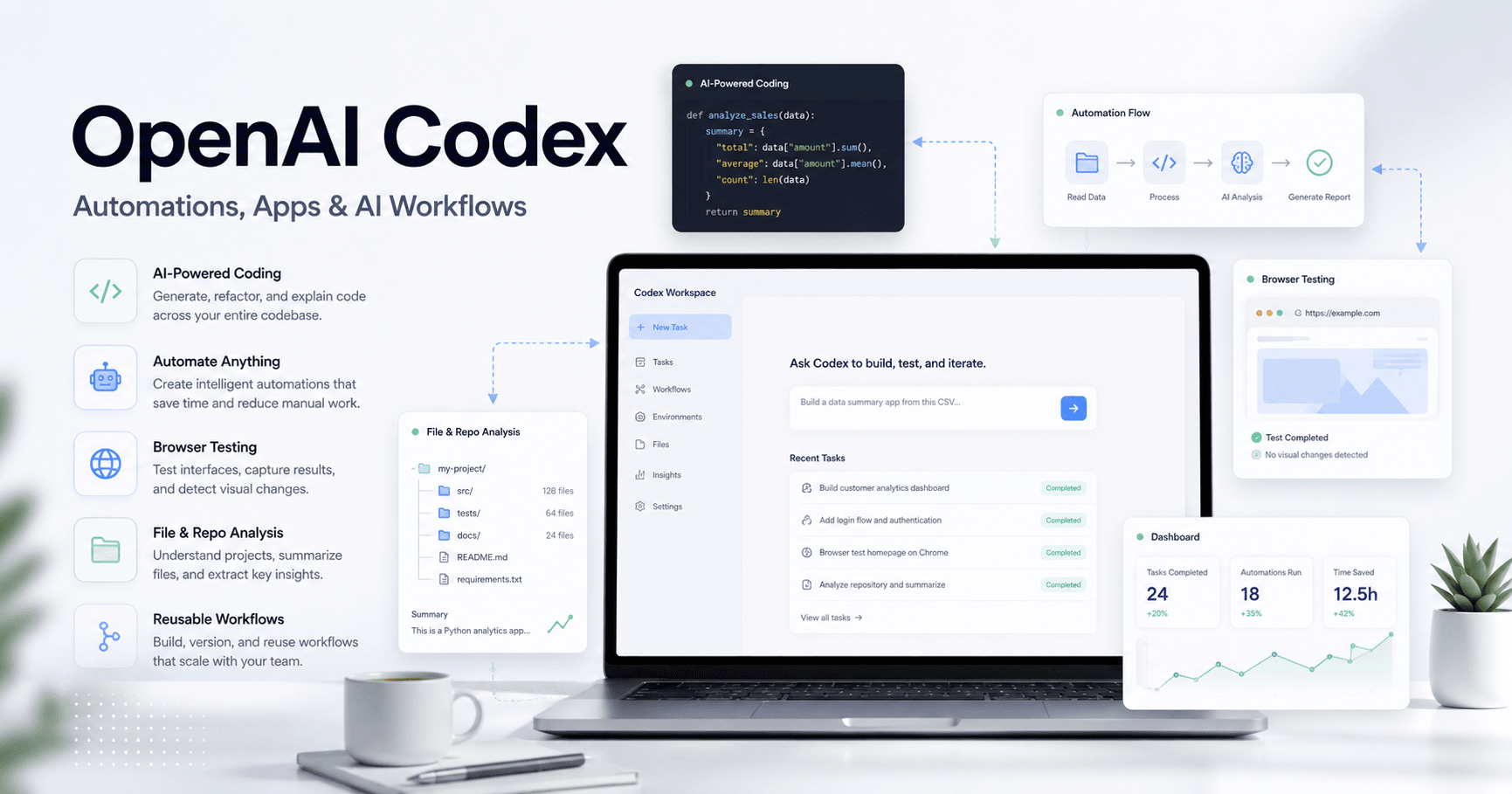

Codex is an OpenAI tool designed to transform the way we use artificial intelligence agents at work. Instead of using AI only as a chat to answer questions, Codex allows you to create more complete workflows connected to your computer, files, plugins, browser, and automations.
The main idea is simple: you can use Codex as an intelligent workspace capable of analyzing files, creating applications, generating dashboards, automating repetitive tasks, and even controlling the browser to test or execute actions.
This makes the tool useful both for developers and for professionals who want to build internal systems, organize processes, or create a “business operating system” for their own work.
What is Codex in practice?
Codex works as an AI agent focused on execution. It does not just answer a question. It can also work with files, create folders, generate code, access plugins, and produce practical results.
For example, instead of asking AI only to explain a spreadsheet, you can ask it to turn that spreadsheet into a dashboard. Instead of manually organizing notes, images, or documents, you can ask Codex to analyze an entire folder and deliver an organized report.
This difference is important because it changes the use of AI from conversation to action.
1. Access to local files
One of Codex’s most important features is access to files on your computer. It can work with specific folders, such as Downloads, Documents, or a project folder.
With this, you can request tasks such as:
Analyze images downloaded in the last week.
Separate files by category.
Create reports based on documents.
Organize content inside a folder.
Turn files into structured data.
In the transcript, the example shows Codex analyzing recent images from the downloads folder, creating groups, and identifying patterns. This is useful for anyone working with content, design, marketing, research, or material organization.
2. Plugins and connection with external tools
Another strong point of Codex is the ability to connect plugins such as Gmail, Slack, GitHub, Notion, Figma, and the browser.
With these plugins, Codex can perform tasks that would normally require several manual steps. One example shown in the transcript was invoice reconciliation received by email.
The process works like this:
Codex accesses Gmail.
It searches for invoices received in the last week.
It reads the attachments.
It extracts important data, such as client, amount, due date, and status.
It creates a spreadsheet or Excel file.
It generates an HTML dashboard for analysis.
This type of workflow saves time because it turns a repetitive task into an almost automatic process.
3. Creating automations
Once a workflow works well, it can become an automation.
For example, if every Monday you need to check received invoices, organize the data, and send a summary to Slack, Codex can turn this into a weekly routine.
The advantage is that you do not need to repeat the same prompt every time. You configure the automation once, and it starts running on a recurring basis.
This can be applied to several cases, such as:
Weekly reports.
Summary of important emails.
Analysis of new files.
Data monitoring.
Periodic dashboard creation.
Content organization.
The most important thing is to first test the process manually inside Codex. After the result is good, you turn that process into an automation.
4. Turning data into applications
Codex can also create complete applications based on datasets.
In the transcript, the example used was a database of companies invested in by Y Combinator. The idea was to turn that spreadsheet into an application with analysis, filters, search, categories, and descriptions of similar companies.
This type of use shows how Codex can go beyond generating isolated code. It can understand the goal, create a plan, choose a technical stack, and implement the application.
A good request would be something like:
“I have a spreadsheet with company data. I want to turn it into an application with filters, search, category analysis, and individual pages for each company.”
With clear instructions, Codex can create the initial project structure and keep improving it with new requests.
5. Planning mode
Before building something complex, the ideal approach is to use planning mode.
This mode prevents Codex from executing anything immediately. First, it analyzes the request and creates an implementation plan.
This helps a lot in larger projects because it prevents the AI from starting to build something before properly understanding the goal.
Planning mode is useful for:
Creating applications.
Organizing complex automations.
Defining project architecture.
Planning dashboards.
Structuring workflows.
Choosing technologies.
After the plan looks good, you can approve the implementation and let Codex start executing.
6. Project memory and global memory
Codex also works with persistent instructions. There are two main types: project memory and global memory.
Project memory is used to define specific rules for a folder or application. For example, you can tell Codex how it should organize files, which design patterns it should follow, how to write code, or how to handle images inside that project.
Global memory is used for general rules applied to all projects. For example, response preferences, organization style, or standards you always use.
In practice, project memory is usually safer and more useful because it keeps rules separated by context. This way, each project can have its own instructions.
7. Image and thumbnail generation
Another interesting feature is image creation inside the Codex workflow itself.
In the transcript, the example was creating YouTube thumbnails. Codex received the video title, analyzed thumbnails from competing channels, identified visual patterns, and generated variations.
This workflow can be used to:
Create cover images.
Generate thumbnails.
Produce visual variations.
Organize design assets.
Send images to tools like Figma.
The most important point is to provide visual and strategic context. Instead of simply asking “create a thumbnail,” it is better to explain the topic, the audience, the desired style, and, when possible, references from similar channels or content.
8. Browser testing
Codex can also use the browser to test applications.
After creating a dashboard or an application, you can ask it to open the project in the browser and check whether everything works correctly.
It can test:
Layout.
Responsiveness.
Buttons.
Filters.
Navigation.
Information readability.
Visual issues.
Complete application flows.
This is very useful for development because Codex is not limited to code. It can observe the application running and identify visual errors or usability problems.
9. Skills as reusable workflows
Skills are one of the most powerful Codex features.
A skill works like a reusable process. You create detailed instructions for a recurring task and then call that skill whenever you need it.
For example, you can create a skill to:
Generate thumbnails.
Edit reels.
Create daily reports.
Analyze emails.
Remove image backgrounds.
Summarize meetings.
Produce dashboards.
The advantage is that the skill stores the process. So instead of explaining everything again, you only call the skill and provide the necessary files or information.
This makes Codex increasingly personalized because your best workflows can be saved and reused.
10. Goal mode for multi-step projects
Goal mode is recommended for tasks that require several iterations.
For example, if you want to turn a simple dashboard into a complete tool for investors to research companies, this probably will not be solved in a single response.
Codex needs to plan, build, test, fix, improve, and repeat the cycle until it reaches the desired result.
This mode works best when you clearly define:
The final objective.
The criteria the result must meet.
How quality will be evaluated.
Which tools and access Codex can use.
Which limits it must respect.
Without clear criteria, goal mode can lose direction. But with a good description, it becomes very useful for creating applications, automations, internal systems, and more advanced workflows.
How to get better results with Codex
To use Codex efficiently, the secret is to think in processes, not just prompts.
Instead of asking for an isolated task, try to describe the complete workflow.
For example, instead of saying:
“Analyze my invoices.”
You can say:
“Check the emails from the last week with invoice attachments, extract client, amount, due date, and payment status, create an organized spreadsheet, and generate an HTML dashboard for analysis.”
The clearer the process, the better the result tends to be.
It is also important to test first, adjust later, and only then turn the workflow into an automation or skill.
Conclusion
Codex shows how AI agents are evolving from simple chat assistants into tools capable of executing complete tasks.
With it, you can analyze local files, connect plugins, create automations, generate applications, test interfaces in the browser, create images, configure memories, and turn repetitive processes into reusable skills.
For professionals, creators, and companies, this opens the door to building smarter and more personalized systems. The greatest value of Codex is not only in generating code, but in helping build workflows that save time, reduce manual tasks, and make AI a real part of the operational process.







Komentar0
Silakan masuk untuk meninggalkan komentar.