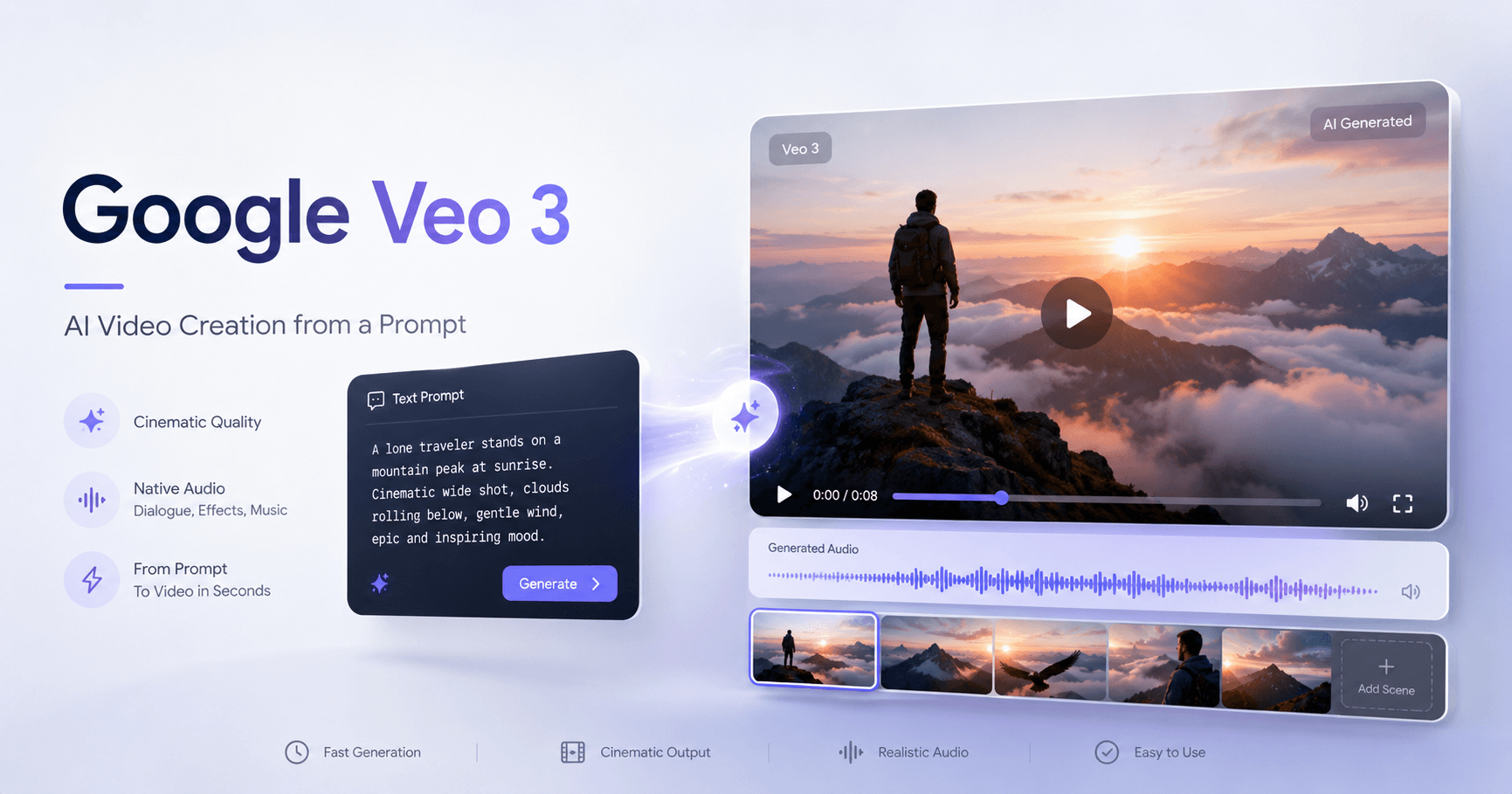

Imagine turning an idea into a cinematic video just by writing a sentence. That is the proposal behind Google Veo 3, an AI video generation tool created by Google DeepMind.
Veo 3 allows you to create high-quality videos from text commands. Instead of recording, editing, choosing music, and manually adjusting effects, the user simply describes what they want to see, and the AI tries to turn that description into a finished scene.
The tool understands important elements of visual production, such as camera movement, lighting, composition, environment, and pacing. This helps the generated videos look more natural and cinematic.
What is Google Veo 3?
Google Veo 3 is an artificial intelligence model focused on video creation. It works through prompts, which are written instructions provided by the user.
For example, you can ask for a slow-motion scene of cookies coming out of the oven, inside a sunlit kitchen, with steam rising and soft background music. The clearer and more detailed the description is, the greater the chance that the result will match the original idea.
One of Veo 3’s biggest differences is that it does not generate only video. It can also automatically add audio. This may include background music, ambient sounds, sound effects, and even narration with specific lines.
This combination of image and sound makes the experience more complete, especially for people who want to create content for social media, promotional videos, presentations, ads, or creative scenes.
How to Access Veo 3
To use Veo 3, you need access to a paid Google plan that includes the tool. However, according to the transcript, there is an option to try it for free for one month.
After activating the plan, access happens inside the Gemini interface. The user signs in with a Google account, opens the chat, and selects the video option. From there, Veo 3 is activated, and it is possible to start writing the first prompt.
How to Write a Good Video Prompt
The quality of the result depends a lot on how the request is written. A very simple prompt may generate a generic video. A more detailed prompt helps the AI better understand the desired style.
A good prompt can include:
What should appear in the scene
Where the scene takes place
What visual style it should have
How the lighting should look
What the camera movement should be
What atmosphere the video should convey
Whether it should include music, ambient sound, or narration
For example, instead of writing only “cookies coming out of the oven,” a better prompt would be:
“A cinematic slow-motion shot showing freshly baked chocolate chip cookies being pulled out of the oven, in a cozy kitchen lit by sunlight, with steam rising, warm lighting, and soft background music.”
This type of description gives the AI more context and helps create a video that is closer to what the user imagined.
How to Add Narration in Veo 3
Another interesting feature is the ability to include narration in the video. To do this, simply place the desired text in quotation marks inside the prompt and explain that the section should be narrated.
For example:
“Create a cinematic scene showing a team of bakers presenting the world’s largest chocolate chip cookie. The narration should say: ‘History is being made. The Kevin Cookie Company presents the world’s largest chocolate chip cookie.’”
With this, Veo 3 can generate not only the visuals but also a voice narrating the indicated phrase. This feature is very useful for ads, explainer content, product presentations, and documentary-style scenes.
Use Gemini to Improve Your Prompts
A very useful tip is to use Gemini itself to create or improve your prompts before generating the video.
If you have an idea but do not know how to describe it in a cinematic way, you can ask Gemini for help. For example:
“Help me write a cinematic prompt about a team of bakers making the world’s largest cookie.”
Gemini can suggest a more complete version, including camera angles, lighting, background music, scene pacing, and visual details. Then, you can copy that prompt, adjust anything you want, and use it in Veo 3.
This is especially useful for beginners because writing good prompts is one of the most important parts of getting good results with generative AI.
How to Download the Finished Video
After the video is generated, downloading it is simple. Just hover over the video and click the download icon. The file is saved as an MP4 on your computer.
From there, the video can be used on social media, in presentations, on websites, in marketing campaigns, or in personal projects.
Is Veo 3 Perfect?
Although impressive, Veo 3 can still present small errors. In the transcript, for example, the cookie video closely matched the prompt, but some details were not perfect, such as pieces of chocolate melting in a strange way.
This shows that the tool is powerful, but it still requires testing and adjustments. Sometimes, it may be necessary to rewrite the prompt, add more details, or try a new generation until you reach the ideal result.
Even so, the progress is clear. The possibility of creating videos with image, sound, and narration using only text changes the way content can be produced.
Why Does Veo 3 Get So Much Attention?
Veo 3 gets attention because it simplifies a process that normally requires several steps. Before, creating a good-looking video required thinking about filming, lighting, cameras, editing, music, effects, and narration.
With a tool like Veo 3, much of this process can begin with only a written idea. This does not completely replace human creative work, but it greatly speeds up production and opens new possibilities for creators, companies, and professionals.
The tool can be used to:
Create short videos for social media
Produce concept scenes
Test campaign ideas
Create AI-generated ads
Generate explainer videos
Produce content with narration
Visualize ideas before recording them in real life
Conclusion
Google Veo 3 shows how AI video creation is becoming increasingly accessible. With just a prompt, it is possible to generate cinematic scenes, add audio, create narration, and download the result as an MP4.
To create good videos, the secret is in the description. The clearer the prompt, the better the result tends to be. Details such as environment, lighting, camera style, sound, and narration make a difference.
And for those who do not know where to start, Gemini itself can help turn a simple idea into a more complete prompt.
Veo 3 can still make mistakes, but it already represents a major step forward for anyone who wants to create videos in a faster, more creative, and more accessible way using artificial intelligence.







Komentar0
Silakan masuk untuk meninggalkan komentar.