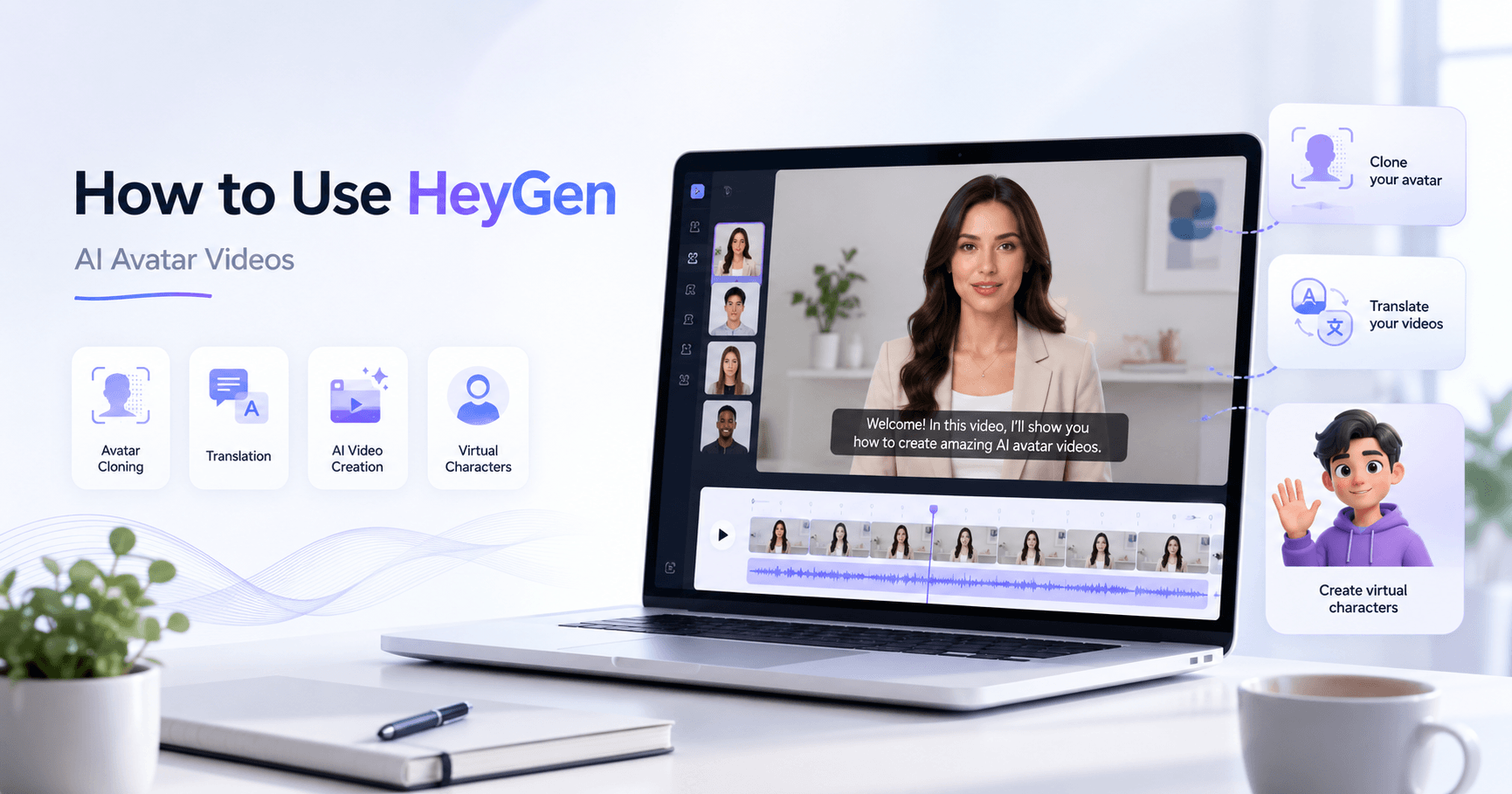

HeyGen is an AI video platform that lets you create realistic avatar videos without needing a camera crew, studio, or advanced editing skills. With it, you can generate videos using public avatars, clone yourself, change your background, translate your videos into other languages, and even create fully animated characters.
The main advantage of HeyGen is that it does not only generate a talking avatar. It helps build a complete video, including script, scenes, voice, visuals, timing, captions, and background elements. This makes it useful for creators, businesses, educators, marketers, and anyone who wants to produce video content faster.
Getting Started With HeyGen
To begin, you need to create a HeyGen account. You can sign up using Google or email and start with the free plan. The free plan is useful for testing the platform and understanding how it works.
However, if you want access to more advanced features, such as custom avatars, voice cloning, video translation, and higher quality exports, you will need a paid plan. For most users, the Creator plan is usually enough to start. A Pro plan is better if you plan to use HeyGen often or need access to more professional tools.
Creating Your First AI Avatar Video
One of the easiest ways to create a video in HeyGen is by using the AI Agent feature. Instead of manually writing a script, choosing visuals, and building each scene one by one, you simply describe the video you want.
For example, you can ask HeyGen to create a promotional video for an online course. A good prompt should include the topic, tone, visual style, target audience, and main message.
A simple example would be:
Create a high-energy promotional video for an online course that teaches beginners how to grow on YouTube. Show creators planning content, editing on laptops, checking analytics, and celebrating subscriber milestones. Keep the tone confident and motivating.
The more specific your prompt is, the better the result usually becomes. HeyGen can then generate the script, scenes, visuals, voice, music, and timing automatically.
Before generating the video, you also choose an avatar. HeyGen has a public avatar library where you can filter by age, gender, and appearance. You can also set the video length and choose the format, such as landscape for YouTube or vertical for short-form content.
Editing Your Video in AI Studio
After HeyGen generates the first version of your video, you can open it in AI Studio. This is where you get more control over the final result.
Inside the editor, the script appears on the left, the preview appears in the center, and the timeline is placed at the bottom. On the right side, you can control the avatar, media, music, captions, and other visual elements.
This is important because you are not stuck with the first version created by AI. You can rewrite lines, shorten the script, improve the opening, change captions, adjust the background, and control the motion of the avatar.
For example, if the first sentence feels too generic, you can make it more direct. If the captions do not match your brand, you can change the font, size, color, and style. If the background looks too simple, you can generate a new one using an AI image model inside HeyGen.
A good background prompt could be:
Modern YouTube studio background, RGB lighting, blurred shelves, cinematic depth.
This creates a more professional look without needing to search for stock images or design a background manually.
Adjusting Avatar Motion
HeyGen also includes motion controls. These settings change how the avatar moves and feels during the video. You can choose styles such as excited, welcoming, calm, or professional.
This feature helps the avatar match the energy of the content. A promotional video may need more energy, while an educational video may work better with a calm and clear delivery.
However, it is important not to overdo it. Very expressive motion can sometimes make the avatar look unnatural. For most videos, a balanced motion style works best.
Exporting the Final Video
Once the script, captions, background, and avatar motion are ready, you can generate the final version. HeyGen will show a confirmation screen where you can review the video name, format, resolution, FPS, and credit usage.
MP4 is usually the best format for most platforms. A standard frame rate like 25 FPS is also enough for many types of content.
After submitting, HeyGen rebuilds the video with all the changes applied. You can find it in the AI Studio Drafts area. When the video is ready, you can view it, share it with a link, or download it to your device.
Cloning Yourself With HeyGen
One of HeyGen’s most powerful features is the ability to create a digital version of yourself. This lets you produce videos where your AI clone speaks on your behalf.
To do this, go to the avatar section, select new avatar, and choose the option to clone a real person. HeyGen will ask for camera or phone permission.
For best results, you should record in a well-lit place with minimal background noise. Your face should be clearly visible, and you should speak naturally. HeyGen usually asks you to read a short script that includes a safety code. This code confirms that you are giving permission to create an AI clone of yourself.
This step is important for safety and consent. It also helps HeyGen capture your voice, expressions, facial movement, and speaking style.
You can record with a webcam or phone. A phone usually gives better quality, but a good webcam with proper lighting can also work well.
After recording, you can preview the result. If you do not like it, you can record again. Once everything looks good, you can name your avatar and enable options such as background removal, 4K resolution, and background noise removal.
Then HeyGen processes the recording and creates your digital twin.
Using Your AI Clone in a Real Video
After your clone is ready, you can use it like any other avatar. Go back to the home screen, open the avatar dropdown, choose your custom avatar, and write a prompt for the video.
For example, you could ask HeyGen to create a video explaining why many new YouTubers fail in their first 90 days and what mindset shift can help them continue.
HeyGen will then build a full video around your clone, including scenes, script, music, timing, and B-roll. This makes it possible to create educational videos, marketing content, social media clips, and training materials without recording yourself every time.
You can also change the style of your clone without changing the actual avatar. For example, you can create a darker cinematic look with a soft spotlight, professional clothing, and a minimal background. This gives the same video a completely different feeling while keeping your voice and script.
Translating Videos Into Other Languages
HeyGen also allows you to translate videos into different languages. This is useful if you want your content to reach a global audience.
You can upload a finished video, choose a target language, and let HeyGen translate it. The platform can make your avatar speak in another language without you needing to record again.
This is powerful for creators, educators, and businesses because one video can become content for multiple audiences. You can create the original version in English and then translate it into French, German, Japanese, Chinese, Spanish, or other languages.
Creating a Virtual AI Character
If you do not want to appear on camera or clone yourself, HeyGen also lets you create virtual characters. This is useful for faceless channels, animated explainers, educational series, storytelling videos, and brand characters.
To create one, go to the avatar tab, select new avatar, and choose create a virtual character. You can upload a photo or design one with AI.
When designing with AI, you choose details such as name, age, gender, ethnicity, style, and character description.
For example:
A young explorer in hiking gear, standing on a mountain trail at golden hour, cinematic lighting.
You can then choose a visual style, generate previews, pick the best version, and select a voice from HeyGen’s voice library.
Once saved, your virtual character can be used in videos just like a normal avatar. You can create animated explainers, educational episodes, storytelling content, or even a complete faceless YouTube channel.
Why HeyGen Is Useful
HeyGen is useful because it brings several video creation tools into one place. You can generate ideas, build scenes, create avatars, edit scripts, add captions, change backgrounds, clone yourself, translate videos, and design virtual characters.
This saves time and makes video production more accessible. You do not need to be an editor, actor, designer, or voice artist to create polished videos.
Still, the best results come from good direction. The AI can generate a lot, but you should still guide the process, review the output, improve the script, and adjust the visuals.
HeyGen works best when you treat it as a creative assistant, not as a magic button.
Final Thoughts
HeyGen is a powerful platform for creating AI avatar videos quickly. Beginners can use AI Agent to generate a complete video from a prompt, while more advanced users can customize everything inside AI Studio.
You can use public avatars, create a digital clone of yourself, translate videos into other languages, or build animated characters for faceless content.







Komentar0
Silakan masuk untuk meninggalkan komentar.