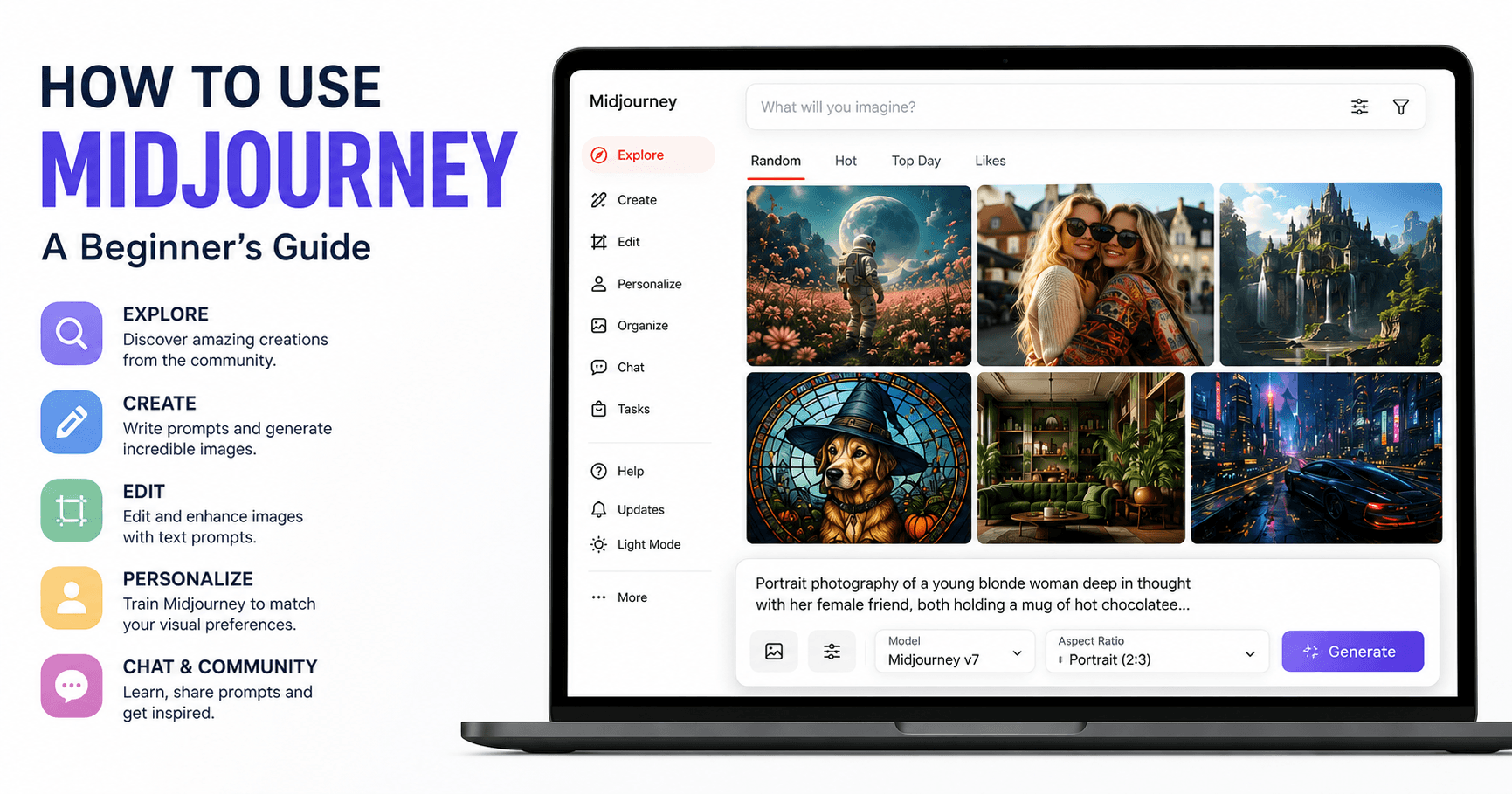

Midjourney is one of the most popular AI tools for creating high-quality images from text prompts. With it, you can describe an idea and quickly turn it into realistic portraits, creative scenes, product concepts, fantasy art, videos, and many other visual styles.
For beginners, the platform may look a little confusing at first because it has several menus and settings. But once you understand the basic navigation and how to structure your prompts, creating good images becomes much easier.
Exploring Midjourney
After logging into your Midjourney account, one of the first sections you will see is the Explore tab.
This area is useful because it shows images created by other users. You can browse random creations, trending images, top images of the day, and posts you have liked.
The Explore tab is more than just a gallery. It is also a great place to learn. When you click on an image, you can often see the prompt that helped create it. This allows you to understand how other people describe their ideas and how Midjourney interprets those descriptions.
For example, a simple prompt about a dog wearing a witch hat in a stained-glass style can generate a very detailed and creative image. By studying these examples, you can improve your own prompts and discover new styles.
Editing Existing Images
Midjourney also has an image editor. This feature lets you upload an existing image and modify it using text instructions.
You can use it to expand an image, change textures, adjust lighting, reimagine a scene, or edit specific regions. This is useful when you already have a base image but want to improve it or transform it into something new.
The editor supports image prompts, style references, character references, and personalization. There is also a retexturing mode, which keeps the original shape of the image but changes details such as lighting, materials, and surface style.
Personalizing Your Style
One of the most useful features in Midjourney is Personalization.
This option helps train Midjourney to understand your visual preferences. The platform shows you pairs of images, and you choose the one you prefer. Over time, Midjourney builds a style profile based on your choices.
For example, you can create a global profile for Midjourney V7. The more images you rate, the better the system understands what kind of visuals you like. This can improve future generations because the AI starts producing results closer to your personal taste.
It may feel repetitive at first, but it is worth doing if you want more consistent results.
Organizing and Learning from the Community
Midjourney also includes organization tools where you can manage images and videos you have created or liked.
There is also a chat area where users discuss prompts, styles, tips, and creative techniques. Sections like prompt craft, daily themes, and beginner discussions can be useful for learning how other creators approach image generation.
This matters because there is no single perfect way to use Midjourney. Seeing how other people build prompts can help you develop your own workflow.
Creating Your First Image
The main creative area is the Create section.
At the top of the screen, you will find the prompt box. This is where you describe the image you want Midjourney to generate. You can also attach images and adjust settings before creating your result.
Some basic settings include:
Portrait for vertical images, usually good for people.
Square for profile pictures, icons, or balanced compositions.
Landscape for wider scenes, backgrounds, and cinematic images.
You can also adjust aesthetics such as stylization, weirdness, and variety. If you want realistic images, keeping weirdness and variety low can help. If you want more experimental or unusual results, increasing those values can create more creative outputs.
Midjourney V7 is the standard model used in the tutorial, but you can also choose older versions if needed.
Using Personalization in Prompts
After creating a personalization profile, you can turn it on or off inside the Create settings.
When personalization is enabled, Midjourney uses your trained style profile to influence the final result. This means the same prompt can look different depending on whether personalization is active.
There is also a Draft Mode, which generates images faster but in lower quality. This is useful when you want to test ideas quickly before creating a final version.
How to Structure a Good Prompt
A strong Midjourney prompt usually includes several important elements.
First, describe what you want to create. For example, you might start with:
portrait photography of a young blonde woman deep in thought with her female friend
Then, add an action:
both holding a mug of hot chocolate
After that, define the shot and location:
close-up shot in a retro-themed cafe
You can also describe clothing:
wearing bohemian style clothing from 2024
For more control, you can include camera details, lens style, or inspiration from a specific photography style. This is optional, but it can help Midjourney create a more precise look.
Finally, describe the mood and lighting:
the image should capture serenity and nostalgia with soft diffused lighting and warm muted undertones
This gives the AI more context and helps it understand not only what should appear in the image, but also how the final image should feel.
A Simple Prompt Formula
A good prompt can follow this structure:
Type of image + subject + action + shot type + location + clothing/details + camera/style + emotion + lighting
For example:
Portrait photography of a young blonde woman deep in thought with her female friend, both holding a mug of hot chocolate, close-up shot in a retro-themed cafe, wearing bohemian style clothing from 2024, soft diffused lighting, warm muted undertones, nostalgic and serene atmosphere.
This kind of structure helps Midjourney generate more accurate and visually appealing results.
Final Thoughts
Midjourney is powerful, but the quality of your results depends heavily on how well you describe your idea.
The best way to improve is to explore what other users are creating, study their prompts, test different settings, and build your own style through personalization.
For beginners, the most important lesson is simple: do not write random prompts and expect perfect results. Instead, guide the AI clearly. Describe the subject, the environment, the action, the mood, the style, and the lighting.
When you combine good prompt structure with Midjourney’s personalization tools, you can create much more consistent, realistic, and professional-looking images.







Komentar0
Silakan masuk untuk meninggalkan komentar.