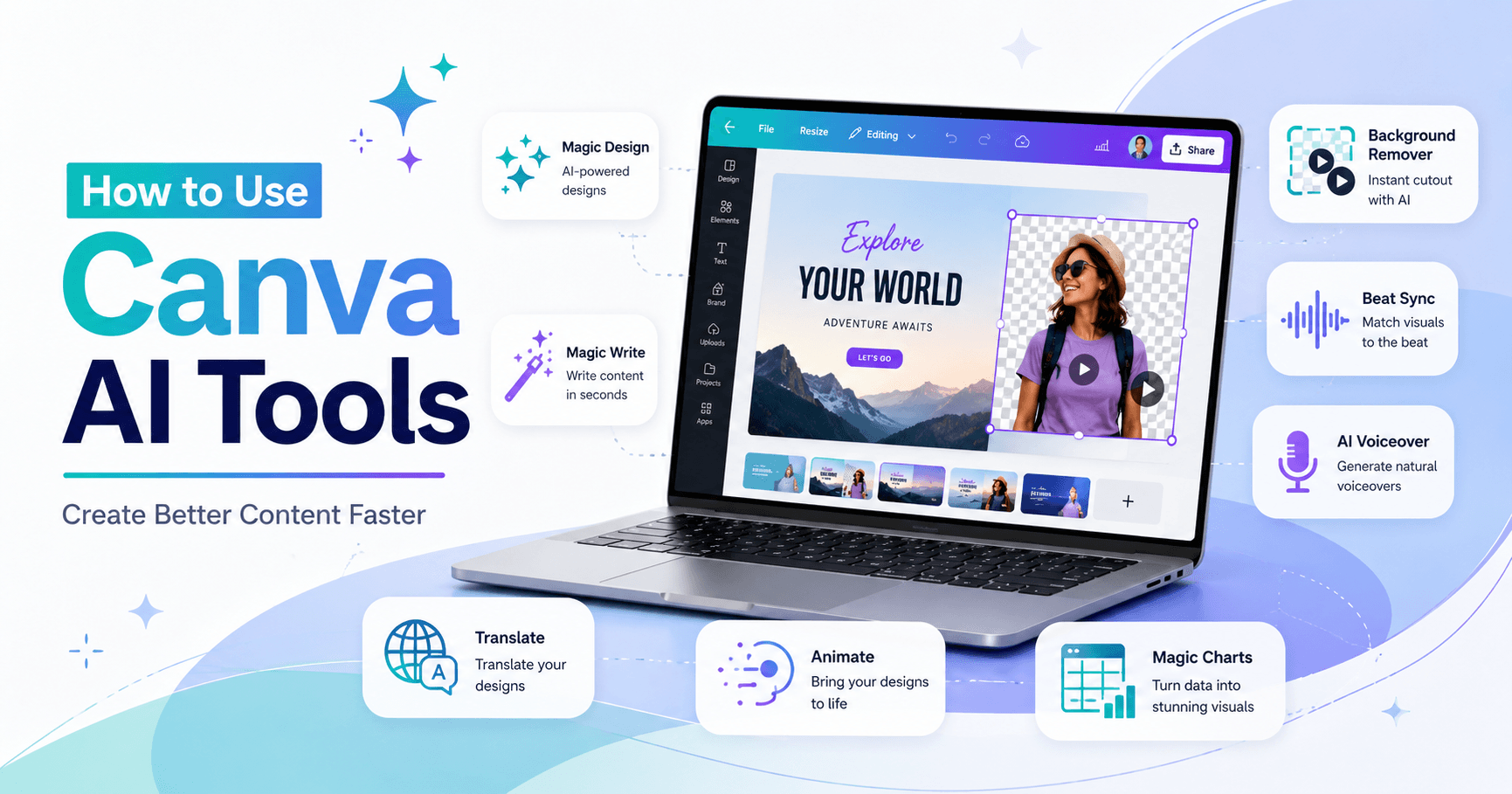

Canva has become much more than a simple design platform. With its growing collection of AI tools, it now helps creators, marketers, teachers, business owners, and content teams produce visuals, videos, presentations, documents, and even interactive tools with less manual work.
The best part is that many of these features are built directly into the Canva editor. That means you do not need to jump between different apps to remove a background, write copy, translate a design, clean audio, or turn a simple idea into something polished.
In this guide, we will look at some of the most useful Canva AI tools and how they can help you create content more efficiently.
Remove Video Backgrounds Without Advanced Editing
One of Canva’s useful AI video tools is the Video Background Remover. If you have ever wanted to remove the background from a video without using a green screen or professional editing software, this feature makes the process much easier.
To use it, you simply select your video, click the background remover option, and Canva automatically isolates the subject. After that, you can place the person or object over a new background, add it to a branded layout, or use it inside a social media video.
This is especially helpful for short-form videos, testimonials, reels, product clips, and promotional content. Instead of spending a lot of time editing frame by frame, Canva does the heavy work for you.
However, this feature is usually part of Canva Pro, so free users may have limited access.
Sync Your Video to Music with Beat Sync
Creating a video that matches the rhythm of a song can take time, especially if you are manually adjusting clips, slides, and transitions. Canva’s Beat Sync tool helps automate this process.
After adding music to your Canva video, you can use Beat Sync to analyze the audio and adjust the timing of your clips to match the beat. This makes your final video feel more dynamic and professional.
It is a useful feature for social media videos, promotional clips, event recaps, and any design where music plays an important role.
Turn Long Videos into Short Highlights
Canva also includes an AI-powered Highlights feature for video editing. This tool can scan your video and suggest the most interesting or engaging parts.
Instead of manually watching through the entire video and cutting sections yourself, Canva helps identify the best moments and create a shorter version. This is great for turning long videos into reels, previews, trailers, or social media snippets.
For creators and businesses that repurpose content often, this can save a lot of time.
Generate Voiceovers with AI Voice
Canva’s AI Voice tool lets you turn written text into spoken audio directly inside your design. This is useful if you need narration for a video, presentation, reel, tutorial, or explainer content but do not want to record your own voice.
You can access AI Voice from the Apps section or, in some cases, by selecting text and using the magic writing options. Canva then converts your selected text into an audio track using an AI-generated voice.
Depending on your account, you may be able to choose different voice styles, accents, and languages. Once generated, the voiceover is added to your timeline, where you can preview it, adjust timing, and match it with your visuals.
AI Voice will not fully replace a professional voice actor, but for quick content creation, simple tutorials, and everyday marketing videos, it is a very practical option.
Improve Audio Quality with Enhance Voice
Bad audio can make even a good video feel unprofessional. If your voice recording sounds too quiet, echoey, muffled, or noisy, Canva’s Enhance Voice feature can help clean it up.
This AI tool improves the clarity of recorded voiceovers by balancing levels, reducing noise, and making the voice easier to understand. You can find it by selecting the audio track in your timeline and choosing the Enhance Voice option.
For creators who do not have a professional microphone or recording setup, this feature can be a big help. It allows you to create cleaner audio without needing to re-record everything.
Add Motion with Magic Animate
Static designs can become more engaging when you add movement. Canva’s Magic Animate tool applies coordinated animation to your entire design, so you do not have to animate each element manually.
To use it, select a page, click Animate, and choose Magic Animate if it is available. Canva will automatically add motion based on the layout and content of your design.
This is especially useful for presentations, social media graphics, reels, and promotional videos. Instead of spending time choosing animations one by one, Magic Animate gives your design a smoother and more professional feel in just a few clicks.
Repurpose Content with Magic Switch
Magic Switch is one of Canva’s most useful AI tools for repurposing content. It helps transform your design into different formats or languages.
For example, you can turn a presentation or carousel into a Canva Doc. You can also translate your design into another language without copying the text into an external translation tool.
It is important to understand the difference between Resize and Magic Switch. Resize changes the dimensions of a design, such as turning a presentation into a square Instagram post. Magic Switch changes the structure or language of the content, such as transforming a visual design into a document or translating text.
This makes it easier to reuse one piece of content in multiple ways.
Write Faster with Magic Write
Magic Write is Canva’s AI writing assistant. It can help you create headlines, outlines, blog post ideas, email drafts, presentation content, captions, and more.
If you are working inside Canva Docs, you can access Magic Write from the toolbar or quick actions menu. You can choose from preset content types or write your own prompt.
If you are editing a regular design, such as a social media post or presentation, you can select a text box and use Magic Write actions like rewrite, shorten, continue writing, or change the tone.
Magic Write is not meant to replace human creativity, but it is excellent for getting started, improving rough text, and saving time when you are stuck staring at a blank page.
Translate Designs Inside Canva
Canva’s Translate tool helps convert your design text into many different languages. This is useful for businesses, educators, creators, and marketers who want to reach audiences in different regions.
You can access Translate from the Apps section, through Magic Switch, or sometimes by selecting a text box and choosing the translate option.
The main benefit is convenience. You do not have to copy and paste your text into a separate translation tool. Everything happens inside Canva, which keeps the workflow faster and more organized.
Build Interactive Tools with Canva Code
Canva Code is one of the newer AI tools inside Canva. It allows users to create simple interactive elements, such as calculators, quizzes, and widgets, using plain language prompts.
Instead of writing code from scratch, you describe what you want to build, and Canva generates the code for you. This can make your designs more interactive and useful, especially for educational content, lead magnets, business tools, and presentations.
For example, you could create a calculator, a quiz, or a small interactive widget and add it directly to your Canva design.
Use AI in Canva Sheets
Canva Sheets also includes AI features such as Magic Formulas and Magic Insights.
Magic Formulas lets you describe the formula you need in plain language, and Canva helps create it for you. This is helpful if you do not remember spreadsheet syntax.
Magic Insights analyzes your data and highlights patterns, trends, or useful summaries. This can make it easier to understand numbers without manually reviewing every detail.
These tools are especially helpful for reports, planning documents, marketing dashboards, and simple data analysis.
Final Thoughts
Canva AI is designed to make content creation faster and easier. Whether you are editing videos, improving audio, writing text, translating designs, generating voiceovers, animating graphics, or building interactive tools, Canva brings many useful AI features into one workspace.
You do not need advanced design, video editing, audio editing, or coding skills to use these tools. They are made to help everyday creators produce better content with less effort.
Some features are available only with Canva Pro or have limited access on the free plan, but the overall value is clear. Canva AI can help you save time, improve your workflow, and create more polished content without needing multiple separate tools.
For anyone who creates social media posts, videos, presentations, marketing materials, or educational content, Canva AI is worth exploring.







Komentar0
Silakan masuk untuk meninggalkan komentar.