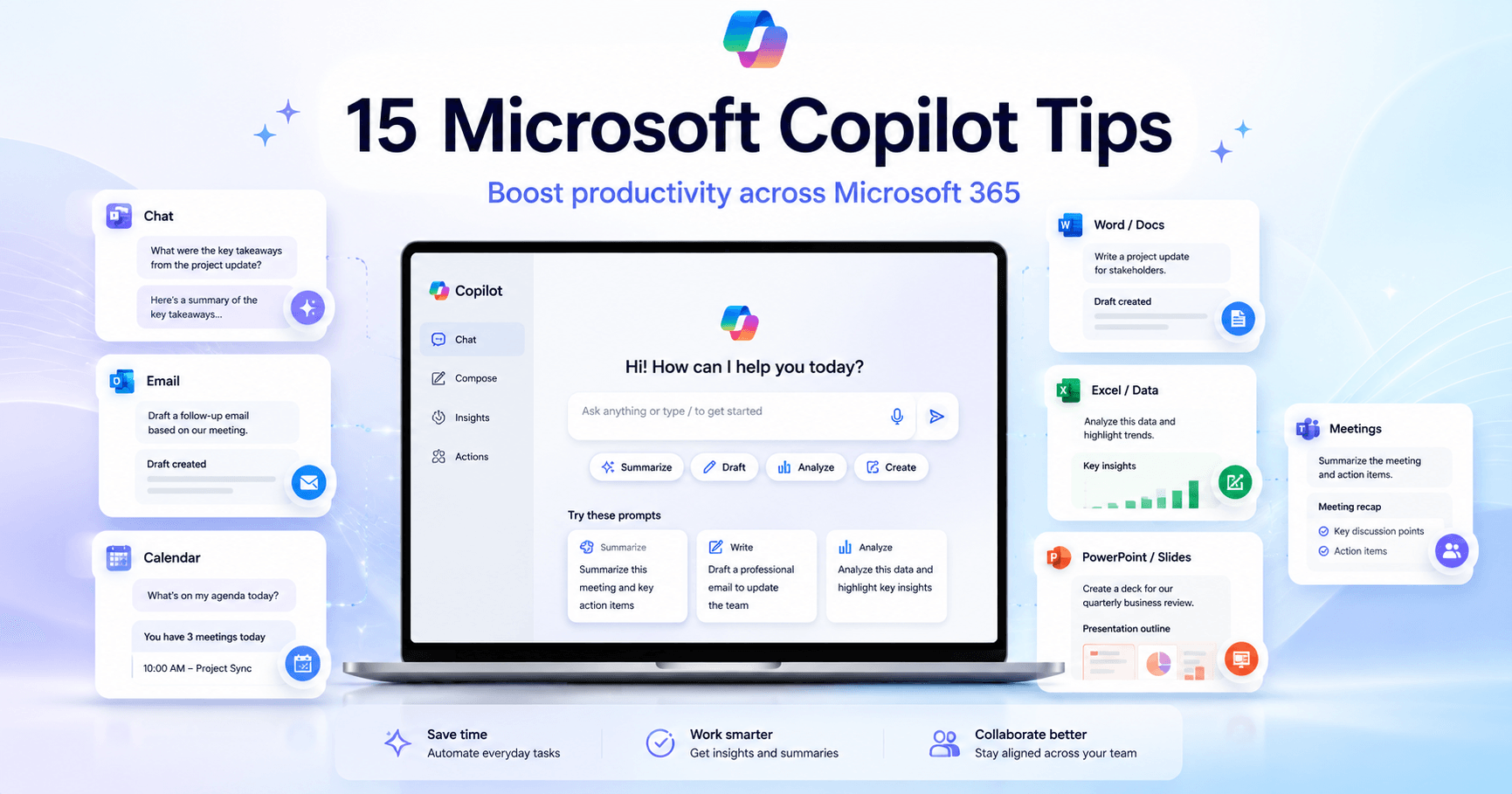

Microsoft Copilot has become much more than a simple AI chat. With recent updates, it can help you summarize emails, create presentations, analyze spreadsheets, draft documents, generate videos, and even collaborate inside Teams.
The main idea is simple: instead of doing every small task manually, you can ask Copilot to help you organize, create, review, and automate parts of your work inside Microsoft 365.
1. Choose how Copilot should respond
Inside Copilot Chat, you can choose different response modes. If you need a fast answer, you can use a quick response mode. If the task is more complex, such as creating a marketing strategy, you can choose a deeper reasoning mode.
This is useful because not every task needs the same level of detail. A simple question can be answered quickly, while a bigger plan may need more thinking, structure, and research.
2. Add custom instructions
Copilot also lets you set custom instructions. This means you can tell it how you prefer responses to be written.
For example, you can ask Copilot to use simple language, give direct feedback, write in bullet points, or follow a specific tone. This helps make the answers more consistent and closer to your work style.
3. Schedule prompts
One of the most useful features is scheduled prompts. You can create a prompt once and ask Copilot to run it automatically on specific days and times.
For example, you can ask Copilot to check your inbox and calendar every Monday morning, then summarize your top priorities for the week. This can save time and help you start the week with more clarity.
4. Use files as context
Copilot can analyze files from your Microsoft 365 environment. You can attach spreadsheets, documents, presentations, emails, meetings, or cloud files.
This is powerful because Copilot does not need to answer only with general information. It can use your real work files as context. For example, you can ask it to analyze a spreadsheet and find important insights, trends, risks, or opportunities.
5. Create videos with AI
Microsoft Copilot can also help create videos. You can describe what kind of video you want, choose a tone, and let Copilot generate a first version.
It can create a video from scratch or use a PowerPoint presentation as the base. After that, you can edit the transcript, change the voice, adjust the music, regenerate the video, export it as MP4, or open it in Clipchamp for more detailed editing.
6. Summarize your inbox and calendar in Outlook
In Outlook, Copilot can help you catch up quickly. If you were away for a few days, you can ask it to summarize the most important emails, calendar events, and follow-up actions.
This is especially useful after vacations, busy days, or long meetings. Instead of opening every email one by one, you can get a clear summary of what needs your attention first.
7. Set email drafting instructions
Copilot can also follow custom instructions when drafting emails in Outlook. You can define your preferred tone, length, formatting, and style.
For example, you can ask for short replies, bullet points, a professional tone, or a more friendly style. When you use “Draft with Copilot,” it will create email replies based on those preferences.
8. Use Agent Mode in Excel
Agent Mode in Excel lets you use natural language to create, edit, and analyze spreadsheets.
You can ask Copilot to build a dashboard, create charts, organize sheets, clean data, combine columns, generate forecasts, or explain what it changed. Instead of manually writing formulas or formatting data, you describe the result you want.
This makes Excel easier for people who are not advanced spreadsheet users, while also helping experienced users move faster.
9. Use the Copilot function in Excel
Excel also has a Copilot function that can be used directly inside cells. This is useful for tasks like text analysis, sentiment classification, categorization, or generating structured lists.
For example, you can ask Copilot to classify employee feedback as positive, neutral, or negative. It can also pull structured information, such as a list of teams or names, directly into the spreadsheet.
10. Create presentations in PowerPoint
PowerPoint can use Copilot to create a complete presentation from a prompt. You describe the topic, choose the length, select a design style, and Copilot generates an outline and slide preview.
After that, you can edit the structure, change sections, adjust the design, and keep refining the deck. This is a great starting point when you need a presentation but do not want to begin from a blank slide.
11. Edit images with AI in PowerPoint
PowerPoint also includes AI image editing tools. You can remove backgrounds, enhance image quality, add text, apply effects, and adjust visuals directly inside the presentation.
This makes it easier to improve slide visuals without needing to open another design tool.
12. Use Agent Mode in Word
Agent Mode in Word works like a writing assistant that can create and edit documents based on your instructions.
You can ask it to create a status report from a file, add a cover page, write an executive summary, organize sections, create tables, and keep the text short and focused.
It can also edit existing content. For example, you can ask it to turn a section into a table, change formatting, or improve the structure of a document.
13. Draft and rewrite documents in Word
Copilot in Word can help you start writing faster. You can ask it to draft a cover letter, report, proposal, summary, or article.
After the first draft, you can ask for changes, such as making the text shorter, sharper, more formal, or more specific. You can also select a paragraph and ask Copilot to rewrite, improve, or give suggestions.
This is useful when you know what you want to say but need help turning ideas into a polished text.
14. Catch up on meetings in Teams
In Teams, Copilot can help you understand what happened in a meeting, even if you joined late or missed it.
You can ask for a summary, meeting notes, key decisions, action items, and tasks assigned to you. The conversation with Copilot is private, so other people in the meeting do not see what you ask.
This can save a lot of time, especially in long meetings with many topics and follow-ups.
15. Use Copilot in Teams group chats
Copilot can also be added to a Teams group chat. This allows everyone in the chat to interact with it and use the previous Copilot conversation as context.
For example, if Copilot created an event agenda, the team can continue editing it together inside Teams. Someone can ask Copilot to add a speaker, update the schedule, or show the full agenda again.
This turns Copilot into a shared assistant for team collaboration.
Final thoughts
Microsoft Copilot is becoming deeply integrated into Microsoft 365. It can help with communication, writing, spreadsheets, presentations, meetings, video creation, and team collaboration.
The biggest advantage is not just generating text. The real value is that Copilot can work with your files, emails, calendar, meetings, and apps. This makes it useful for real productivity, not just simple questions.
For anyone who uses Microsoft 365 every day, learning these Copilot features can make work faster, more organized, and easier to manage.







Komentar0
Silakan masuk untuk meninggalkan komentar.