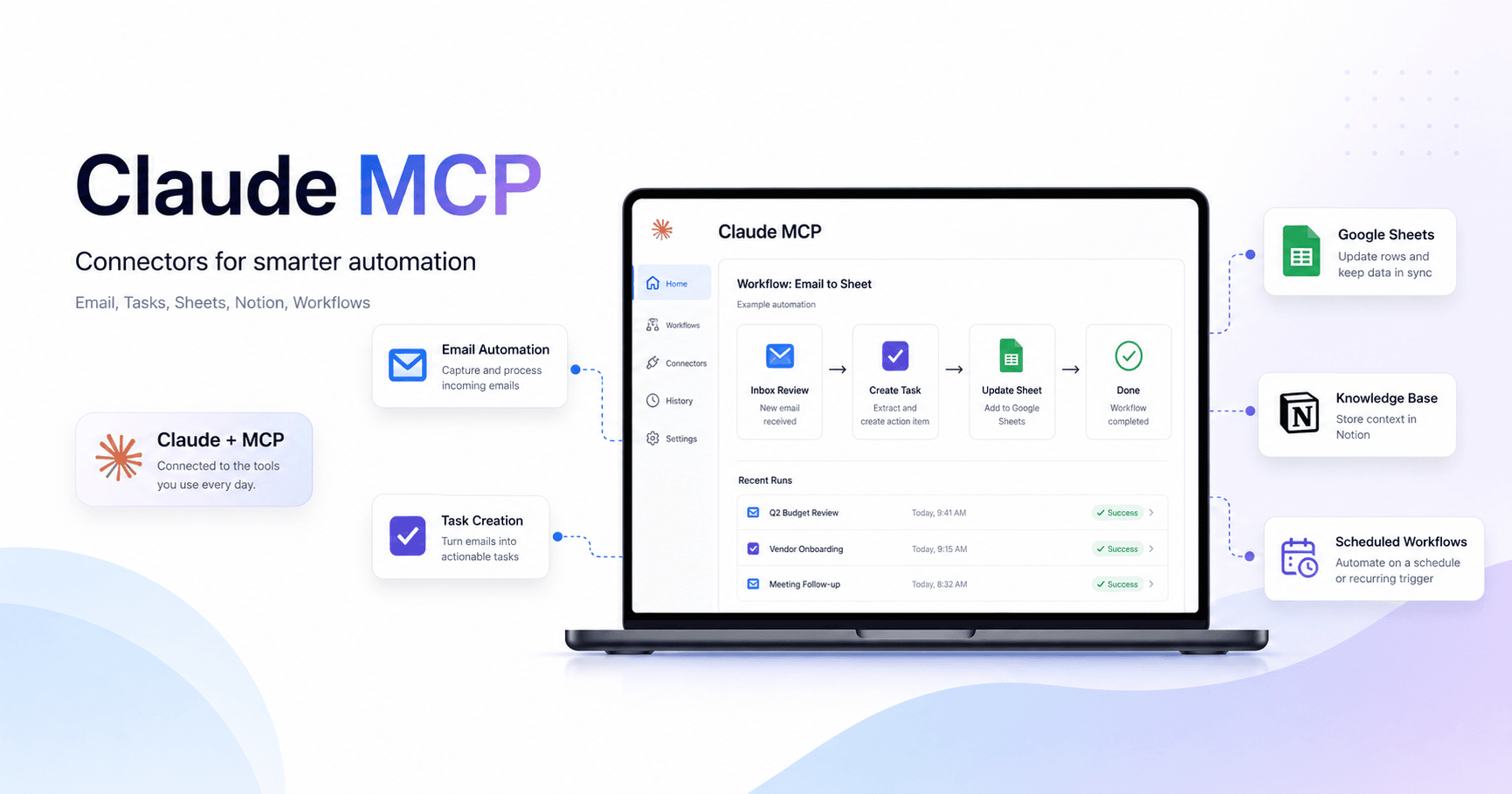

Claude Cowork is already one of the most powerful ways to use AI in daily work. It can access files, connect apps, retrieve information, and help with tasks that would normally require a lot of manual effort.
But there is an important limitation: native connectors do not always allow Claude to complete actions on its own.
For example, Claude can write an email, but it may not send that email without your approval. It can analyze tasks, but it may not be able to create tasks directly inside tools like Asana. It can access some integrations, but it often remains limited by restricted permissions.
This is where MCP comes in.
What is MCP?
MCP stands for Model Context Protocol. In simple terms, it is a standard that allows AI assistants to connect with external tools.
In practice, MCP works like a bridge between Claude and other apps. It allows Claude to access specific functions inside those tools, such as searching data, creating records, sending messages, updating spreadsheets, or executing automated actions.
Inside Claude, many connectors work like MCPs. The difference is that some native connectors have more limited permissions, while tools like Zapier MCP can unlock broader actions.
The Problem with Native Connectors
Claude’s native connectors are useful, but they do not always provide full automation.
For example, if you connect Gmail directly to Claude, it can find an email and prepare a reply. However, in many cases, it only creates a draft and asks you to approve it before sending.
That makes sense for safety. After all, nobody wants an AI sending emails without control.
But as you start trusting Claude more, you may want to automate specific tasks with more freedom. That is where native connectors can become limiting.
The same thing happens with other tools. Asana, PayPal, and other apps may connect to Claude, but they do not always allow every expected action without approval or restrictions.
How Zapier MCP Changes This
Zapier MCP works as a bridge between Claude and thousands of apps.
Zapier is already known for connecting different tools. For example, you can create an automation where a new email creates a task, a form response becomes a spreadsheet row, or a sale triggers a notification.
With Zapier MCP, that logic becomes available to Claude.
This means Claude can use Zapier to perform actions in apps such as:
Gmail
Notion
Asana
Google Sheets
PayPal
Telegram
Google Calendar
Slack
And many other tools
The big advantage is that Zapier MCP can offer broader permissions than some of Claude’s direct connectors.
In the transcript example, Claude using the native Gmail connector was only able to create a draft. But when the user switched to Zapier MCP, Claude found the email, wrote the reply, and actually sent the message.
Practical Example: Replying to Emails with Claude
Imagine you receive an email from someone asking whether you have time for a meeting next week.
With the native Gmail connector, Claude can find the email and prepare a response. But it may stop at the draft stage.
With Zapier MCP enabled, you can ask:
“Find Mike’s email and send a reply saying that next week works for a quick call.”
In this case, Claude can use Zapier MCP to complete the action, from finding the email to sending the reply.
This significantly changes the level of automation.
Claude stops being only an assistant that suggests what to do and becomes an assistant that can actually execute tasks.
How to Set Up Zapier MCP in Claude
The process is relatively simple.
First, access the Zapier MCP dashboard and create a new MCP server. Then choose Claude as the client. After that, connect the server to Claude and start adding tools.
Inside Zapier, you can choose which apps you want to connect, such as Gmail, Notion, Asana, or Google Sheets. When you add a tool, Zapier shows which permissions Claude will be able to use.
This is important because you do not need to allow everything. You can choose only the actions that make sense for your workflow.
For example, in Asana, you can allow Claude to create tasks, update tasks, or search projects. In Gmail, you can allow it to send emails, read messages, or apply labels.
After setup, the connector appears inside Claude as something like “Zapier Custom.” From there, you can enable it in a new Claude Cowork task.
Why Use Zapier MCP Instead of a Direct Connector?
The answer is simple: more power and more automation.
A direct connector may be safer and more controlled, but it can also limit what Claude can do.
Zapier MCP usually offers broader permissions. This makes it possible to create more complete automations, such as:
Sending emails automatically
Creating tasks in Asana
Adding labels in Gmail
Updating Google Sheets
Creating pages in Notion
Sending messages on Telegram
Creating records in sales tools
Generating team notifications
This is especially useful when you want Claude to execute a complete process, not just prepare a suggestion.
Example Automation with Gmail and Asana
One of the best examples from the transcript is a scheduled task.
You can configure Claude Cowork to run every day at 6 a.m. and do the following:
Read your Gmail inbox
Identify emails that require action
Create an Asana task for each important item
Apply a Gmail label called “Action item”
Organize a summary of what needs to be done
This kind of automation is much more powerful than simply asking Claude to summarize emails.
Here, Claude analyzes, decides, creates tasks, and organizes your routine.
Even more interesting, this combines several layers: Claude Cowork, scheduled tasks, Gmail, Asana, and Zapier MCP.
Tools That Become More Useful with MCP
Some apps become especially interesting when connected through Zapier MCP.
Gmail becomes more powerful because Claude can go beyond writing drafts. It can send, organize, search, and classify messages.
Asana becomes more useful because Claude can create tasks automatically, turn emails into to-dos, and organize workflows.
Google Sheets can be used to record information, update reports, and feed spreadsheets with data from other tools.
Notion can become a dynamic knowledge base where Claude creates pages, organizes information, and records decisions.
Telegram is interesting because it may allow Claude to send messages or notifications, opening the door to personal automations and alerts.
PayPal can also be useful for billing workflows, although this type of use requires extra caution because it involves financial information.
Important Permission Precautions
The more power you give Claude, the more careful you need to be.
Allowing an AI to send emails, create tasks, update spreadsheets, or modify important tools can save time, but it also introduces risks.
That is why, in the beginning, it is better to grant permissions gradually.
You can allow an action only once instead of always allowing it. As the workflow proves reliable, you can move toward more permanent permissions.
Good practices include:
Start with simple tasks
Test with non-critical data
Review the first automations manually
Do not release financial actions without control
Avoid overly broad permissions at the beginning
Create clear rules for what Claude can and cannot do
The goal is not to give total control to AI. The goal is to safely automate repetitive tasks.
The Zapier MCP Free Plan
According to the transcript, you can start using this on the free plan, but there is a task limit. After that limit, you may need a Zapier subscription to keep using it.
This matters because frequent automations can consume tasks quickly.
If you create a daily workflow that analyzes emails, creates tasks, and updates tools, usage can grow fast.
So it is worth starting with small automations and measuring whether the productivity gain justifies the cost.
Claude with MCP Changes the Role of AI
The biggest difference with Claude and MCP is that Claude stops being just a chatbot.
Without MCP, you talk to Claude, receive an answer, and then do the work manually.
With MCP, Claude can connect to your tools and perform real parts of the work.
This changes AI usage from:
“Tell me what to do.”
To:
“Do this inside my tools.”
That is a huge shift.
Claude starts acting more like a workflow operator. It can read information, make decisions based on rules, execute actions, and keep everything organized inside the systems you already use.
Conclusion
MCP makes Claude much more powerful because it connects AI to the real world of work tools.
With native connectors, Claude can already help a lot. But with Zapier MCP, it can go further: send emails, create tasks, update spreadsheets, organize information in Notion, and automate processes between different apps.
The best way to start is simple: choose one repetitive task, connect only the tools you need, and test carefully.
It could be something like turning important emails into tasks, updating a spreadsheet automatically, or creating Notion pages from incoming information.
The most important thing is to understand that MCP is not just a technical integration. It is the path to turning Claude into a connected assistant that can act inside your workflow.
Claude with MCP is not only for answering questions.
It is for executing processes.







टिप्पणियाँ0
टिप्पणी करने के लिए कृपया साइन इन करें।