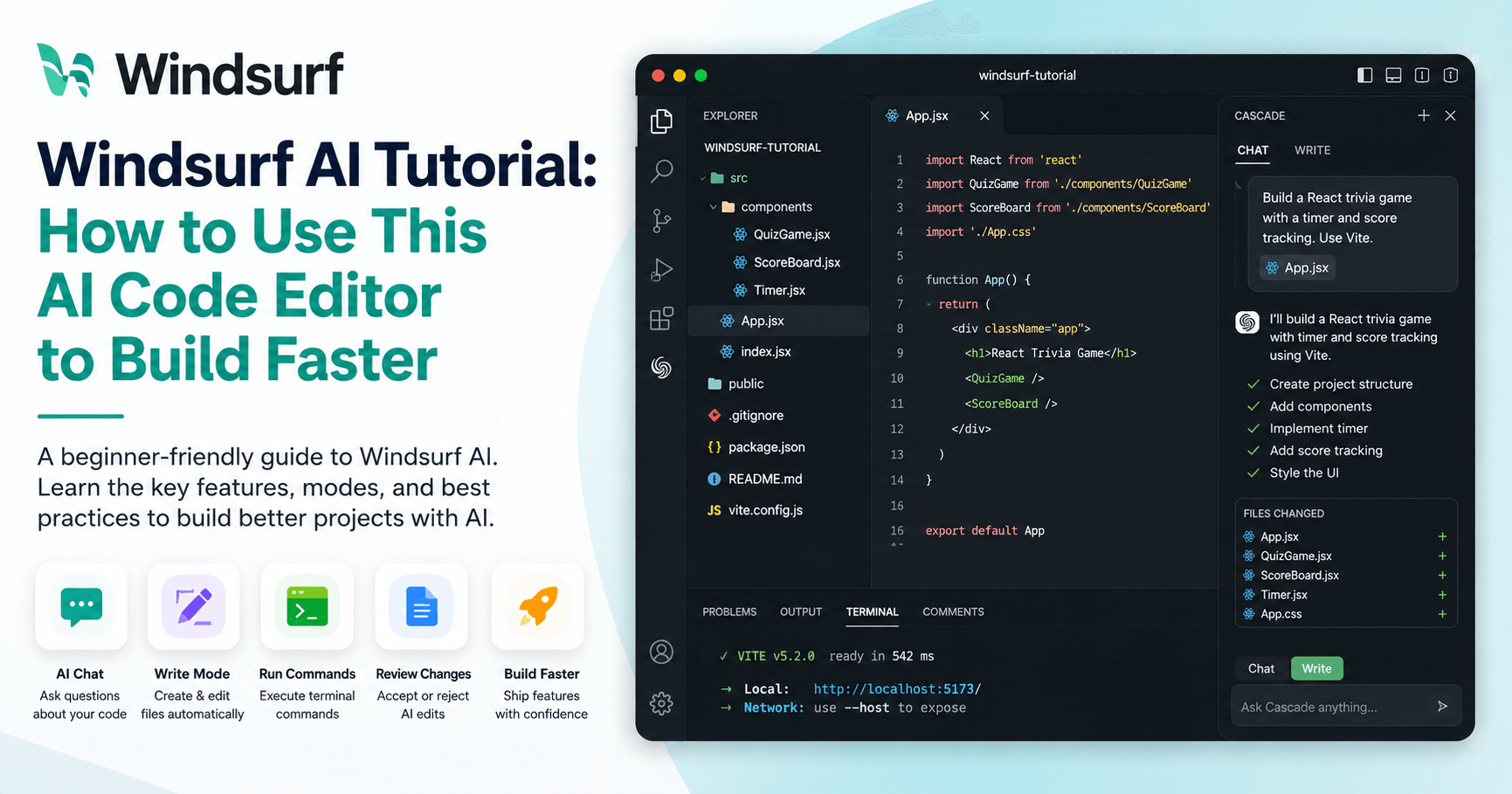

Windsurf is an AI code editor designed to help developers write, edit, and understand code faster. It is a relatively new editor that appeared at the end of 2024, but it has quickly become one of the most interesting tools for people who want to code with AI.
At its core, Windsurf feels familiar because it is based on VS Code. If you already use VS Code, you can import your settings, themes, and extensions, which makes the transition much easier. But the real value of Windsurf is not just the editor itself. The main feature is Cascade, its built-in AI assistant.
Cascade can chat with your codebase, create files, edit existing files, run terminal commands, explain code, and help you build complete features. For beginners, this can make programming less intimidating. For experienced developers, it can speed up repetitive work and help manage larger projects.
Windsurf Pricing: Free vs Paid Plans
Windsurf does offer a free plan, but it is limited. The free version may let you chat with the AI and generate code, but the most useful feature is the ability to modify files directly. That is where Windsurf becomes powerful.
For most users who want to actually build projects with AI, the Pro plan is probably the better option. The tutorial mentions that the Pro plan costs around $10 per month, which can be attractive compared to some other AI code editors.
The important point is simple: if you only want to experiment, the free plan is fine. But if you want Windsurf to become part of your real development workflow, a paid plan makes more sense.
Getting Started with Windsurf
After installing Windsurf, the first step is to open a project folder. This may sound basic, but it is important, especially for beginners. You should create your project in a place where you can easily find it later, such as your desktop or a dedicated coding folder.
Once you open a folder, Windsurf will show the Cascade panel. This is the AI assistant you will use most of the time. It can help you plan, write, edit, and improve your code.
Before asking Cascade to build anything, it is better to create a simple plan. Think about what you want to build, what the interface should look like, and which technologies you want to use. AI tools can produce strange results if your request is too vague. The clearer your plan is, the better the output will be.
Chat Mode and Write Mode
One of the most important things to understand in Windsurf is the difference between Chat Mode and Write Mode.
Chat Mode is useful when you want to ask questions, understand your code, or get suggestions without changing your files. For example, you can ask Cascade to explain your project, recommend a tech stack, or describe what a function does.
Write Mode is used when you want Windsurf to actually modify your files. In this mode, Cascade can create new files, edit existing ones, and apply changes directly to your project.
If you are a beginner, it is safer to use Chat Mode when you are still planning or learning. Once you are ready to let the AI make changes, switch to Write Mode.
Building a React App with Cascade
In the tutorial, the example project is a React trivia game that saves scores. The prompt is not just “make an app.” Instead, the user tells Windsurf exactly what framework to use.
This is a key lesson. When working with AI code editors, you should tell the AI your preferred stack. Mention the frontend framework, backend technology, database, styling library, or anything else that matters. If you do not specify these details, the AI may choose technologies randomly.
After receiving the prompt, Cascade starts creating the project. It can generate files, install dependencies, and even run terminal commands. For example, if the project uses Vite and React, Windsurf can suggest and execute the correct setup commands.
When Cascade runs terminal commands, the output appears in a special Cascade terminal. This is useful because the AI can read the terminal output and respond to errors or next steps.
Reviewing AI Changes
After Cascade edits your project, Windsurf shows the files that were modified. You can click each file and review the changes like you would in a pull request. This is useful because you can see exactly what the AI added, removed, or changed.
You can accept or reject changes file by file, or accept everything at once. However, there is one detail that many beginners misunderstand: when Cascade edits a file, the changes are already inside the file before you click “accept.”
The accept and reject buttons work more like a staging review system. If you like the changes, accept them. If you do not, reject them to undo what Cascade did.
This is important because if you close the panel without rejecting changes, the code may still remain in your files. So always review what Cascade has done before moving forward.
Using the Chat Window Effectively
The Cascade chat window can be opened or closed with a shortcut such as Control + L or Command + L, depending on your system. Inside this window, you can start new conversations, switch models, add context, and ask questions about your project.
Starting a new conversation is useful when you move to a different task. Long conversations can carry too much context, and that can confuse the AI. If you finish one feature and want to start another, creating a new chat session can help Cascade stay focused.
You can also add context manually. Windsurf allows you to tag files, folders, documentation, web links, or even selected sections of code. This is helpful when you want the AI to focus on a specific part of your project.
For example, if you highlight a section of code and open Cascade, that selected code can be sent as context. Then you can ask the AI to explain it, refactor it, or fix a problem in that specific area.
Targeted Inline Edits
Windsurf also supports targeted inline edits. Instead of asking Cascade to change a whole file, you can highlight a small section of code and give a focused instruction.
This is useful for small tasks such as renaming variables, changing formatting, refactoring a function, or adding a docstring. Inline editing is often better than using a large prompt because it limits the scope of the change.
The smaller and clearer the request, the easier it is to review the result.
The “Continue” Feature
One interesting feature in Windsurf is the ability to type “continue.” When you do this, Cascade tries to continue the current work based on the conversation history and recent changes.
For example, after adding a timer to a trivia game, typing “continue” may lead Cascade to add a visual warning when time is running low. This can be useful when you are working through a feature and want the AI to suggest the next logical improvement.
However, you should still review the result carefully. AI tools can make reasonable guesses, but they can also make mistakes.
Best Practices for Better Results
To get the best results with Windsurf, you should be specific. If you want the AI to edit a certain file, tag that file directly. If you want it to change only one section, highlight that section and use inline editing.
You should also do some of the work yourself. The more context you create through good code, clear file names, and logical structure, the better the AI can understand your project.
It is also important to read the code. Do not blindly accept every AI change. Review the edits like you would review code from another developer. If a change is too large, ask Windsurf to make it smaller or break it into steps.
Good naming matters too. Files named clearly, such as QuizGame.jsx, ScoreBoard.jsx, or Timer.jsx, are easier for AI to understand than random names like abc123.js. A clean project structure helps Windsurf choose the right files and avoid unnecessary mistakes.
Final Thoughts
Windsurf is a powerful AI code editor for anyone who wants to build software faster. Its biggest strength is Cascade, which can understand your project, generate code, edit files, run commands, and help you improve your application step by step.
For beginners, Windsurf can make coding easier by explaining code and helping create projects from simple prompts. For more experienced developers, it can speed up development and reduce repetitive work.
The best way to use Windsurf is not to let the AI do everything blindly. Instead, plan your project, give clear prompts, specify your tech stack, review every change, and use smaller focused edits whenever possible.
When used carefully, Windsurf can become a very useful coding partner.







टिप्पणियाँ0
टिप्पणी करने के लिए कृपया साइन इन करें।